
PC cooling decisions
How many case fans does a gaming PC need?
Before filling every fan mount, check the case, existing airflow, temperatures and noise. Buy the smallest useful improvement, not the biggest fan pack.
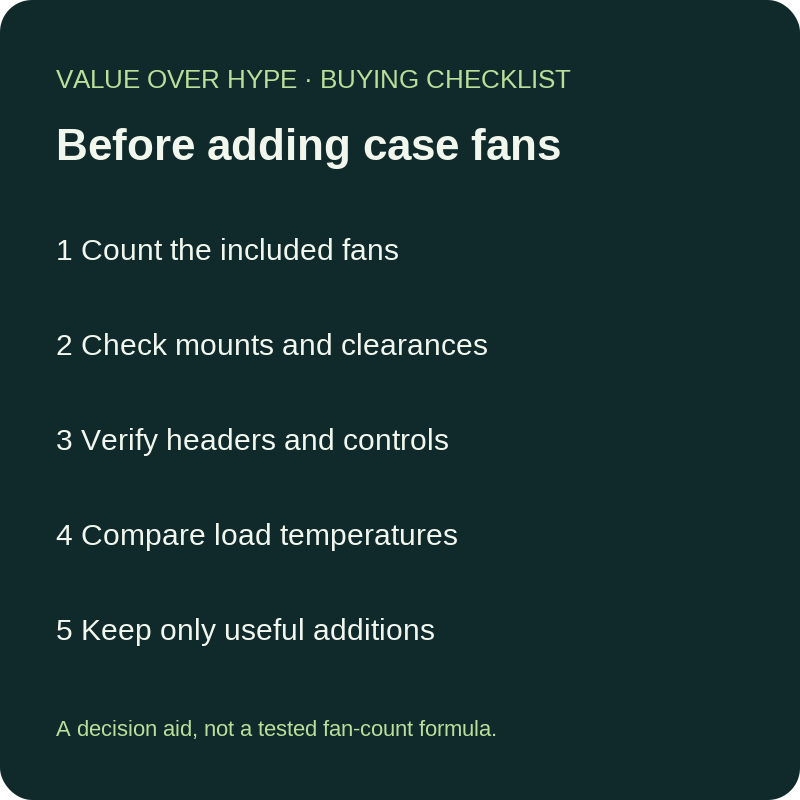
01
Already cool and quiet
Keep the included fans. Empty mounts are not a shopping list.
02
Hot or unexpectedly loud
Check dust, ventilation, orientation and control settings before buying.
03
Adding more fans
Verify physical fit, electrical limits and the full controller or splitter cost.
Count the fans you have, not the holes you could fill
This is researched buying advice, not our temperature or noise test. Our value judgment is to begin with the supplied arrangement and identify a specific problem before ordering accessories. We are not ranking fan models or claiming a frame-rate improvement.
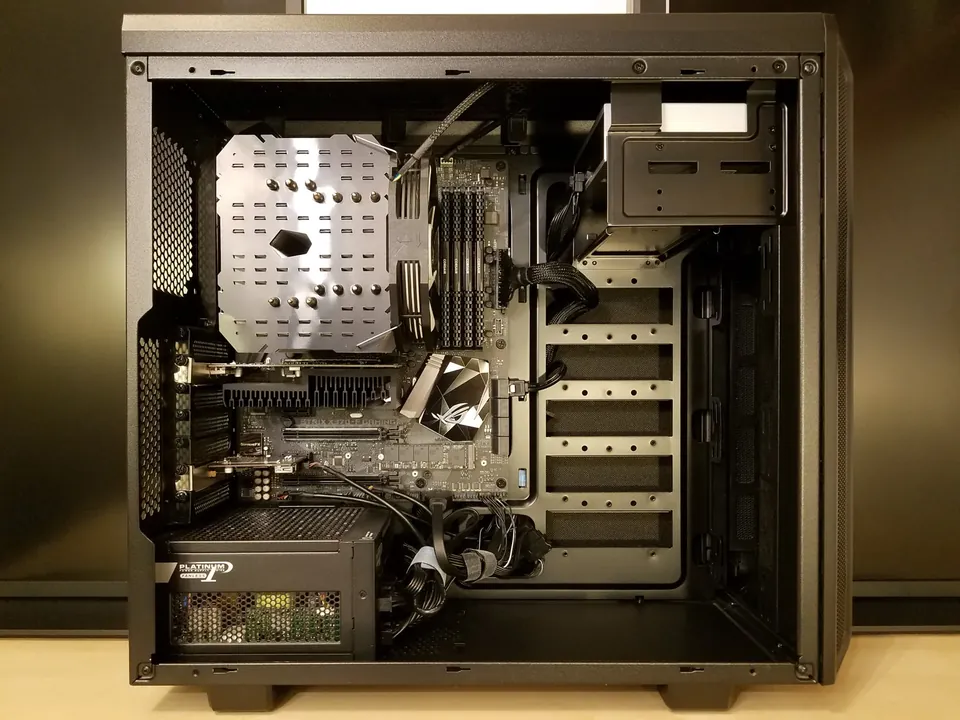
Read the exact case manual for supported dimensions and mounting locations. Look for an unobstructed route into and out of the case. A fan behind a restrictive panel is not equivalent to one behind open mesh. Leave the manufacturer's required ventilation space around the PC.
Check for dust and confirm that the existing fans operate as intended. Follow the system maker's shutdown, unplugging and service procedure before working inside. Do not open the power supply. A case-fan purchase is not a fix for every crash or high temperature.
Sources: Noctua: airflow fundamentals
Three fans is a layout, not a universal minimum or maximum
Noctua's layout table places two intake fans at the front and one exhaust at the rear when using three case fans. It labels five fans as its recommended baseline, while also saying there is no one-size-fits-all setup. Do not turn either number into a requirement for every budget PC.
Our recommendation is to test a supported layout before expanding it. A change that fails to solve your problem is not good value.
Include radiator fans when planning airflow. An AIO's fans may already occupy intake or exhaust locations; do not count them as if they did nothing for the case. Coordinate the airflow path rather than adding fans that fight it.
Make one change, then compare the same workload
Before spending, note the room conditions, game or task, CPU and GPU readings, and the noise that bothers you. Use the same workload and similar conditions after a change. Compare temperatures with the component maker's guidance, not a universal internet threshold.
Fan curves let speed respond to temperature rather than staying unnecessarily high. Adding fans can let individual fans run slower, but adding them without adjusting control is not a promise of less noise. Keep a change only if it solves your problem.
Positive pressure describes more air entering than leaving, not merely a larger intake-fan count. Different fan sizes, speeds and restrictions matter. Filters still need cleaning; positive pressure does not make a PC dust-proof.
Sources: Noctua: airflow fundamentals · Noctua: fan layouts and case pressure
A spare mount is not a spare electrical connection
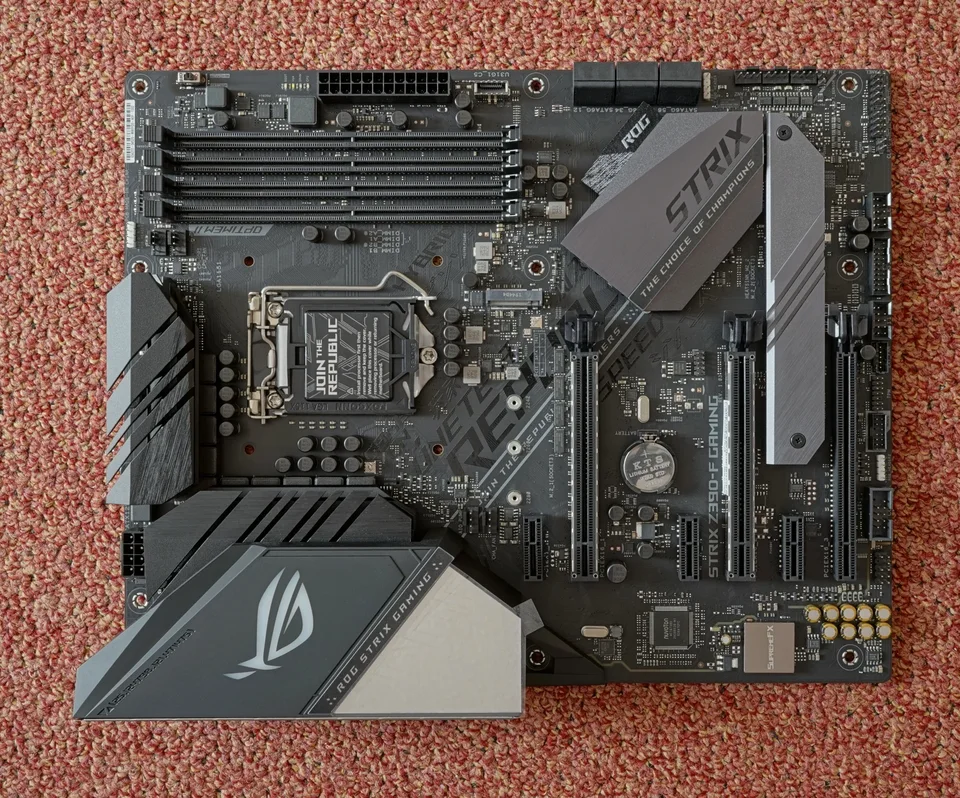
Standard four-pin PWM fans use a separate speed-control signal; three-pin DC fans use voltage control. Check the motherboard or controller's supported mode and the fan's instructions. Lighting connections are a separate compatibility question, so do not assume a matching brand or RGB label makes the whole kit compatible.
For a splitter, add the maximum current of every attached fan and keep the total below the exact header's specified limit. Noctua gives an example of three 0.14A fans totaling 0.42A on a documented 1A header. That is an example, not evidence that your header or fans have those ratings.
If a powered hub is needed, verify its input, per-port and total limits and follow its manual. Include that hub, cables and any necessary mounting hardware in the purchase total. A cheap multipack may not be the cheapest working upgrade.
Sources: Noctua: multiple fans on one header · Corsair: PWM and DC fan control
Choose the fan for its job, not one headline number
Maximum airflow and maximum static pressure are different endpoints. Noctua's pressure-versus-airflow comparison shows why the operating point against a case, heatsink or radiator matters. Do not rank fans using the largest advertised CFM number alone.
Confirm diameter, thickness, mounting-hole fit and cable reach. Check the maker's airflow-direction marking or instructions before installation, especially for reverse-blade designs. Secure the fan and keep cables clear of the blades; follow the case and fan manuals rather than forcing unsuitable screws.
Our checkout rule: write down the exact fan model, quantity, destination mounts, control method and delivered total before buying. No current price or stock claim is made here. If your PC already meets your cooling and noise needs, spending nothing is a valid result.
Sources: Noctua: airflow and pressure operating points · Noctua: case-fan installation
Common buying questions
Do I need to fill every fan mount?
No. Mounting capacity describes what fits, not what your workload requires. Judge the existing setup and add fans for a specific benefit.
Are more fans always quieter?
No. More fans may allow lower individual speeds, but their control settings and placement matter. Compare your actual noise and temperatures after changing the setup.
What belongs in the upgrade budget?
The fans plus any required controller, splitter, cables and mounting hardware. Compare the complete working setup, not just the pack price.
Sources & how we reached our advice
Checked November 16, 2026. We used the primary documentation below for compatibility and specifications. Buying thresholds and decisions are our editorial judgment. This guide does not claim hands-on benchmarks, an exhaustive product ranking, or a test score.
- Noctua: airflow fundamentals
- Noctua: fan layouts and case pressure
- Noctua: multiple fans on one header
- Corsair: PWM and DC fan control
- Noctua: airflow and pressure operating points
- Noctua: case-fan installation
No affiliate links. Editorial standards · Send a correction