
The quick answer
Build it yourself if you want control over every part and are comfortable assembling and troubleshooting it. Buy a prebuilt if you prefer an assembled system with documented support. Consider a custom builder when you want chosen parts without DIY assembly. Compare the complete delivered prices: RAM and SSD costs can make a builder’s bundle cheaper than buying parts separately.
For your first gaming PC
Should you build your own PC or buy a prebuilt?
Still deciding whether the computer needs to travel? Compare a gaming laptop with a complete desktop setup before choosing how to buy the tower.
Buy prebuilt when support and setup matter most
A prebuilt can be worth paying for if you want the computer assembled and one company responsible for system support. Check the exact warranty and return terms; a familiar logo does not replace reading the offer.
Build when choosing and maintaining parts is part of the appeal
DIY gives you control over the components. Budget time for compatibility checks, assembly, software setup, and diagnosis. The cheapest parts list is not necessarily the best ownership experience for you.
A fair comparison needs two complete quotes
Save both quotes on the same day. Match the GPU, RAM, storage, connectivity, and software you need. Add delivery, tax, required upgrades, and any paid assembly. If one price is lower only because it leaves something out, finish that quote first.
There is no universal assembly premium worth paying. Ask whether the price difference is worth the time and support you would gain. If neither option fits the full budget, keep saving rather than financing an unnecessary upgrade.
Work out your tower budget →Define the quote
Custom-built does not always mean DIY
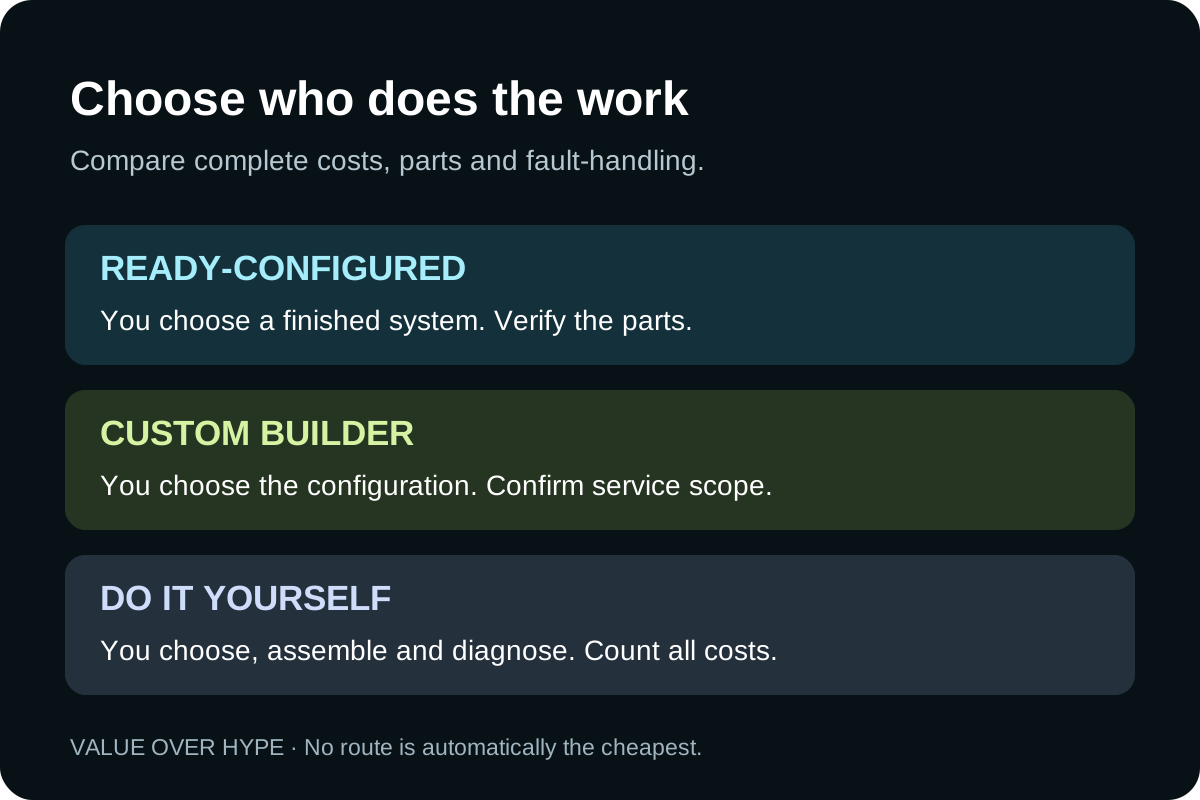
There are three routes, not two: a ready-configured prebuilt, a custom order assembled by a builder, or parts you assemble yourself. In the comparison below, “custom build” means DIY unless a paid assembly service is explicitly included. A configurable builder is the middle option if you want named parts without doing the assembly.
For that middle option, ask for the final parts list and the total assembly charge. Check whether the builder supplies the components or only assembles parts you provide, and who diagnoses a fault afterward. Do not assume paying for assembly buys a complete-system warranty. Put that answer beside the quote before comparing it with a retail tower.
Intel also distinguishes these three routes in its prebuilt, custom and DIY overview. Our choice is about the ownership experience, not a claim that one route is always faster or cheaper.
Before paying a premium
Turn “good support” into answers you can check
Keep the return policy and warranty separate. A return window helps you assess a newly delivered system; repair coverage is a different promise. Save the dated policy and your exact configuration with the receipt. Do not substitute a brand reputation or a customer star rating for these answers.
Who diagnoses a fault?
Does support troubleshoot the complete PC, or must you identify and remove the failed component? Is assembly-only work covered differently?
What do you send back?
The whole tower or one part? Ask who pays shipping and whether you need the original packaging. A single contact does not remove shipping costs or downtime. Distinguish an initial response target from a promised repair turnaround.
What is included, and for how long?
Record parts and labor separately, plus any optional service fee. Do not assume a paid protection plan is included in the advertised tower price.
What happens after an upgrade?
Read the exact policy for owner-installed parts and damage caused during installation. Ask about the proposed upgrade rather than assuming every component swap is covered.
Support may also depend on how a part was purchased. For example, Intel directs warranty support for its products sold inside a computer system to the system manufacturer. Do not assume a retail boxed-component policy applies to the same chip inside a prebuilt.
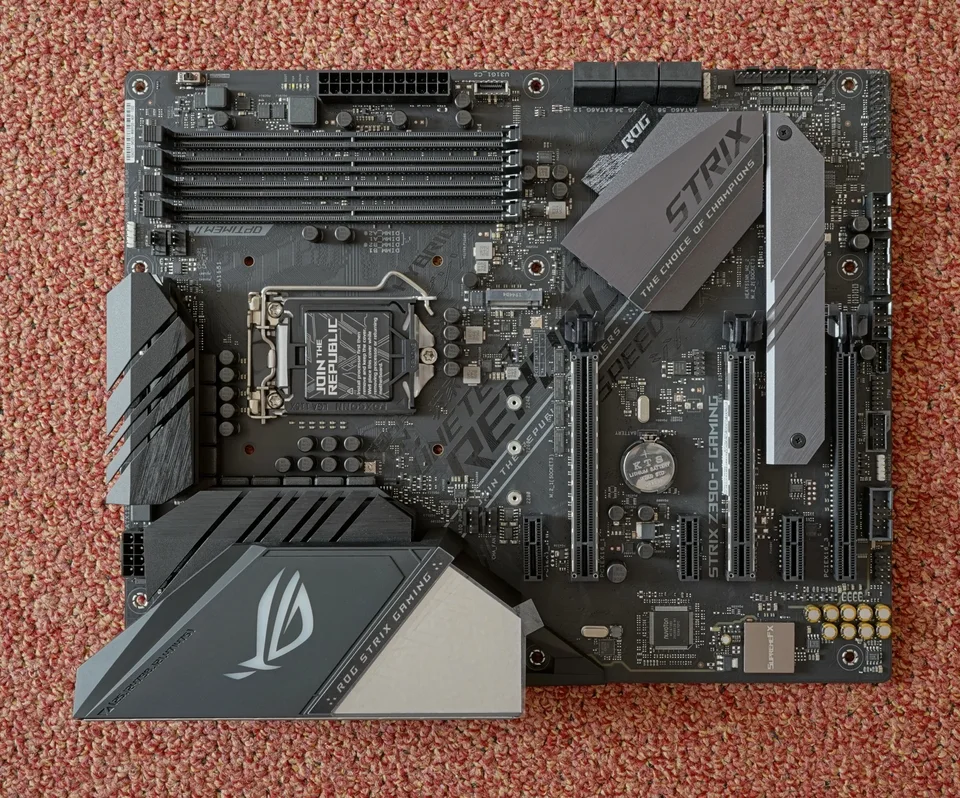
Buying a prebuilt now and upgrading it later? Use our graphics-card compatibility checklist before treating an upgrade as easy or inexpensive. If the current PC already works for your games, keeping it remains a valid fourth decision.
Step 01
Start with the screen you plan to use
Resolution and refresh rate determine how hard the graphics card must work. A balanced 1440p computer can feel better than an expensive 4K machine connected to the wrong monitor.
1080pBest value
Competitive games and high settings without overspending
Modern 6-core CPU · 16GB minimum, 32GB preferred · 8GB+ graphics memory · 1TB NVMe SSD
1440pSweet spot
Sharp visuals, high refresh rates, and room for newer games
Strong 6- or 8-core CPU · 32GB RAM · 12–16GB graphics memory · 1–2TB NVMe SSD
4KPremium
Maximum image quality, ray tracing, and large displays
Strong 8-core CPU · 32GB+ RAM · 16GB+ graphics memory · 2TB SSD · quality high-wattage PSU
These are practical targets, not hard requirements. Game, settings, and frame-rate goals can change what you need.
Step 02
Use a budget tier—not a single dream part
The graphics card usually has the biggest effect on gaming performance, but it still needs a capable CPU, enough memory, good cooling, and a dependable power supply around it.
$800–$1,000
Entry gaming
Target: 1080p
Protect the GPU budget. Choose 16GB of upgradeable RAM and a 1TB SSD instead of paying for cosmetic upgrades.
$1,100–$1,600
Best overall value
Target: 1440p
Aim for 32GB of RAM, 12GB or more of graphics memory, good airflow, and a power supply with room for upgrades.
$1,800+
High-end gaming
Target: 1440p ultra or 4K
Spend here only when your monitor and games can use the extra performance. Cooling and power quality matter more at this tier.
Approximate U.S. tower-only budgets before tax. Sale prices and component availability change quickly.
See our current prebuilt picks by budgetThe main choice
Custom-built versus prebuilt gaming PCs
Swipe across the table to compare →
| What matters | DIY build | Prebuilt |
|---|---|---|
| Up-front value | Price the complete parts basket; savings vary | Builder bundles can beat DIY when parts prices spike |
| Setup | You assemble, install, and troubleshoot it | Assembled; still needs setup, updates and checks |
| Part quality | You choose every exact component | Quality varies; some parts may be unnamed |
| Warranty | Check each component’s coverage and diagnosis process | Check the exact system, parts and labor terms |
| Upgrades | Usually easiest to repair and upgrade | Can be limited by proprietary parts |
| Support | You diagnose problems or hire help | A system-support contact; scope varies by seller |
DIY build
Pros
- Maximum control over performance, appearance, noise, and upgradeability
- No mystery power supply, motherboard, memory, or cooling parts
- Control over component quality, repair paths, and future upgrades
Cons
- Assembly and first-time troubleshooting take patience
- Each component has its own warranty and support process
- A mistake can delay the build or damage a part
Prebuilt
Pros
- Less assembly work when the configured system meets your needs
- A system-support route, with coverage and shipping terms to verify
- Sales and complete-system bundles can sometimes beat a separate parts basket
Cons
- Markup may replace money that could have gone toward a faster graphics card
- Some systems use weak cooling, generic power supplies, or single-stick memory
- Proprietary cases, motherboards, or connectors can block future upgrades
Make the comparison fair
Compare complete computers, not partial shopping carts
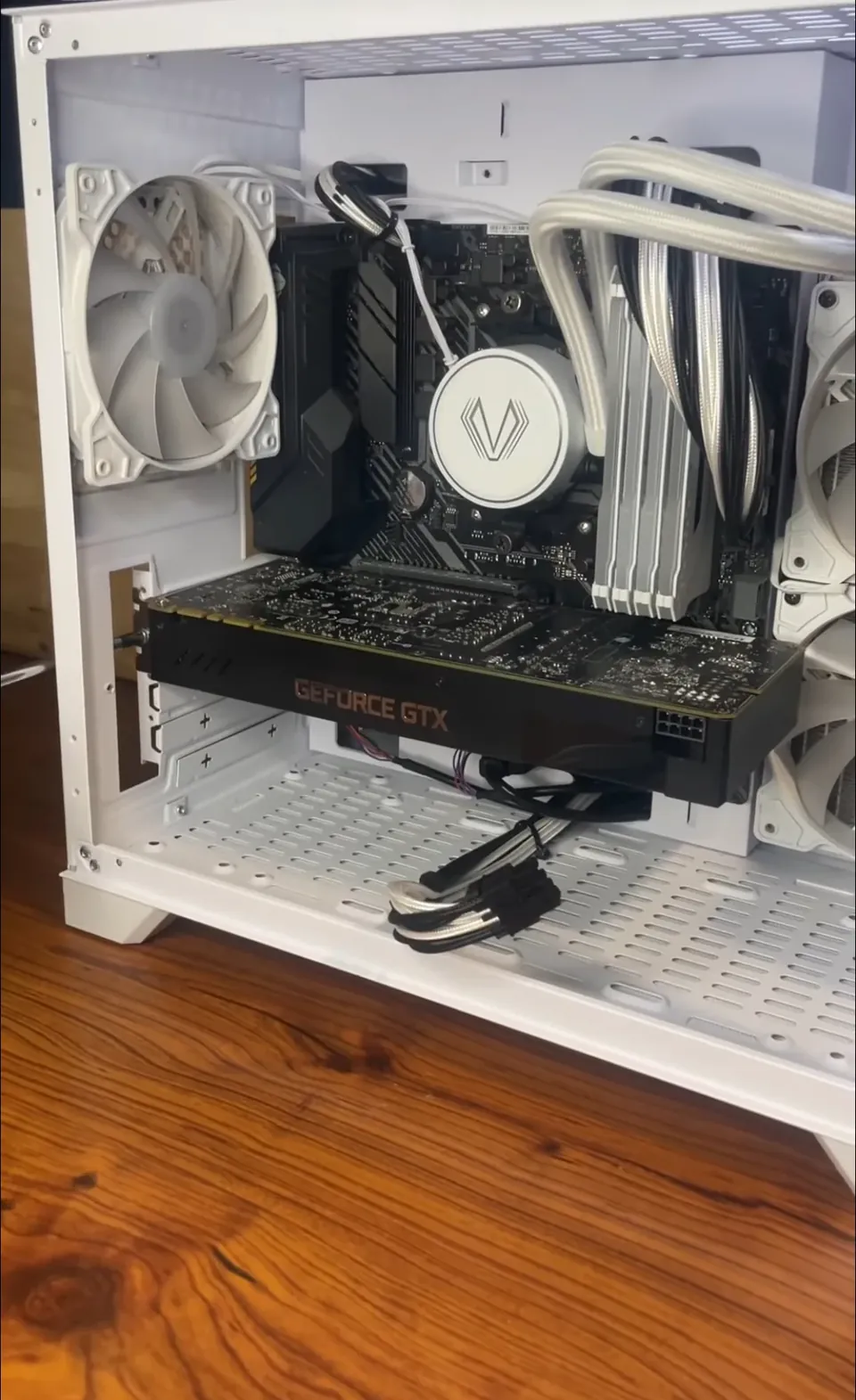
Use the same target on both sides
Match the GPU, useful RAM and storage capacity, connectivity and support needs. An upgrade you require on day one belongs in the purchase price.
- DIY build total
- Every component, required cooler, operating-system license if needed, shipping, tax and any tools or paid assembly.
- Prebuilt total
- Tower, shipping, tax and essential changes to RAM, storage or cooling. Verify what is included before adding accessories.
- Your time matters too
- Decide whether you want to assemble and diagnose it yourself. There is no universal dollar premium that makes support worthwhile for everyone.
Use your actual quotes · USD
Build vs. buy: your complete-price worksheet
Count each cost once. Enter 0 when a cost is included or unnecessary; leave an unknown cost blank. A partial subtotal is not a finished quote. The calculator does not estimate tax or check parts compatibility.
Check the two configurations before comparing
- Match the exact GPU and its VRAM, CPU, usable RAM capacity and configuration, storage, and required ports or wireless features. Similar product names do not guarantee similar performance.
- Write down the motherboard, PSU and cooling on each side. An unnamed part is a question for the seller, not evidence that two computers are equivalent.
- Record who handles diagnosis, parts and labor, how long coverage lasts, the return deadline, and who pays return shipping. Keep these terms beside your quotes; they are not included in the arithmetic.
No price comparison yet: complete both quotes.
Price alone does not establish the better buy. Weigh performance evidence, your assembly time, upgrade access and the support terms before choosing.
Calculates in this page. Entries are not sent or saved, and reloading clears them. Keep your own copy of the quotes.
Buy if
A complete prebuilt meets your needs at a price you accept, with clear parts and support—or the complete DIY basket offers the control you want.
Wait if
You have priced only the headline CPU and GPU, or the prebuilt needs upgrades you have not costed yet. Finish the comparison first.
Skip if
The plan relies on an unnamed power supply, incompatible parts or a seller who cannot explain the warranty. Resolve those gaps before spending.
Before checkout
Seven prebuilt red flags to catch
The exact power-supply brand, wattage, or efficiency rating is missing
One stick of memory is used instead of a matched pair
The case has a solid front panel with very little airflow
The motherboard, case, or power connectors are proprietary
A powerful processor is paired with a weak graphics card
Only 512GB of storage is included with no easy expansion
The warranty requires expensive shipping or has vague labor coverage
Balance
Do not sacrifice the graphics card just to get a higher CPU model number.
Upgrade path
Confirm standard-size parts, open memory slots, storage slots, and power headroom.
Warranty
Read who pays shipping, how long labor is covered, and how owner-installed parts and installation damage affect support.
Value Over Hype verdict
Choose based on how you want to own it
Choose DIY if
You enjoy learning, want exact parts, and plan to repair or upgrade the system yourself.
Choose prebuilt if
You prefer a documented system-support route and less assembly work, at a complete price you can afford.
Neither route is automatically better. The best gaming PC is the one with balanced parts, honest specifications, and support that matches your confidence level.
Need portability? Read the gaming laptop guideReference points
Background component references include the Steam Hardware Survey, NVIDIA GeForce desktop lineup, AMD Radeon specifications, and Microsoft DirectStorage guidance. The three-route and warranty-source checks above were made October 25, 2026. The worked example is hypothetical, not a current parts-price survey. Prices and availability can change.
Gaming without overspending
Better decisions for your next setup.
Choose your budget
Best budget gaming PCs
Compare the $800, $1,200 and $1,500 tiers—with availability checks and room for the rest of your setup.
Read the guide →Need portability?
How to choose a gaming laptop
GPU power, cooling, screen, RAM, and what you will carry. Make the whole laptop earn its price.
Read the guide →Verify the offer
Check the exact prebuilt before buying
Save the parts, full cost, upgrade limits, return deadline, and support terms before checkout.
Read the guide →