
The quick answer
Choose a gaming laptop by matching your games and display target first, then comparing GPU power, cooling, memory, and the complete carrying weight. Start your budget comparison at 16GB RAM and a 1TB SSD; pay for 32GB when your workload or upgrade limits justify it.
Start here
How to choose a gaming laptop in five steps
01
Name your games
Write down three games, the resolution you will use, and your frame-rate goal. Compare results at the same settings; generated frames and native frames are different measurements.
02
Set the complete budget
Include any mouse, headset, storage upgrade, tax, and shipping. Keep a cheaper configuration in the comparison so premium extras have to justify their cost.
03
Compare the exact GPU setup
Find the GPU model and configured power, then look for sustained tests of that exact laptop. A higher wattage number is not a universal ranking across different chips.
04
Check the everyday compromises
Use the keyboard and ports you need. Compare the screen, fan noise, laptop-plus-charger weight, and battery results for light work—not only plugged-in games.
05
Use the return window
Run your own games on the included charger, try the screen in your room, and test sleep, Wi-Fi, and peripherals. Save the listing and check that the delivered specification matches.
Our shopping process, not a performance test. NVIDIA explains where laptops report graphics power; Intel covers the main laptop selection factors.
Priority order
Buy the whole laptop—not one impressive number
Gaming-laptop shopping gets easier when you rank the parts by what you will actually feel. A faster processor cannot rescue a weak graphics configuration, poor cooling, or a dim screen.
GPU power and cooling
The graphics chip matters, but its allowed wattage and the laptop's cooling system decide how fast it can stay during a long game.
Display quality
A fast screen should also be bright and colorful. Refresh rate alone does not guarantee a good-looking display.
Memory and storage
Use game requirements to check capacity. Our budget starting point is 16GB RAM and a 1TB SSD; consider 32GB for heavier multitasking or limited upgrade options.
Portability you can accept
Count the laptop, charger, battery life, fan noise, and desk space together. Thin does not always mean convenient.
The hidden specification
The GPU name does not tell the whole story
Laptop manufacturers can run the same graphics processor at different power levels. More available power can improve sustained performance, but only when the cooling system can handle the heat.
Why wattage matters
NVIDIA lists GPU subsystem power ranges of 45–100 watts for the RTX 5060 Laptop GPU and 60–115 watts for the RTX 5070 Ti Laptop GPU. These are configuration ranges, not measured sustained power or a performance ranking. Chassis design and configured power are essential parts of the comparison.
Do not assume the thinnest laptop or the highest model number is automatically faster in a long gaming session.
Before you buy
- Find the laptop's listed GPU power or TGP
- Read sustained gaming tests—not only short benchmarks
- Compare fan noise and keyboard-surface temperature
- Confirm performance while connected to the included charger
Spend with purpose
Three realistic gaming-laptop tiers
$900–$1,200
Entry gaming
1080p gaming
Current entry or mainstream GPU · 16GB upgradeable RAM · 1TB SSD · 144Hz+ screen
Avoid 8GB of system memory, dim 250-nit-class screens, and 512GB-only storage unless the upgrade price is very low.
$1,300–$1,800
The sweet spot
High-refresh 1080p or 1600p
Well-powered mainstream GPU · 32GB preferred · 1TB SSD · bright 16:10 display · strong dual-fan cooling
A thinner chassis may run louder or slower than a slightly heavier laptop with the same GPU name.
$1,900+
High-end portable
1600p ultra or external 4K display
Upper-tier GPU · 32GB+ RAM · 2TB preferred · premium panel · high-capacity cooling and power delivery
Paying more for a faster CPU rarely helps gaming as much as moving up in GPU performance or buying a better display.
Approximate U.S. pricing before tax. Evaluate sale models by their complete configuration, not the crossed-out list price.
A practical comparison worksheet
Two similarly priced laptops: compare what you will actually use
Make one short comparison for each exact retailer model, not each product family. Record the date, seller, new/open-box condition and delivered total. If a listing leaves out a specification you need, mark it unknown rather than borrowing it from a more expensive configuration with the same name.
1. Set a game and screen target
Write down your two most demanding games, their published requirements, and whether you will play on the built-in screen or an external display. A 2560×1600 panel does not promise that every game will run smoothly at native resolution and maximum settings. Decide what you can compromise before paying for a higher-resolution screen.
2. Compare the complete GPU configuration
Record the exact Laptop GPU name, graphics-memory capacity, configured power and switching support. Keep manufacturer maximum power separate from sustained test results. Do not compare one review's quiet mode with another machine's maximum-performance mode. If matching tests are absent, acknowledge that gap instead of ranking the machines by watts alone.
3. Add upgrades you actually need
If the cheaper model needs more RAM or storage for your workload, add compatible parts and any installation cost to its total. Confirm supported memory and occupied slots first. Two advertised slots do not mean one is empty. Do not buy extra memory merely to match a bigger number when your games and applications already fit.
4. Include the everyday costs
Compare laptop-plus-charger weight, the display, ports, return terms and warranty handling. Keep optional accessories separate from necessities. If you need a dock, verify its monitor path and charging limits first; a USB-C socket does not guarantee either function.
Our tie-breaker: choose the less expensive complete setup that meets the jobs you defined, unless the other laptop has a specific benefit you will use. A sale badge, faster CPU tier or AI label is not that benefit by itself. If fan noise, battery runtime or sustained gaming speed decides the purchase, wait for credible measurements of the matching configuration rather than treating this researched checklist as a performance test.
This is our comparison method, not a measured ranking. Technical background: Intel’s laptop selection guide and NVIDIA’s Laptop GPU specifications.
Put the checklist to work
A near-ceiling comparison: GIGABYTE AERO X16
Researched candidate · not hands-on tested
32GB RAM, 1TB SSD, RTX 5060 Laptop GPU
The Ryzen AI 7 350 configuration, Best Buy SKU 6635752, was $1,249.99 when checked October 24, 2026, $50 above our October 16 snapshot. Our ceiling remains $1,250 before tax: this is now a near-ceiling comparison candidate, not an automatic bargain. It includes a 16-inch 2560×1600 165Hz display.
The complete memory-and-storage bundle is the attraction. We have not measured fan noise, cooling, battery life or sustained gaming speed. An 8GB GPU also means some games may need lower texture settings.
Read the full recommendationAERO X16: what we verified, and what still needs checking
Match model AERO X16 1VH93USC64AH, not just “AERO X16.” Best Buy and GIGABYTE’s U.S. model listing agree on the Ryzen AI 7 350, RTX 5060, 32GB RAM, 1TB SSD, and 2560×1600 screen.
- Exact retail offer
- Best Buy showed $1,249.99, sold by Best Buy, with Add to Cart on October 24. Our ceiling remains $1,250 before tax. Delivery, local stock, and checkout terms still need your location; the displayed button is not a delivery promise.
- Memory and SSD expansion
- GIGABYTE’s family specification lists two SO-DIMM sockets, up to 64GB DDR5-5600, and two M.2 slots: one PCIe 4×4 and one 4×2. We have not confirmed which sockets this retail unit occupies. Check that before ordering an upgrade.
- GPU power and switching
- The family advertises up to 85W maximum GPU power and a MUX switch. Neither establishes this exact SKU’s sustained wattage, cooling results, or Advanced Optimus support. Ask for the configured limit and measured tests of the matching model.
- What goes in your bag
- GIGABYTE lists approximately 1.9kg for this model; the family specification lists a 150W adapter. Charger mass and total carrying weight remain unconfirmed. We have no measured battery-runtime, fan-noise, or temperature results.
Specification checks: GIGABYTE’s exact U.S. model listing, AERO X16 family specifications, and the family’s advertised GPU-power limit. These are manufacturer specifications, not our measurements.
Buy if
You need to move your gaming computer regularly, accept using its charger for gaming, and the exact AERO configuration stays at or below $1,250.
Wait if
Low noise, battery life or sustained performance is decisive for you. Seek measured tests of the exact configuration before ordering.
Skip if
Your computer will stay on one desk and you already own a monitor. Compare the complete desktop setup cost before paying for portability.
Running out of room for games? Check when an external SSD can hold your PC game library, and when an internal upgrade is the better route.
Want a smaller travel adapter? Check whether your exact laptop supports USB-C charging before treating it as a replacement for the gaming power supply.
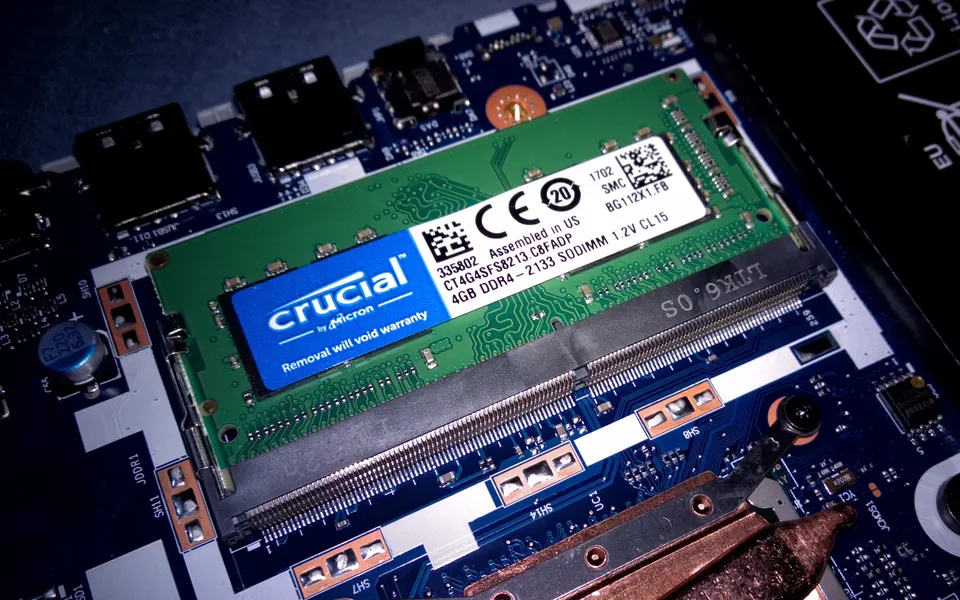
Before assuming you can add memory later, check whether your laptop RAM is upgradeable, including soldered memory, occupied sockets and supported modules.
Save this list
Eight details to verify before checkout
01
GPU wattage
Find the listed Total Graphics Power or GPU subsystem power—not only the GPU model name.
02
Cooling design
Look for two fans, several exhaust vents, and reviews that include sustained gaming temperatures and noise.
03
Display
Aim for 144Hz or faster, good color coverage, and roughly 350–400 nits or more for flexible indoor use.
04
Memory
Match game and app requirements first. If choosing 16GB, confirm whether a later upgrade is possible; soldered memory makes today’s capacity decision permanent.
05
Storage
Start at 1TB and confirm there is a second M.2 slot or an easy path to replace the original drive.
06
GPU switching
A manual MUX setting may need a restart. NVIDIA Advanced Optimus can switch the display path automatically without a reboot; confirm support on the exact laptop.
07
Ports
Confirm display outputs, USB-C charging limits, Ethernet, and whether the ports fit your desk setup.
08
Warranty
Check accidental-damage options, depot shipping, labor coverage, and whether memory or storage upgrades are allowed.
Before budgeting for another SSD
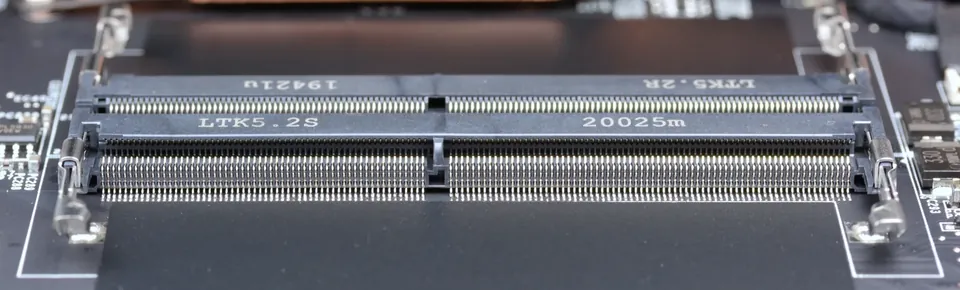
Check the exact model’s service manual for a free storage slot, supported drive size and required mounting parts. A replaceable drive does not prove there is room for a second one.
Can this laptop take a second SSD? →Before buying a dock or two monitors
Verify the laptop’s simultaneous-display limit and the full port, cable and dock path at your target resolution and refresh rate. A USB-C connector or two dock sockets alone is not confirmation.
Check a two-monitor laptop setup →GPU-switching source: NVIDIA’s explanation of Advanced Optimus. A MUX label alone does not confirm automatic switching.
Real-world tradeoffs
What the product page tends to minimize
Full speed needs a plug
Expect significantly lower gaming performance on battery power.
Battery life varies
Light use can last for hours, but gaming drains the battery quickly.
Noise is part of performance
A quieter mode often reduces heat and speed; a faster mode gets louder.
The charger counts
Large power bricks add meaningful weight and take up space in your bag.
Common buying questions
What should you look for in a gaming laptop?
Is 16GB RAM enough, or should I buy 32GB?
Check the recommended requirements of your games, then allow room for the apps you use alongside them. Our budget choice is 16GB when it meets those needs and can be upgraded. We prefer 32GB for heavier multitasking or a machine with soldered memory that you plan to keep. Extra RAM is not a substitute for a capable GPU. Our 16GB vs. 32GB gaming guide explains capacity limits, memory channels, and upgrade costs.
Before ordering, confirm whether memory is soldered, how many slots are occupied, the supported capacity, and the compatible module type. Compare the cost of upgrading with the price of the 32GB configuration. Intel’s memory guide explains the role of capacity and compatibility.
Is a 512GB SSD a deal-breaker?
Not automatically. Add up the installation sizes of the games you want to keep, then leave space for Windows, other apps, and updates. Our 1TB preference is about convenience. A discounted 512GB laptop can still make sense if a compatible SSD upgrade keeps the complete cost lower. Confirm the slot size and whether adding storage means replacing the original drive.
How do I compare portability and gaming power?
For a daily commute, compare laptop-plus-charger weight and independently measured light-use battery life. For desk gaming, compare sustained performance, noise, and temperatures while plugged in. Use results for the exact laptop configuration and power mode. A lighter design is useful only if its tradeoffs fit your routine.
Should I buy a gaming laptop or a desktop?
Choose the laptop when moving the whole computer matters. If it stays at one desk, compare a desktop plus the screen and peripherals you need. Include upgrade options and repair costs in that decision. Our budget gaming PC shortlist provides tower-only comparisons.
Further reading: Intel’s gaming laptop selection guide. The recommendations above are our buying framework, not benchmark results.
Value Over Hype verdict
The balanced choice wins
Buy the laptop with enough GPU power, cooling, memory, and display quality for your games—even if it means choosing a slightly lower CPU model or a less dramatic design.
RAM capacity matched to your workload
1TB SSD with expansion room
Cooling proven under sustained load
Reference points
Current context was checked against the NVIDIA laptop GPU comparison, Steam Hardware Survey, and Microsoft DirectStorage guidance. Laptop configurations, power limits, prices, and availability can change.
Gaming without overspending
Better decisions for your next setup.
Choose your budget
Best budget gaming PCs
Compare the $800, $1,200 and $1,500 tiers—with availability checks and room for the rest of your setup.
Read the guide →Choose how to own it
Build vs. buy a gaming PC
Compare complete costs, support, and upgrade options before deciding who puts it together.
Read the guide →Buy useful capacity
16GB or 32GB RAM for gaming?
Check your workload, memory compatibility, and complete upgrade cost before paying for more capacity.
Read the guide →