
Laptop compatibility
Can your laptop run two external monitors?
Check the exact laptop, USB-C port, dock and cables before buying. Two display sockets do not guarantee two independent screens at the settings you want.
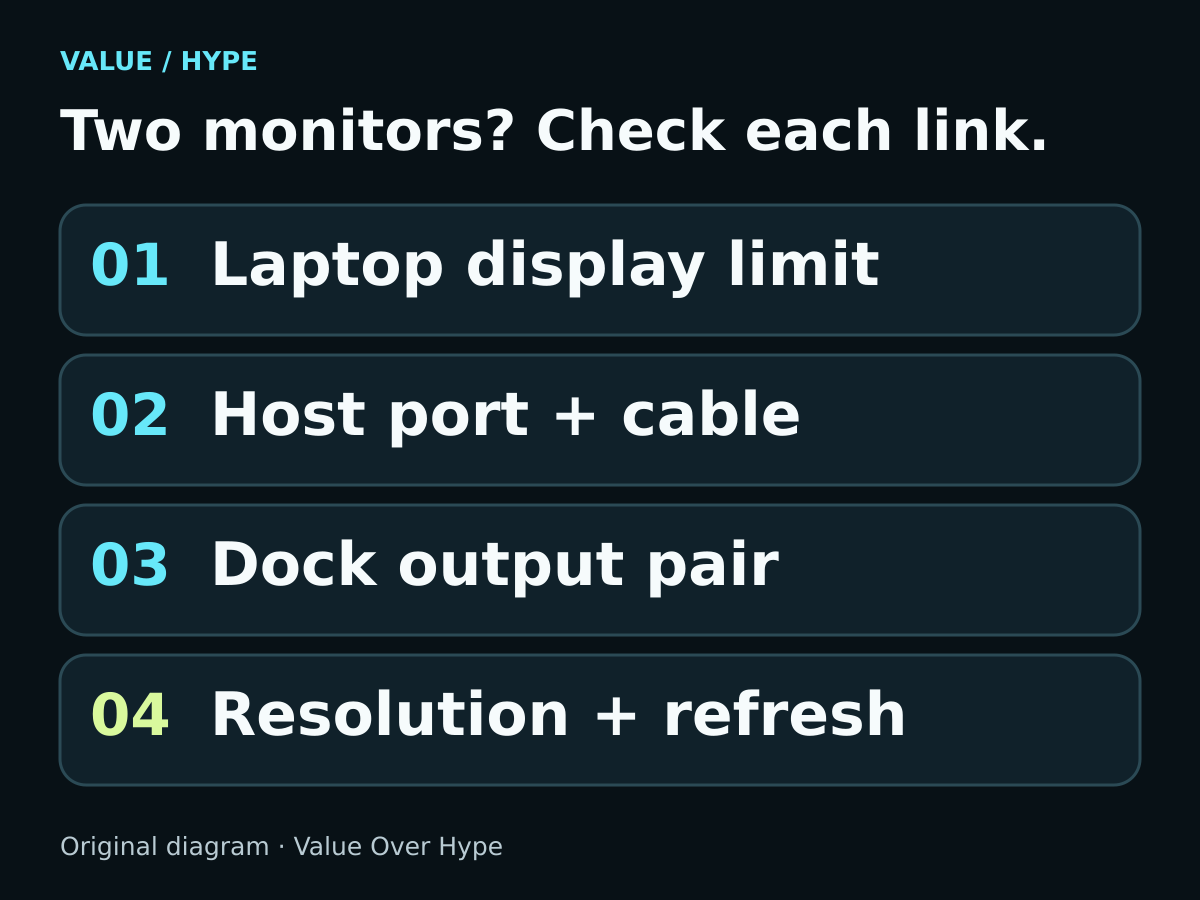
01
Your current ports already work
Reuse a supported direct connection. A dock can reduce cable clutter, but it is not automatically a necessary upgrade.
02
You want one-cable convenience
Find the dock’s compatibility row for your exact host connection, operating system and two simultaneous displays.
03
A specification is missing
Keep it marked unconfirmed. Ask for the exact connection map before spending money on another adapter.
First, define what “two monitors” means
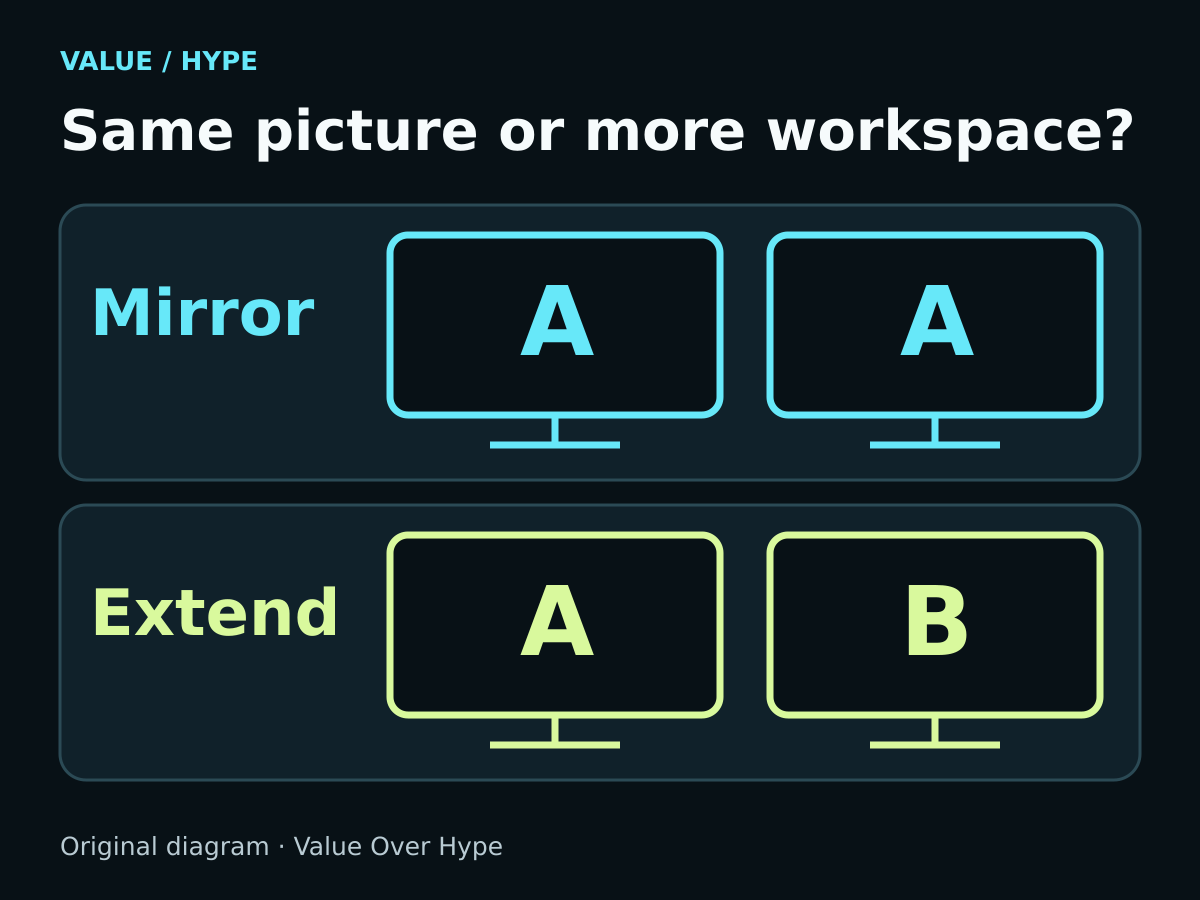
For extra workspace, you want an extended desktop: a document on one screen and a different app on the other. Mirroring repeats the same picture. A basic duplicating splitter does not create two independent desktops; do not confuse it with a Multi-Stream Transport (MST) hub or a software-based USB graphics product.
Write down each monitor’s resolution and refresh rate, such as two 2560 × 1440 screens at 60Hz. Also decide whether the built-in laptop screen must remain active. “Two 4K monitors” leaves out the refresh rate, the connection method and whether all screens work together.
Sources: Microsoft: external monitor checks and Extend mode
Find the limit for your exact laptop
Record the full model number, chip or CPU configuration, and operating-system version. Read the manufacturer’s display-support specification or user manual. A graphics-chip family’s maximum capability and the number of sockets on the laptop are not a substitute for the laptop maker’s supported simultaneous setup.
On a Mac, Apple’s guide shows how to find the model specifications and the Display Support or Video Support section. On Windows, use the PC maker’s support page for the exact configuration. Look for the screen count and the permitted resolution/refresh combinations, including any condition on the internal display.
Sources: Microsoft: external monitor checks and Extend mode · Apple: find a Mac’s display and port specifications
Check the port, not just its shape
USB-C describes a connector. For a native video connection, identify the port’s documented display capability, such as DisplayPort Alternate Mode or the applicable Thunderbolt/USB4 display support. Then match the cable and attached accessory. A charging cable’s wattage does not tell you that it carries the video signal you need.
Intel describes Thunderbolt 4 as supporting up to two 4K60 displays through a suitable connection. Treat that as an interface capability, then check the actual computer, dock and screens. Do not transfer the claim to every USB-C port, USB4 implementation, fallback connection or pair of dock outputs.
A data-only USB hub is a separate accessory for devices such as keyboards, mice and storage. Extra USB-A or USB-C sockets on it do not establish display output. It should not be presented as a substitute for a documented video-capable dock. Software-based USB graphics adapters are another category, discussed below.
Sources: Microsoft: USB-C features, ports and cable matching · Intel: Thunderbolt 4 and USB-C capabilities

Find the dock’s two-display table
Look for a row that names the host connection, operating system, output ports and two screens running simultaneously. “Supports 4K” may describe a single display. Confirm which HDMI, DisplayPort or downstream Thunderbolt sockets can be used together, rather than assuming every combination is equivalent.
Microsoft’s Surface Thunderbolt 4 Dock is a useful example: its table lists two 3840 × 2160 displays at 60Hz over USB4/Thunderbolt 4. The same page limits it to one 4K external display when the host uses a non-USB4/Thunderbolt USB-C connection. The connector shape can stay the same while the supported setup changes.
This is a specification-reading example, not a dock recommendation. Check the matching host and dock documentation, the required cables, and any shared limits before buying. A more capable laptop cannot make a dock exceed the dock’s documented limits.
Sources: Microsoft: Surface Dock simultaneous-display limits
On a Mac, the chip, lid and output route matter
Apple’s instructions for MacBook Air and MacBook Pro with the base M3 chip require the lid closed for two external displays, plus power and an external keyboard and mouse or trackpad. They specify macOS Sonoma 14.3 or later for Air and 14.6 or later for Pro. Opening the lid disconnects or darkens the secondary external screen. Those instructions are not a rule for M3 Pro or M3 Max models.
Apple’s M4 and M5 MacBook Air guidance allows two external displays alongside the built-in screen, subject to resolution and refresh limits. Closing the lid does not add more external displays. A supported hub or daisy-chain route can change how screens connect without raising the native display-count limit.
The dock’s output route can also matter. Dell documents that certain ordinary DisplayPort/HDMI combinations on its WD19TB, WD19TBS, WD22TB4 and SD25TB4 docks mirror on macOS because of MST extended-desktop limitations. Its supported connection diagrams use specified Thunderbolt paths. Follow the diagram for the named dock and a compatible Mac; do not turn it into a universal rule about all docks or all Macs.
Sources: Apple: dual displays on base-M3 MacBooks · Apple: M4 and M5 MacBook Air display support · Dell: named Thunderbolt docks and Apple display routing
DisplayLink is a separate compatibility question
Some docks use USB graphics technology such as DisplayLink and require software support. Dell, for example, points users of named universal docks to DisplayLink drivers for macOS. Do not treat those products as the same native display path described in a laptop’s HDMI or Thunderbolt specifications.
If you are considering one, check the exact dock, current operating system, required software and intended applications separately. This guide does not establish its performance or promise that any software-based dock will support a particular number of screens.
Keep these answers beside the listing
Use the checklist below in your own notes. Save the manufacturer’s evidence or the seller’s written answer. An unfilled line is an unresolved compatibility question, not a reason to assume the most convenient answer.
- Laptop: full model, chip/CPU variant and operating-system version.
- Screens: each monitor’s resolution and refresh rate; whether the laptop screen must also stay active.
- Laptop evidence: documented simultaneous-display limit and the source URL.
- Connection: exact host port, supported video protocol and cable/adapter capability.
- Dock evidence: exact model, host/OS compatibility row and the two output ports used together.
- Complete cost: dock, cables and any required power supply; return terms if the documented setup does not work.
A useful question for support: “Can [full laptop model/chip] on [OS] use [dock model] to extend the desktop to [monitor A resolution/Hz] and [monitor B resolution/Hz] together, with the laptop screen [active/closed]? Which host port, dock outputs and cables are required?”
Try the complete setup while you can still return it
Our suggested acceptance check is to connect one screen directly where the laptop supports it, then add the second and test the intended dock route. In Windows, select Windows + P, then Extend. Check each screen’s resolution and refresh setting, rather than stopping when both panels light up.
Try your intended lid position, wake from sleep, reconnecting the dock and normal keyboard, mouse and storage use. These are practical checks we recommend, not tests we have performed on the products named here. If a direct route works but a dock route does not, compare the documented output map before deciding the laptop needs replacement.
Keep working hardware when it already meets the goal. Buy a dock when a supported connection or meaningful convenience justifies its full cost. Wait when the exact two-screen combination is still unconfirmed.
Common buying questions
Can every USB-C laptop connect to two monitors?
No. Check its simultaneous-display limit and the video features of the exact port, then the dock and cables. Connector shape alone does not establish the setup.
Will two HDMI ports on a dock give me two separate desktops?
Only when the documented host, operating system and output combination support it. Some arrangements duplicate a picture instead.
Do I need a dock at all?
Not if the laptop’s supported direct outputs already run your screens at the settings you need. A dock may still be worth paying for if it makes daily connection simpler.
Is a charging or data-only hub enough?
Do not assume so. Verify explicit video-output support. Charging power and extra USB sockets are different capabilities from a supported display path.
Sources & how we reached our advice
Checked October 16, 2026. We used the primary documentation below for compatibility and specifications. Buying thresholds and decisions are our editorial judgment. This guide does not claim hands-on benchmarks, an exhaustive product ranking, or a test score.
- Microsoft: external monitor checks and Extend mode
- Apple: find a Mac’s display and port specifications
- Microsoft: USB-C features, ports and cable matching
- Intel: Thunderbolt 4 and USB-C capabilities
- Microsoft: Surface Dock simultaneous-display limits
- Apple: dual displays on base-M3 MacBooks
- Apple: M4 and M5 MacBook Air display support
- Dell: named Thunderbolt docks and Apple display routing
- Dell: DisplayLink docks and macOS software support
No affiliate links. Editorial standards · Send a correction