
Desktop upgrade guide
Can you upgrade a prebuilt PC’s graphics card?
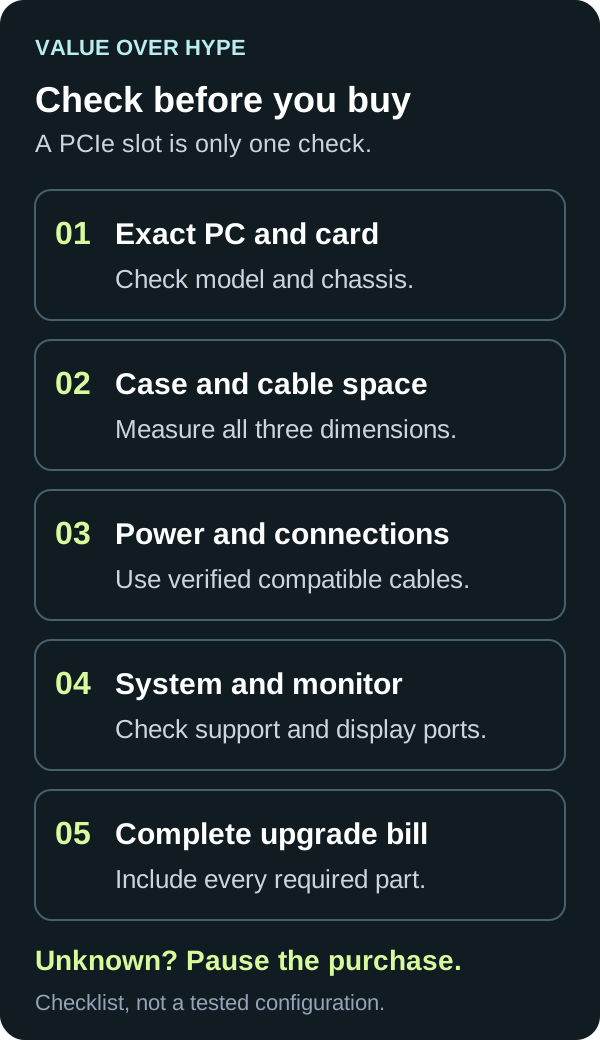
Check the exact PC, case space, power supply and cables before buying a GPU. A matching slot alone does not make a prebuilt upgrade compatible or good value.
01
Everything is documented
Compare the exact card against the computer and component manuals, then price the complete upgrade.
02
The PSU or case is unclear
Identify the installed parts before ordering. A model-family name or a wattage number is not enough.
03
Several parts must change
Compare the whole project with keeping the PC or replacing it. A cheap card can become an expensive upgrade.
1. Identify the computer you actually have
Write down the desktop’s full model and chassis type, installed graphics card, power-supply model and wattage. Use its official support page and service manual. A tower, small-form-factor desktop and mini PC sharing a family name need not have the same upgrade options.
Dell’s upgrade guidance makes chassis, available power, motherboard and BIOS compatibility part of the graphics-card decision. For an older prebuilt, confirm the supported upgrade path instead of assuming that a newer card will work because its edge connector looks right.
Check the proposed card’s exact manufacturer part number too. Different versions using the same GPU can have different coolers, dimensions and power requirements. Save the specifications for the version you would actually order, not a similar-looking model.
Sources: Dell: upgrade considerations for your exact computer · NVIDIA: RTX 4090 Founders Edition preparation example
2. Measure more than the card’s length
Check length, height and thickness against the space available in your installed configuration. Include drive cages, front fans or radiators, neighboring expansion cards and the side panel. Confirm the required bracket height and expansion-slot space in the computer manual; “small” is not a useful compatibility specification.
Cable space matters too. NVIDIA’s RTX 4090 Founders Edition preparation guide, for example, specifies a 304 × 137 mm card, 61 mm of three-slot clearance, and another 36 mm for its power cable. These are requirements for that particular example, not a recommendation to buy it or a universal rule for other cards.
Our practical rule is to draw the proposed card’s space on paper before spending. Compare the manufacturer’s dimensions with usable space, not the outside dimensions of the PC. A cooler or cable pressed against the panel is not the same as a properly fitting installation.
Sources: Dell: upgrade considerations for your exact computer · NVIDIA: RTX 4090 Founders Edition preparation example
3. Verify the installed PSU, not just the sales listing
Read the exact card maker’s recommended system power and connector requirements. A card’s own power figure is not the power budget for the entire computer. ASUS shows that recommended PSU wattage can vary with the CPU paired with a card. Do not choose a replacement supply from the GPU name alone.
A documented example shows why configuration matters: Dell’s OptiPlex 7090 Tower power-cable table lists no graphics-power connector for its 260W and 300W supplies, one 8-pin graphics connector for the 360W supply, and 6-pin plus 8-pin graphics connectors for the 500W supply. The listed 6-pin system-board connection is a different connection, not spare GPU power.
That table does not certify a particular GPU upgrade. It shows why “OptiPlex 7090” alone is insufficient. Check what is physically installed in your own PC and the supported combinations. If replacing the PSU is necessary, verify its fit and all required system connections before adding it to the budget.
Sources: Dell OptiPlex 7090 Tower: PSU cable specifications · ASUS: graphics-card installation and power checks
Do not improvise the power cables
Corsair warns that modular power-supply cables are not universally interchangeable. Even supplies from the same brand can use different cable families. Use the cables supplied for the PSU or an exact combination the manufacturer confirms as compatible. A plug fitting into a socket is not proof that its wiring is safe.
Follow the card’s and PSU’s instructions for the required power connections and any supplied adapter. Do not treat an unverified adapter as a solution to a missing capability. If you cannot establish a supported connection, choose a verified alternative or get a qualified technician’s advice.
ASUS’s installation guidance calls for correctly aligned, securely seated power connections. Before opening the computer, shut it down, turn off the PSU where applicable and disconnect it from the outlet, then follow the PC service manual’s safety and electrostatic-discharge precautions. Never open the PSU enclosure.
Sources: Corsair: are modular PSU cables universal? · ASUS: graphics-card installation and power checks · Corsair: never open the PSU enclosure · Dell: electrical and electrostatic-discharge safety
4. Check support and the monitor connection
Look for the computer maker’s supported graphics options and any model-specific firmware guidance. MSI, for example, directs desktop owners to the model’s support recommendations and VGA report. A compatibility list is useful evidence for that model, not a promise about a different desktop.
Check the new card’s display outputs against the monitor and cable you plan to use. MSI’s installation instructions connect the monitor to the discrete graphics card, then install the graphics driver. Do not assume the motherboard’s video sockets are the right connection after a card upgrade.
Before changing firmware or hardware, read the exact manufacturer procedure and protect important files. This article is a buying check, not a universal BIOS-flashing or installation recipe. If the documentation is ambiguous, resolve that question before the return window starts ticking.
Sources: Dell: upgrade considerations for your exact computer · MSI: desktop graphics-card upgrade instructions
5. Compare the complete upgrade, not just the GPU price
Our value judgment is to start with the improvement you want: a particular game, resolution and settings. Look for comparable independent performance evidence before buying. Compatibility alone says nothing about whether the extra cost is worthwhile for your games.
Add the card, any required supported PSU and cables, fitting or diagnosis fees, and any other necessary work. Compare that total with keeping the current settings or buying a replacement PC that actually meets the same needs. There is no universal percentage of the PC’s value that makes an upgrade sensible.
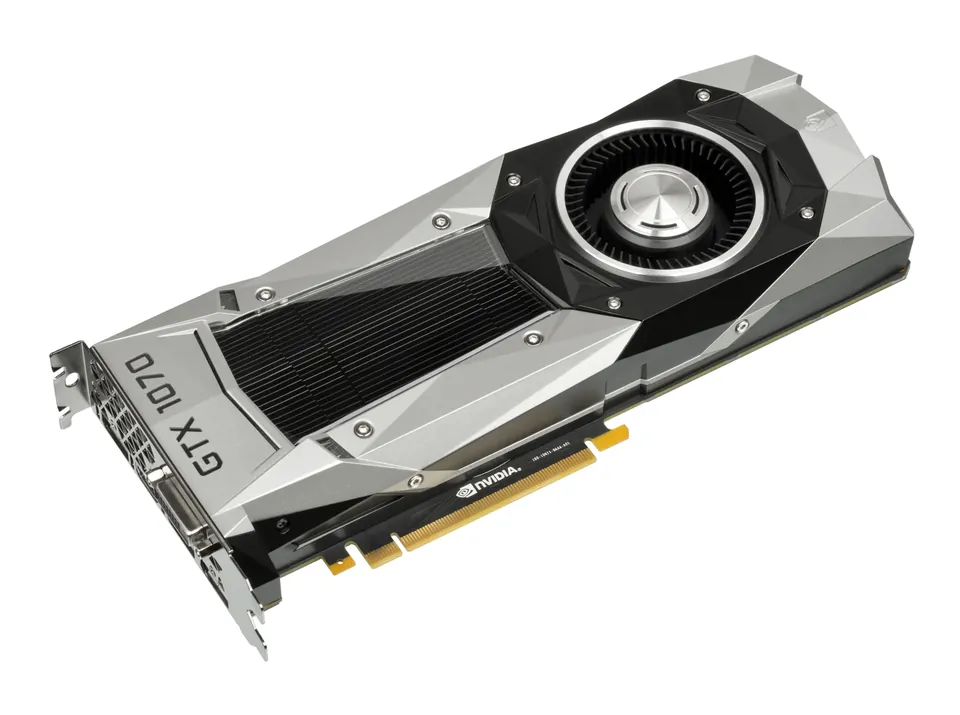
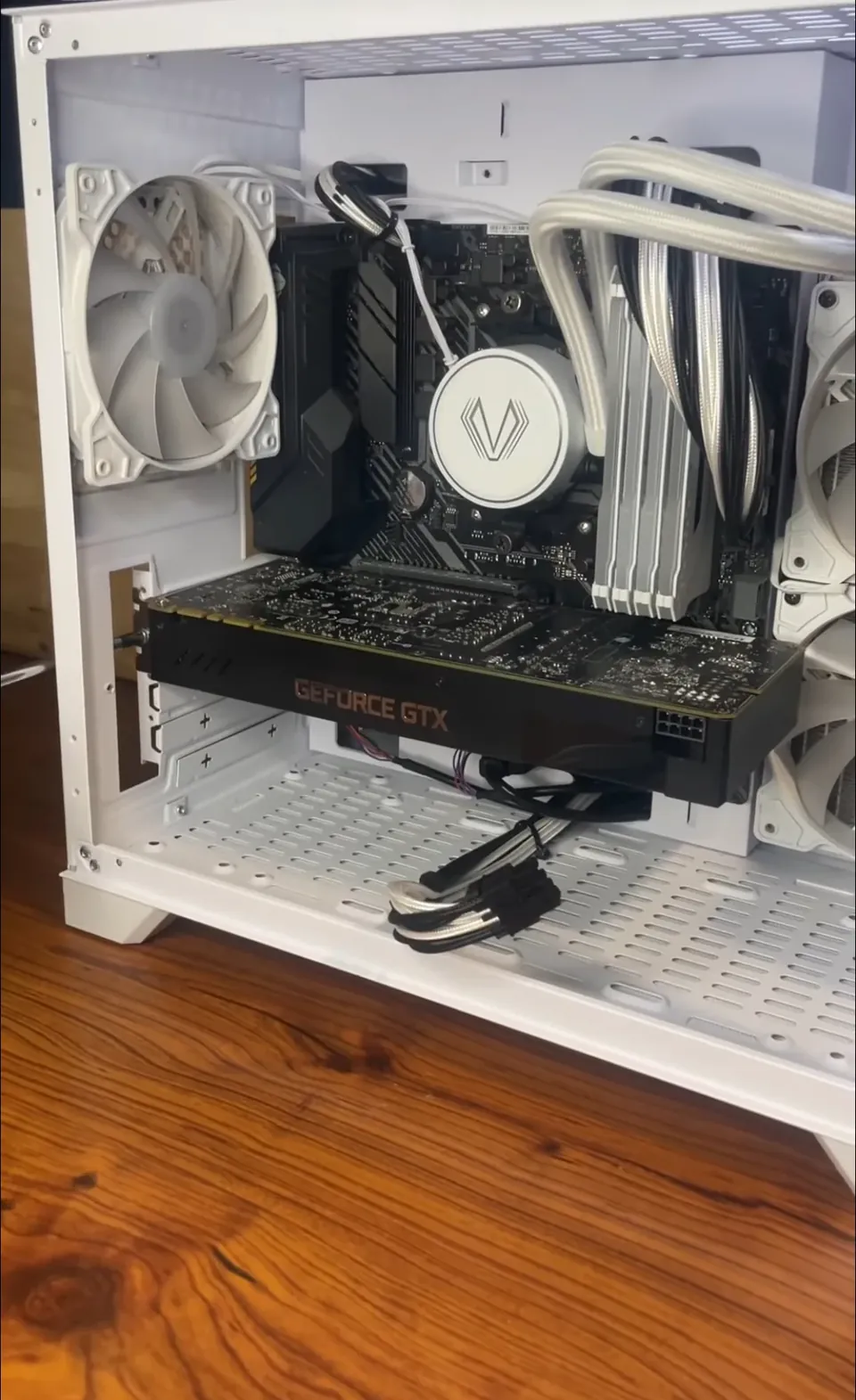
No current graphics-card offer is recommended here. The pictured GTX 1070 cards and the documented Dell and NVIDIA examples explain compatibility, not today’s best purchase. Once your constraints are confirmed, check the exact part number, seller, live price, stock and return terms together.
If the PC is crashing or shutting down, diagnose that fault first. A new card is not a reliable substitute for finding the problem. After a supported upgrade, use the manufacturer’s driver instructions and test your normal games during the return period; these are suggested checks, not tests we have performed.
Common buying questions
Does a PCIe slot mean any graphics card will work?
No. Physical fit, the exact system’s support, power capacity, compatible connections and display setup still need checking. Treat the slot as one requirement, not the verdict.
Can I keep the old modular cables when changing the PSU?
Only if the PSU manufacturer explicitly confirms compatibility with the replacement model. Do not decide from matching plugs or the brand name alone.
Does every prebuilt need a new power supply for a GPU upgrade?
No. Check the installed supply and the exact card requirements. Some combinations may already meet them; others may need a supported PSU change or a different card. Neither answer applies to every prebuilt.
Should I buy a card before checking my case?
No. Write down verified power and fit requirements first. A sale is not good value if the card cannot be used safely in your computer.
Sources & how we reached our advice
Checked October 23, 2026. We used the primary documentation below for compatibility and specifications. Buying thresholds and decisions are our editorial judgment. This guide does not claim hands-on benchmarks, an exhaustive product ranking, or a test score.
- Dell: upgrade considerations for your exact computer
- Dell OptiPlex 7090 Tower: PSU cable specifications
- NVIDIA: RTX 4090 Founders Edition preparation example
- Corsair: are modular PSU cables universal?
- ASUS: graphics-card installation and power checks
- MSI: desktop graphics-card upgrade instructions
- Corsair: never open the PSU enclosure
- Dell: electrical and electrostatic-discharge safety
No affiliate links. Editorial standards · Send a correction