
Gaming monitor buying guide
1080p or 1440p for a budget gaming PC?
Choose 1080p or 1440p around your games and budget. Already on 4K? Compare what 5K2K adds and find out how to test whether your graphics card can keep up.
01
Prioritizing frame rate on a tight budget
Start with 1080p and check results for your games and settings before paying for more pixels.
02
Gaming and working on the same screen
Consider 1440p if you value sharper detail and can afford the complete setup that meets your target.
03
Already own a working monitor
Test it with the games you play. Upgrade only if its limits actually bother you.
Start with your games, not the resolution badge
Choose 1080p when the budget is tight and your priority is reaching a comfortable frame rate in the games you play now. Choose 1440p when sharper detail is worth the complete extra cost and your PC can meet your target at settings you are happy to use. A working monitor is also a valid choice: replacement is optional.
Write down your three most-played games, desired frame rate and acceptable settings. “Competitive shooters at reduced settings” and “new single-player games with demanding effects” are different shopping briefs. Then look for recent tests of your exact GPU, or a closely matched PC, in those games. Check resolution, settings, CPU and whether upscaling or frame generation was enabled. A broad “1440p ready” label cannot answer that question.
1440p adds pixels, not a predictable FPS penalty
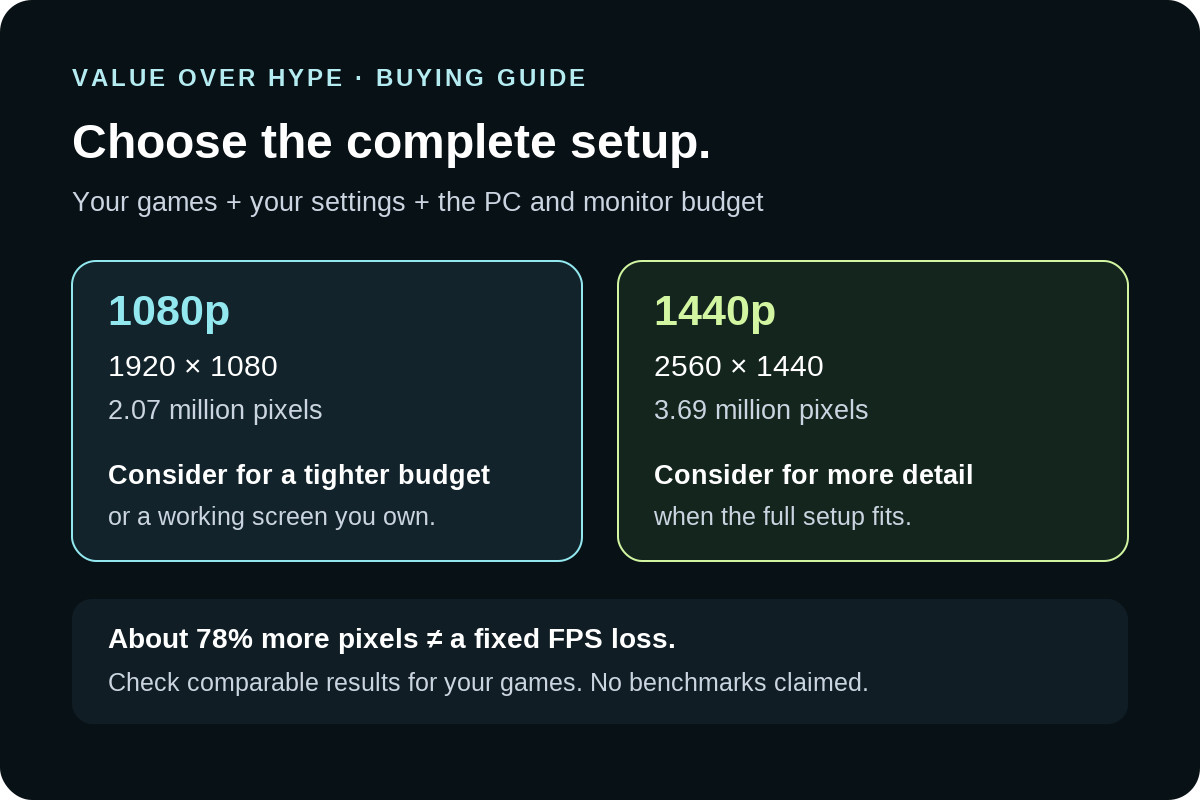
For the main budget comparison, start with standard 16:9 screens: 1920 × 1080 and 2560 × 1440. Multiplying width by height gives about 2.07 million versus 3.69 million pixels, roughly 78% more at 1440p. An ultrawide 3440 × 1440 display is a different workload despite sharing the 1440-pixel height.
That arithmetic is not a benchmark. It does not mean frame rate falls by 78%, or that you need a GPU costing 78% more. The game, settings and limiting component matter. Compare measured results at both resolutions rather than converting pixel count into a performance promise.
At the same physical size, 1440p packs pixels more closely. Screen size and viewing distance affect how useful that looks. Try your usual text size and seating position before deciding; a larger display is not automatically sharper.
Sources: Intel: gaming monitor resolution and pixel density
Price the monitor and the performance it needs
Compare two complete baskets: your proposed PC with a 1080p monitor, and the PC with a 1440p monitor, plus any graphics upgrade needed for your preferred 1440p experience. Include a suitable cable if one is missing. Use actual checkout totals rather than a fixed percentage of the budget for the screen.
If the 1440p basket forces compromises you dislike, such as settings you would immediately turn back up, the cheaper resolution may be the better purchase. If both baskets meet your gaming target and you also spend hours reading or working at the desk, the sharper screen deserves more weight.
Already own a good 1080p display? Try the new PC with it first. Already own 1440p? Test your games before replacing it or buying a GPU. Spend on a limitation you can identify, rather than upgrading both parts to match a label.
Compare complete gaming-PC choices within your tower budgetCheck whether your existing prebuilt supports the graphics upgrade first
Separate panel, output and render resolution
The panel has a fixed native pixel grid. Output resolution is the image sent to it. Render resolution is the resolution the game uses to build the scene before any upscaling. A game can render below 1440p and still send a 2560 × 1440 image to a 1440p monitor.
For the Windows desktop, start with the recommended native resolution. If text is too small, adjust display scaling rather than immediately lowering resolution. Microsoft warns that lower-than-native settings can make text less sharp or change how the image fills the screen.
In games that support it, a compatible upscaler can reconstruct a higher-resolution output from a lower-resolution input. NVIDIA documents this distinction for DLSS Super Resolution. Check the game and GPU support for the specific feature, then judge moving scenes as well as still images. Upscaling is an option to evaluate, not a guarantee that every budget PC will deliver the 1440p experience you want.
Sources: Microsoft: display resolution and scaling in Windows · NVIDIA Developer: DLSS Super Resolution and frame generation
Balance detail with refresh rate and VRR
Refresh rate describes how often the display updates. Frame rate describes how many frames the game produces. Buying a 144Hz monitor does not make a game run at 144fps. Decide which compromise bothers you more: less detail or less fluid motion.
Variable refresh rate, or VRR, lets a compatible display follow the game’s frame delivery within its supported range, helping reduce tearing and stutter. Check compatibility with your graphics hardware, the chosen input and the monitor’s documented range. AMD explains that low-framerate compensation repeats frames to stay within a supported refresh range; it does not create newly rendered game frames.
For a tight-budget competitive setup, we would prioritize a monitor and PC combination that reaches your chosen frame-rate target over resolution alone. For slower-paced games and mixed desktop work, 1440p may earn its cost sooner. These are buying priorities, not universal performance rankings.
Sources: Microsoft: change the refresh rate in Windows · AMD: FreeSync compatibility, refresh range and low-framerate compensation
Moving up from 4K? 5K2K adds a third more pixels
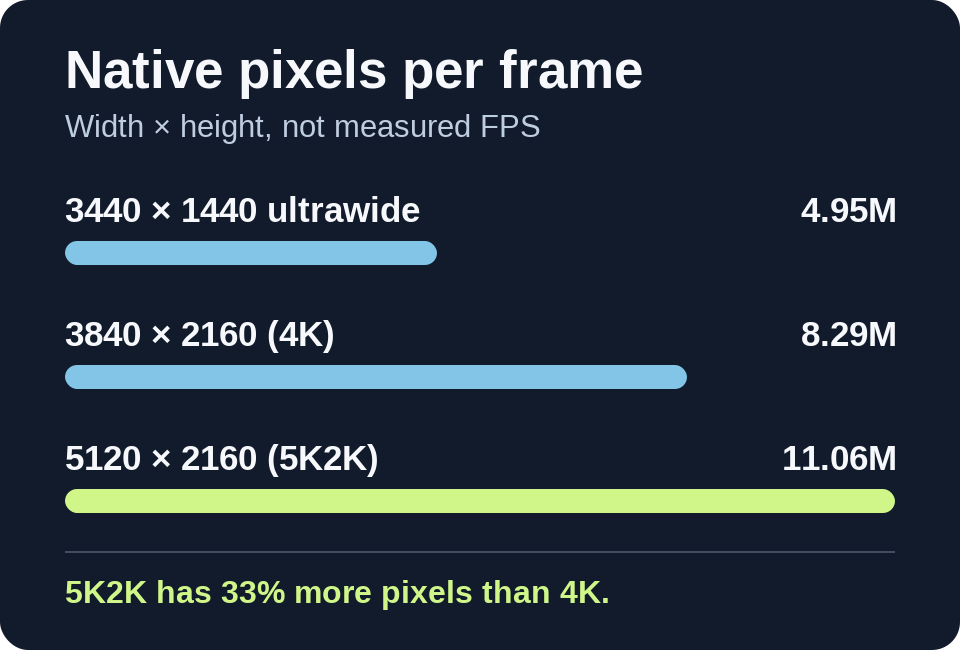
5K2K (5120 × 2160) keeps the same 2160-pixel height as standard 4K (3840 × 2160) but adds 1,280 pixels across. That is 11.06 million pixels per frame instead of 8.29 million, or about 33% more. It is also about 2.23 times the pixels of a 3440 × 1440 ultrawide (4.95 million). At native rendering, this is a larger pixel workload, not a forecast for frame rates: the game, graphics settings and whether the GPU or CPU is limiting performance still matter.
Check what the highest refresh rate actually requires. For example, LG’s 45GX950A-B is rated for 165 Hz at 5120 × 2160, or 330 Hz at the much lower 2560 × 1080 in Dual Mode. That 330 Hz figure is not a 5K2K capability or a promise of 330 fps. This model is a published specification example, not a tested unit or a price recommendation.
Start with your current screen. Run the same demanding scene or built-in benchmark twice at the resolution you normally use. Forza Horizon 6 is one example: its PC version has a benchmark mode and supports ultrawide resolutions. Turn off frame generation and dynamic resolution for the baseline; keep ray tracing, preset and frame-cap settings the same. Save the average and any frame-time or slow-frame results the tool provides. A 4K baseline tells you how much margin you have now; it does not simulate 5K2K.
If you can test a 5K2K display, repeat at 5120 × 2160 with the same graphics settings and check how the wider view looks in the game. Then try a supported quality upscaling mode as a separate run, with the output still at 5120 × 2160. It lowers the internal render resolution, so compare fine detail in motion as well as frame rate. Check your favorite games individually for ultrawide support rather than assuming every game, menu and cutscene fills the screen.
If you are already turning settings down just to reach your target at 4K, we would keep the current screen unless you can verify a compromise you actually like on 5K2K. If you want ultrawide framing without the same jump in native pixel count, shop 3440 × 1440 as a separate option. Budget for the display and any upgrade together, not on the assumption a GPU swap will fix every game.
Sources: LG U.S.: 45GX950A-B native and Dual Mode specifications · LG Japan: exact Dual Mode resolutions and refresh rates for the 45GX950A-B · Forza Support: Horizon 6 PC benchmark and ultrawide support · NVIDIA Developer: DLSS Super Resolution and frame generation
Black Friday price check: the same Alienware 4K OLED at $699.99
November 27, 2026 U.S. snapshot, before tax: Best Buy (SKU 6576612), Dell and Micro Center’s North Jersey store in Paterson each displayed $699.99 for the new Alienware AW3225QF. Micro Center showed new stock for in-store purchase only when checked. Best Buy and Dell displayed an order option; local Best Buy pickup and delivery dates were not verified. Check the seller, condition, final total and availability for your address before paying. This is a dated price comparison, not a claim that the price will hold or that anyone saved $300.
This is a 31.6-inch 3840 × 2160 QD-OLED with a 1700R curve and a 240 Hz maximum, according to Dell. Check the 28.17-inch screen width and 12.04-inch stand depth against your desk. At native 4K the game still has 8.29 million pixels to render per frame whether your target is 120 fps or 240 fps. A 240 Hz panel does not require your games to hit 240 fps. Use the game test above to see whether 4K is a sensible step for your current PC.
At the same total, we would pick the seller with the easiest return you could actually use. For eligible Best Buy purchases from October 30 through December 31, most returns run through January 15, 2027. Dell lists January 15 or 30 days from delivery, whichever is later, for eligible Dell.com consumer purchases from November 1 through December 29. Micro Center’s listing says return within 30 days of purchase; confirm the exact deadline at checkout. Keep the box until you know you like the curve, text and reflections in your room.
Dell lists three years of Advanced Exchange and Premium Panel Exchange, including OLED burn-in coverage. That covers qualifying problems under Dell’s terms; it does not give you three years to return a screen just because you dislike the curve. We have not tested this monitor, and this price check is not a reason to move a budget build to 4K if it already meets your needs at 1080p or 1440p.
Sources: Best Buy: new Alienware AW3225QF, SKU 6576612 · Dell: AW3225QF price, dimensions and OLED coverage · Micro Center: AW3225QF at the North Jersey store · Best Buy: returns and exchanges · Dell U.S.: holiday returns and other policies
Verify the exact connection before checkout
Find the monitor manual’s supported resolution and refresh-rate table for the input you will use. Match that with the actual PC or graphics card output and the cable. Include any adapter or dock in the check. A socket that physically fits is not proof that the whole connection supports your target mode.
Look for the combination, such as 2560 × 1440 at your chosen refresh rate with the VRR mode you need. Do not assume every HDMI and DisplayPort input on one monitor offers identical capabilities. If the documentation leaves that combination unclear, resolve it before paying rather than buying an adapter on speculation. Check the seller’s return window and any return costs before checkout.
Sources: Intel: output and input bandwidth requirements for high refresh rates
Use the return window to test the decision
After setup, verify resolution and refresh rate in Windows Settings → System → Display → Advanced display. Microsoft notes that some refresh choices require a resolution change. Confirm you have kept the resolution you intended, then enable supported VRR using the monitor and graphics-driver instructions.
Play a demanding area of each important game at your intended settings. Check whether motion, text and image quality suit you, including with any upscaler you plan to use. Also check stand adjustment and desk fit while the return window is still open. A specification sheet cannot settle personal comfort.
Our value rule: keep the lowest-cost setup that meets your actual requirements. Pay for 1440p when its extra detail matters to you and the complete setup is affordable. Stay at 1080p when it gives you the experience you want without another upgrade.
This is researched buying advice based on manufacturer documentation, not a hands-on monitor review. No frame-rate results are claimed. Retail prices in the dated snapshot can change.
Common buying questions
Can I play at 1080p on a 1440p monitor?
Usually, if that input mode is supported, but scaling can look softer than native resolution. Compare it with keeping native output and using a supported in-game upscaler. Neither result should be assumed identical to native 1440p rendering.
Does a high-refresh 1440p monitor require every game to reach its maximum refresh rate?
No. Treat the maximum as a display capability, not a minimum frame-rate requirement. Check VRR compatibility and range, and choose performance that feels acceptable in your games.
Is 1440p always worth a GPU upgrade?
No. Compare the full extra cost with the improvement you would notice. If your existing 1080p setup meets your needs, keeping it is the strongest budget option.
Sources & how we reached our advice
Checked November 27, 2026. We used the primary documentation below for compatibility and specifications. Buying thresholds and decisions are our editorial judgment. This guide does not claim hands-on benchmarks, an exhaustive product ranking, or a test score.
- Intel: gaming monitor resolution and pixel density
- Microsoft: display resolution and scaling in Windows
- NVIDIA Developer: DLSS Super Resolution and frame generation
- Microsoft: change the refresh rate in Windows
- AMD: FreeSync compatibility, refresh range and low-framerate compensation
- Intel: output and input bandwidth requirements for high refresh rates
- LG U.S.: 45GX950A-B native and Dual Mode specifications
- LG Japan: exact Dual Mode resolutions and refresh rates for the 45GX950A-B
- Forza Support: Horizon 6 PC benchmark and ultrawide support
- Best Buy: new Alienware AW3225QF, SKU 6576612
- Dell: AW3225QF price, dimensions and OLED coverage
- Micro Center: AW3225QF at the North Jersey store
- Best Buy: returns and exchanges
- Dell U.S.: holiday returns and other policies
No affiliate links. Editorial standards · Send a correction