
Laptop upgrades
Can you add a second SSD to your laptop?
Check the exact model, spare slot, drive size and required parts before buying. Learn when to add storage, replace the existing SSD or use an external drive.
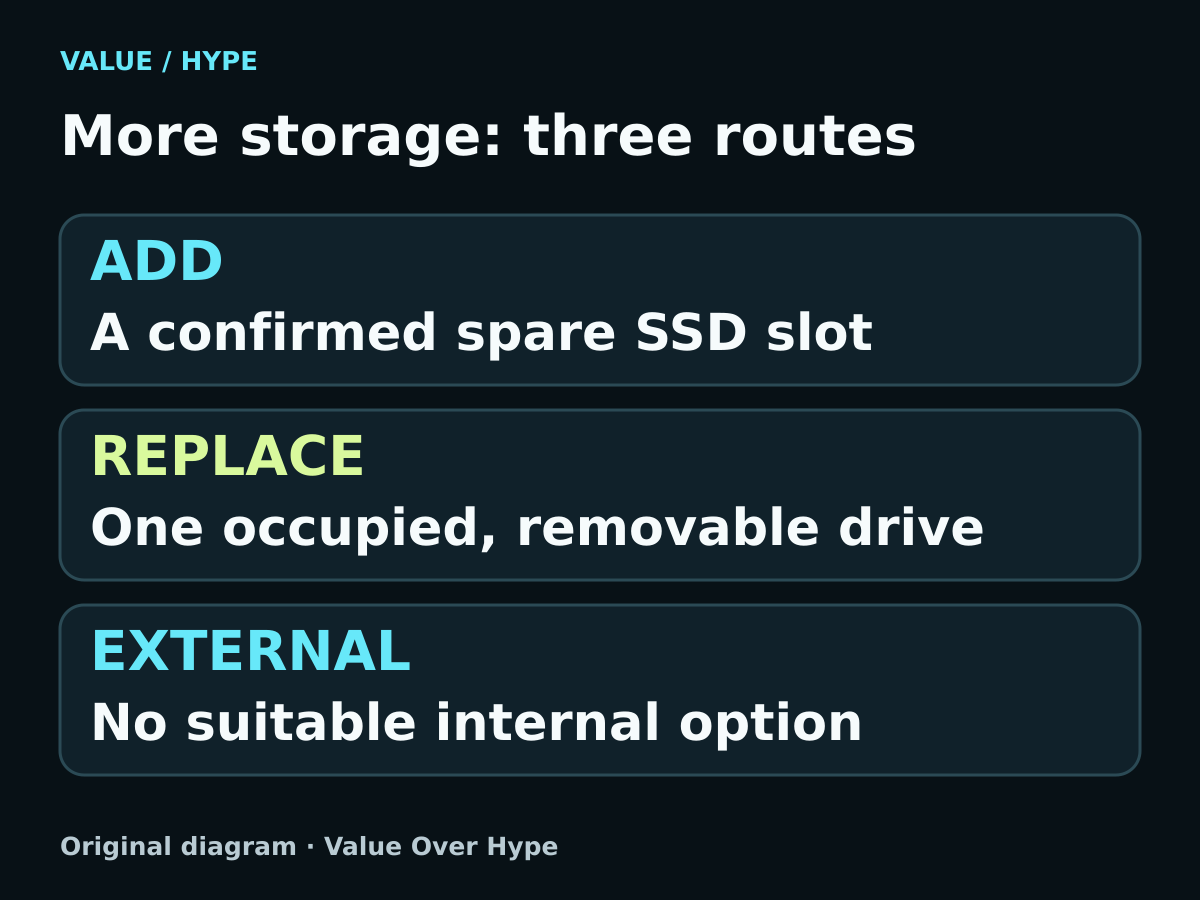
01
A supported slot is empty
Adding a separate data drive can keep the existing Windows installation in place. Confirm the mounting and thermal parts too.
02
One slot, already occupied
Plan a replacement and migration, or use external storage. A removable SSD does not imply space for a second one.
03
The manual is unclear
Wait. Get the exact slot, interface, length and required parts confirmed before ordering a drive.
Start with the complete model, not the laptop’s size
Write down the complete model and configuration from the laptop’s system information, label or manufacturer support page. Use that model’s specifications and service or owner’s manual. A name such as Inspiron, LOQ or a 16-inch screen size is not enough to identify the storage layout.
Look for two separate answers: how many storage drives the laptop supports, and how many are already installed. A specification saying ‘two slots’ does not prove either is empty in your machine. If your particular configuration is unclear, ask manufacturer support or a repairer to confirm it before opening the case.
Also check whether the manual describes a replaceable SSD at all. Do not assume every laptop has removable M.2 storage. If it does not, external storage or a different computer may be the practical route.
Three real examples show why the manual matters
Dell Inspiron 16 5640: Dell lists one M.2 2230 PCIe NVMe Gen 4 SSD. If that slot is occupied, this is a replacement decision, not a second-drive upgrade. The documented storage configurations go up to 1TB; that is Dell’s listed offering, not proof that we tested larger capacities or that every larger drive is impossible.
Dell G15 5530: Dell lists support for one or two M.2 2230/2280 PCIe NVMe Gen 4 x4 drives, with the primary drive in slot one. Crucially, its installation instructions recommend a 2280 drive and a Dell thermal shield when adding an SSD to slot two yourself. Read that procedure and confirm its mounting hardware; the broad specification table alone is not a complete shopping list.
Lenovo LOQ 15IRX9: its PSREF lists two M.2 2280 PCIe 4.0 x4 slots while its factory storage offerings include 2242-length drives. An installed 2242 therefore does not tell you the full supported slot length. Check the mounting arrangement and your configuration. Lenovo’s offered capacities reflect its tested offerings; we are not promising compatibility with an unlisted capacity.
These are manual-based examples checked October 19, 2026, not laptop recommendations or hands-on installation reports. They do not establish current retail price or stock. Apply the same process to your exact model rather than transferring one laptop’s rules to another.
Sources: Dell Inspiron 16 5640: storage specification · Dell G15 5530: supported storage · Dell G15 5530: installation and slot-two parts · Lenovo LOQ 15IRX9: official PSREF storage specifications
M.2 is a shape; compatibility needs more than that
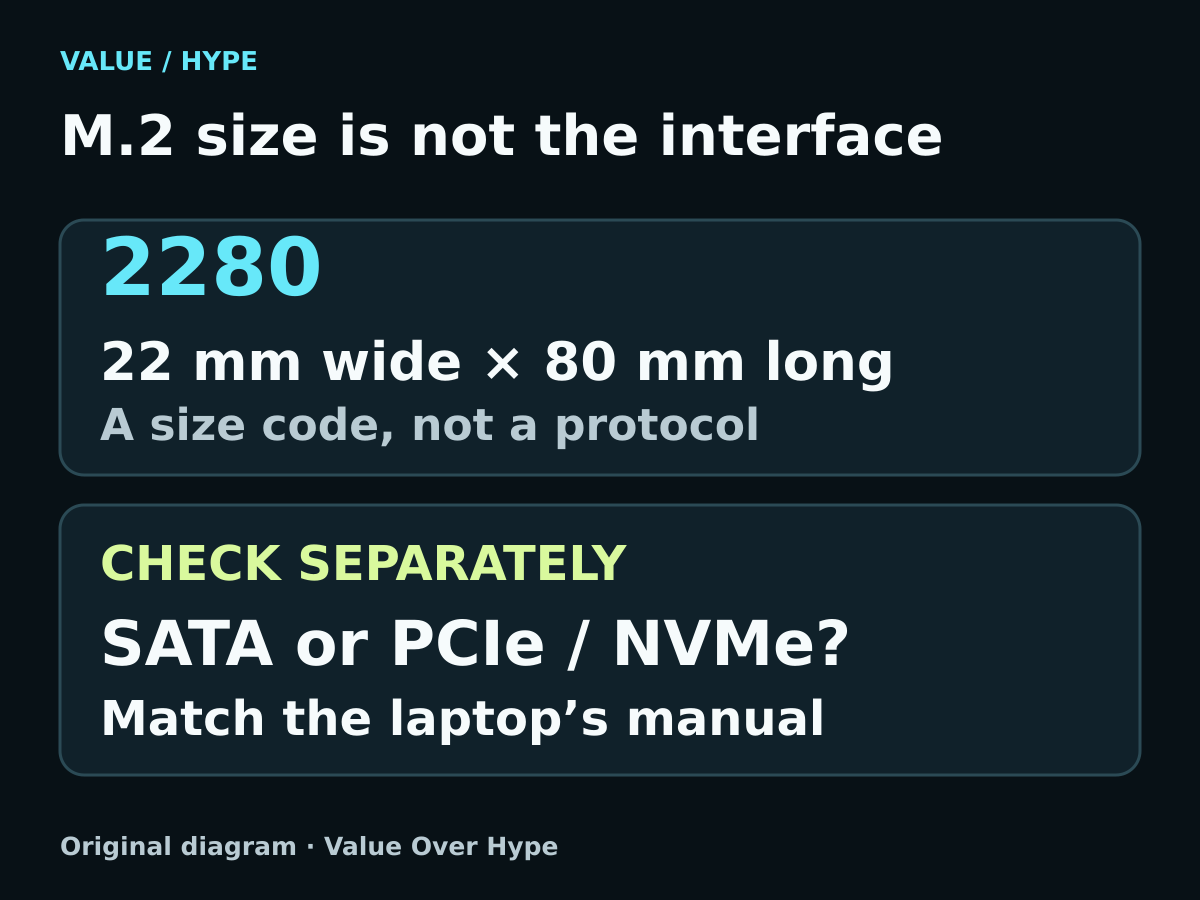
Check the interface as well as the size. An M.2 drive can use SATA or PCIe/NVMe; the laptop must support the drive’s interface. A card that appears to fit is not sufficient evidence that it will work. Kingston’s M.2 FAQ explains why the connector, protocol and supported dimensions must be considered together.
Size codes describe width and length: 2230 is 22 × 30mm, 2242 is 22 × 42mm and 2280 is 22 × 80mm. Match the documented length and mounting point. Also check clearance for single- or double-sided drives and any required thermal pad, shield, bracket or screws. Do not assume a desktop-style heatsink fits beneath a laptop cover.
Do not count every M.2 connector as an SSD slot. Dell’s G15 5530 documentation separately lists its Wi-Fi/Bluetooth slot and its storage slots. The slot’s intended function matters as much as the label or appearance.
Sources: Kingston: M.2 size and interface FAQ · Dell G15 5530: storage and wireless slots
Adding a drive and replacing the boot drive are different jobs
Adding a data drive can leave the existing boot SSD and Windows installation in place. It normally gives you a separate place for files and game libraries; it does not automatically make your C: drive bigger. Check each app or game launcher’s supported library-move instructions before relocating installations.
Windows may need a new, empty disk initialized and formatted before use. Microsoft warns that this process can erase data. Identify the new disk by its capacity and details before any destructive action. If a disk contains files or you cannot tell which one it is, stop; do not initialize it just because it is absent from File Explorer.
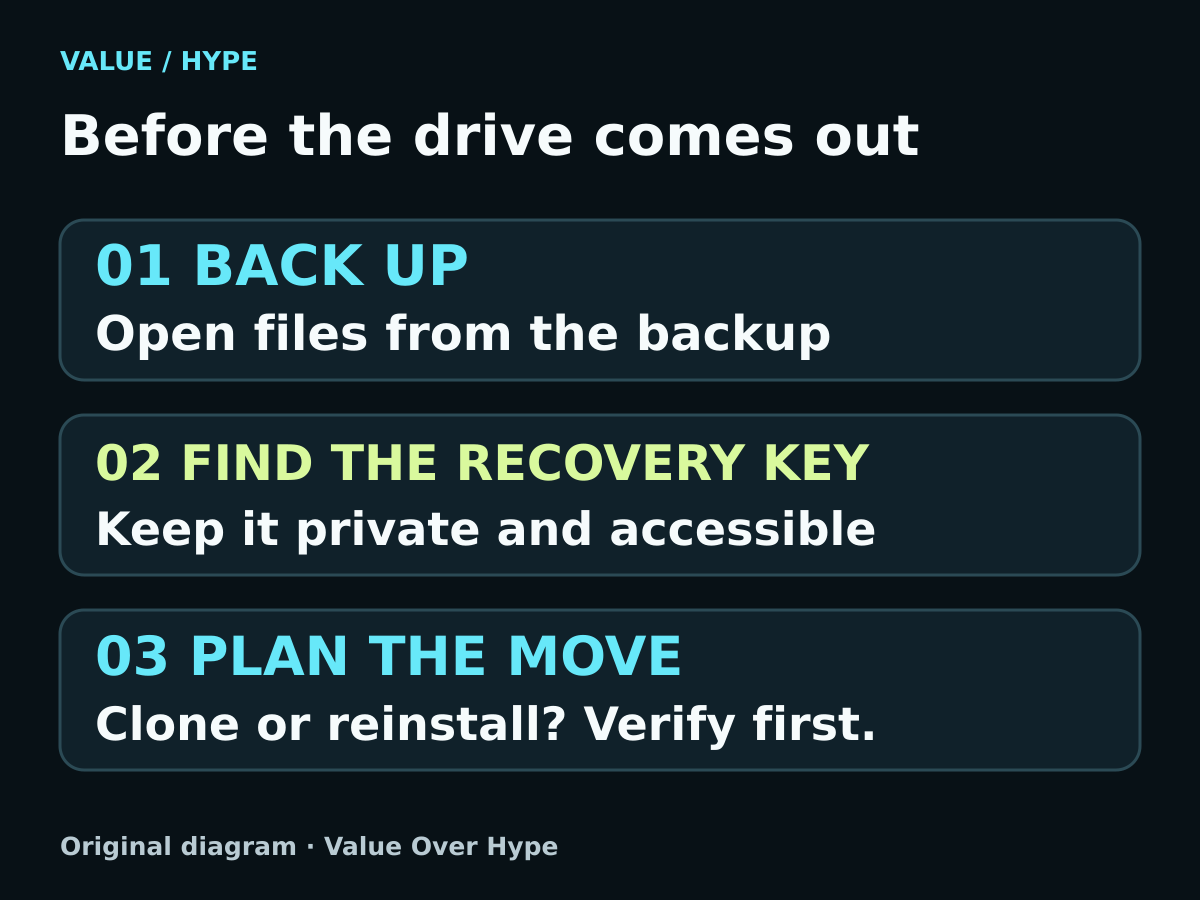
Replacing the boot SSD means planning how Windows, applications and files will reach the replacement. Decide between a supported migration/clone process and a fresh installation before removing the old drive. A clone is a migration method, not your separate backup. Confirm source and destination carefully and keep the old drive intact until the replacement boots and your important files are verified.
Sources: Microsoft: initialize a new disk and data-loss warning · Kingston: NVMe installation and migration precautions
Protect the data before you price the upgrade
Make a separate backup of important files and confirm you can open them. If BitLocker or device encryption is enabled, confirm access to the recovery key from another device or a secure location before changing hardware. Microsoft notes that hardware changes can trigger a recovery-key request. Keep that key private; it should never appear in a support screenshot or a public post.
Follow the laptop’s own power-isolation, battery and electrostatic-discharge precautions. A universal disassembly recipe is unsafe because models differ. For a work- or school-managed laptop, go through IT. If opening the machine or migrating the operating system is unfamiliar, include professional installation in the quote.
Do not disable encryption as a blanket upgrade step. Follow the particular manufacturer and migration tool’s instructions if they require a specific preparation procedure. This article helps you decide what to buy; it is not a substitute for the model’s installation manual.
Sources: Dell G15 5530: installation and slot-two parts · Kingston: NVMe installation and migration precautions · Microsoft: back up your BitLocker recovery key
Compare the complete job, not just the SSD price
Build one quote for each workable route. For an internal upgrade, include the exact compatible drive, any required mounting and thermal parts, backup storage if needed, and installation or migration labor. A replacement may also need a compatible enclosure or adapter for the chosen migration method. An enclosure must match the old drive’s interface and dimensions too.
For an external drive, consider the laptop’s port, the cable, where the drive will sit and the inconvenience of keeping it connected. It can be a sensible way to hold documents or media without opening the laptop, but check application and game requirements before treating it as a replacement for internal storage.
We are not naming a live SSD offer because the correct part depends on the exact machine. Verify seller, full part number, price, stock and return terms only after compatibility is established. Do not pay for a headline speed or extra capacity that the manual and your workload do not justify.
- Laptop and configuration: complete model identifier; number of supported and occupied storage slots.
- Drive: interface, physical length, supported configuration and clearance.
- Parts: correct screw or bracket, and any specified thermal shield or pad.
- Data: tested separate backup, private recovery-key access and migration plan if replacing the boot drive.
- Quote: total parts, tax, shipping, backup and labor; seller return terms.
Ask support: ‘For [exact laptop model/configuration], can I add [full SSD part number] in a second slot? Is it empty in my configuration, and which bracket, screws and thermal parts does the installation manual require?’
Verify the result before erasing or selling the old drive
Our suggested acceptance check is to confirm the expected drive capacity is detected, Windows starts normally, and your important files open. If you added a data drive, confirm new files and game installations go to the intended location. Recheck the task that prompted the upgrade rather than assuming more capacity also means higher frame rates.
These are checks we recommend, not tests we performed on the models above. If the current laptop otherwise meets your needs, a compatible storage upgrade may avoid an unnecessary replacement. If the slot or parts remain unconfirmed, waiting is better value than ordering twice.
Common buying questions
Does every gaming laptop have two SSD slots?
No. Verify the exact model’s specification and actual slot occupancy. Even a supported second slot may need extra mounting or thermal parts.
Does adding a second SSD expand C: automatically?
No. A separate data drive normally appears as another storage location after appropriate setup. Replacing the boot drive is a different migration job.
Can I put an SSD in a Wi-Fi M.2 slot?
Do not assume so. Use only a slot explicitly documented for the intended storage drive; M.2 connectors serve different functions.
Should I buy the largest capacity listed by the manufacturer?
Buy for the space you need and a confirmed compatible configuration. Factory offerings or tested capacities are not evidence that we have verified every larger third-party drive.
Sources & how we reached our advice
Checked October 19, 2026. We used the primary documentation below for compatibility and specifications. Buying thresholds and decisions are our editorial judgment. This guide does not claim hands-on benchmarks, an exhaustive product ranking, or a test score.
- Dell Inspiron 16 5640: storage specification
- Dell G15 5530: supported storage
- Dell G15 5530: installation and slot-two parts
- Lenovo LOQ 15IRX9: official PSREF storage specifications
- Kingston: M.2 size and interface FAQ
- Dell G15 5530: storage and wireless slots
- Microsoft: initialize a new disk and data-loss warning
- Kingston: NVMe installation and migration precautions
- Microsoft: back up your BitLocker recovery key
No affiliate links. Editorial standards · Send a correction