
Storage value
SSD enclosure vs. portable SSD: is reusing an old drive worth it?
A spare SSD can become useful external storage—but only if the enclosure fits, the drive is healthy and the complete cost makes sense.
01
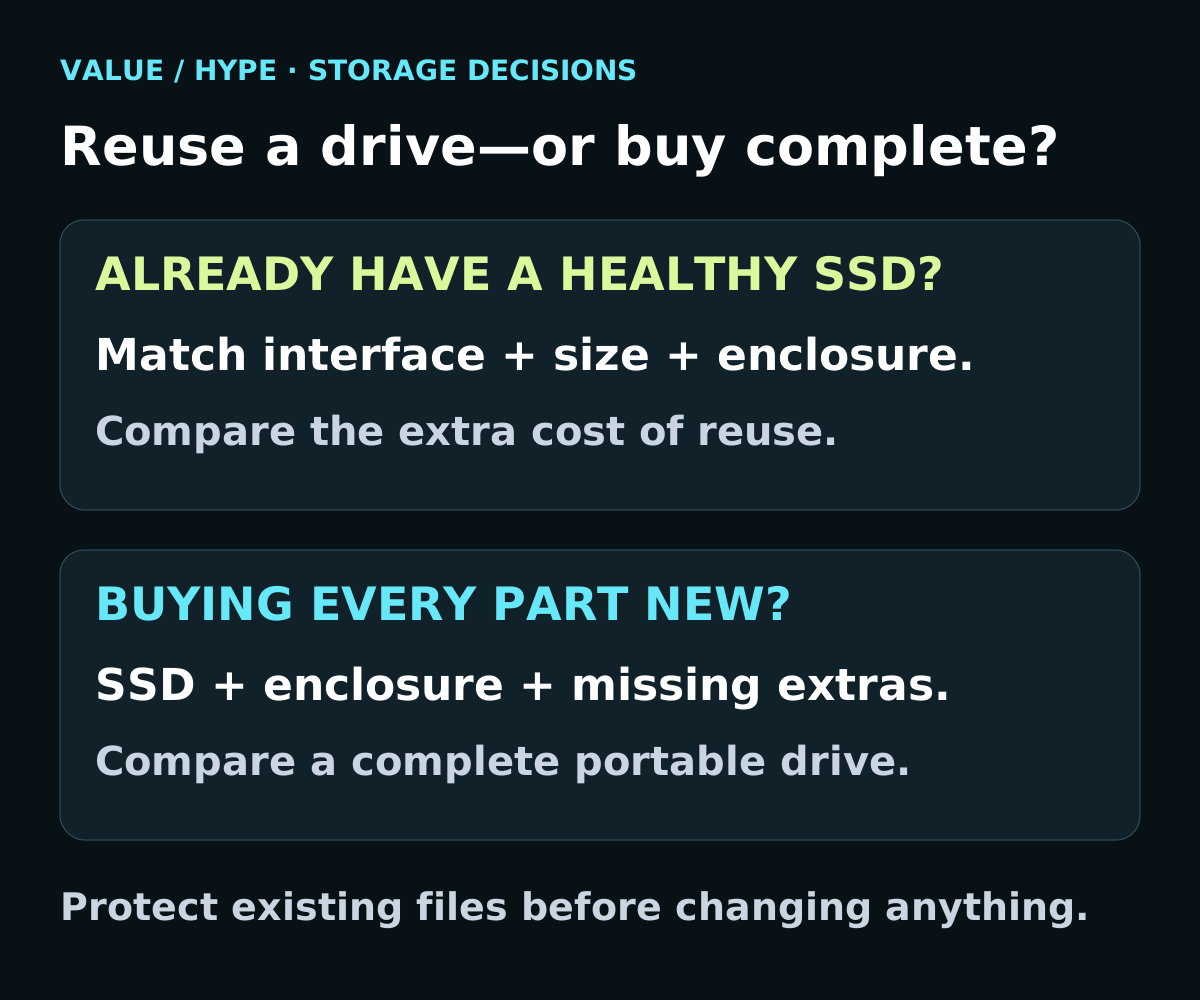
A healthy spare is already yours
Identify its exact interface and size, then price a compatible enclosure and any missing cable.
02
You need to buy every part
Compare complete capacity, connection, support and return terms—not an enclosure-only headline price.
03
The old drive has important files
Protect and verify a separate backup before removal or reuse. An unreadable drive is not an invitation to format it.
An enclosure and a portable SSD are different shopping baskets
An enclosure is a housing and interface adapter for a compatible internal drive; the storage may not be included. A ready-made portable SSD is sold as a complete storage product. Check the package contents instead of assuming either listing includes every cable your computer needs.
The strongest reuse case is a working SSD left over after a capacity upgrade. Its original purchase price is already spent; your decision now concerns the additional cost of making it useful. That does not make its remaining capacity, condition or your time irrelevant.
Our recommendation is to write down the job first: transferring documents, keeping a second copy of photos, or adding a game library. An old 250GB drive may be useful for one job and too small for another. Do not build the cheapest solution to the wrong problem.
Sources: Kingston: reusing an old SSD as external storage
Match the interface and dimensions before the connector shape
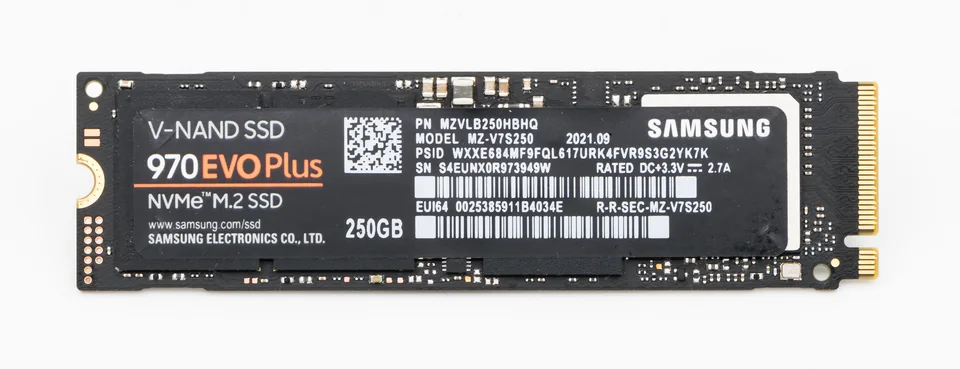
Read the drive’s full part number and manufacturer specifications. Separate three questions: is it a 2.5-inch drive or an M.2 module; does it use SATA or PCIe/NVMe; and what dimensions and mounting arrangement does it require? M.2 alone is not a compatibility answer.
StarTech’s M2-USB-C-NVME-SATA datasheet is an example of useful specificity: it lists both M-key PCIe and B+M-key SATA support, plus 2230, 2242, 2260 and 2280 lengths. Those claims belong to that exact enclosure, not to all products with a USB-C socket.
A 2.5-inch SATA SSD needs a suitable 2.5-inch SATA housing or adapter; it does not fit an M.2 enclosure. Check enclosure clearance, supported drive layout and the installation instructions too. Follow the specified mounting and thermal-pad arrangement rather than forcing a fit or improvising parts.
Sources: Kingston: reusing an old SSD as external storage · StarTech: M2-USB-C-NVME-SATA exact enclosure datasheet
- Record: exact SSD model → SATA or NVMe → physical size → enclosure model → explicitly supported combination.
- If the compatibility table is unclear, hold the purchase. Matching appearance is not a substitute for confirmation.
Compare the complete cost—not a claimed percentage saving
One observed enclosure offer: Sabrent’s US storefront showed EC-SNVE at $29.95 with an Add to cart control on October 29, 2026. It is an empty USB 10Gbps M.2 SATA/NVMe enclosure and includes an 8-inch USB-C–C cable. This is the listed item price, not a delivered quote; confirm tax, shipping and destination availability before ordering. Cart availability is not a delivery guarantee.
EC-SNVE lists 2280 support consistently. Its highlights and detailed specifications differ on 2230, so do not use this example as confirmation for a shorter drive. The example is neither an endorsement nor a tested combination with the photographed Samsung SSD.
Use this worksheet with your own verified offers: reuse total = enclosure + missing cable or adapter + any paid setup + tax and delivery. All-new DIY total adds the SSD. Ready-made total = the exact portable-drive configuration + any missing connection accessory + tax and delivery.
Hypothetical arithmetic only: a $30 enclosure plus a $60 SSD totals $90 before other costs. A hypothetical $80 ready-made drive would cost $10 less. If you already owned a suitable SSD, the same $30 enclosure would instead be a $30 incremental purchase. These are invented comparison inputs—not current portable-drive offers, equivalent products or promised savings.
Compare equal useful capacity and an interface your computer can use. We did not verify an available, like-for-like portable-drive offer for this comparison, so we are not declaring a current deal winner. Check return terms and who handles a problem with the enclosure, the SSD and an assembled setup separately.
Sources: Sabrent: EC-SNVE US listing and specifications
A faster internal SSD does not guarantee a faster USB drive
USB-C describes the connector, not a fixed data rate. USB-IF explicitly distinguishes the connector from USB performance capabilities, and a USB-C cable can be limited to USB 2.0 data. Look up the host port, enclosure and cable rather than relying on the shape.
The USB 10Gbps label describes signaling capability, not a measured file-copy speed. Our buying rule is to avoid paying for a faster enclosure solely because the SSD has a large internal speed number. The host, connection and drive all belong in the comparison.
Consider your workload as well: occasional document transfers and long, repeated video-file writes are different jobs. Follow the enclosure’s thermal instructions. We have not measured temperatures, sustained transfer speeds or game performance for these products; a metal housing is not evidence that a particular combination never slows down.
Sources: USB-IF: USB Type-C connector and cable terminology · USB-IF: USB data performance terminology · StarTech: M2-USB-C-NVME-SATA exact enclosure datasheet
Check the old drive before spending—and protect its contents
Back up important files before changing the drive’s role, and open representative files from the separate backup to check it. If the drive is still in a computer, use that computer’s exact service instructions for removal or pay a qualified repairer. This article is a buying guide, not a universal disassembly procedure.
Check the manufacturer’s health tool while the drive is still connected through a supported interface when practical. Kingston SSD Manager, for example, explicitly does not support USB enclosures. A missing health reading through an adapter does not establish that the drive is healthy. Equally, a good health report cannot guarantee future reliability.
If the old drive was encrypted, locate the appropriate recovery information before changing hardware. Microsoft documents BitLocker recovery keys and says support cannot recreate a lost key. Keep that information private and available separately from the drive you are changing.
If a reused drive appears unreadable, stop before initializing, erasing or formatting it. Resolve access and backups first. Reusing an old system drive does not require treating its existing files as disposable. If it contains the only copy of something important or shows errors, prioritize protecting the data rather than building a cheap portable drive.
Sources: Kingston: reusing an old SSD as external storage · Kingston: SSD Manager support and USB-enclosure limitation · Microsoft: find your BitLocker recovery key
Make the return window a check, not a performance claim
Before committing your workflow, assemble the supported combination according to its manual and try it with the actual computer and cable you plan to use. Start with noncritical copies. Check that files open, that the connection stays reliable during a normal transfer, and that the drive reconnects correctly later.
These are suggested acceptance checks for the buyer—not tests Value Over Hype performed. If the setup disconnects or behaves inconsistently, do not make it the only home for important files. Resolve the cable, compatibility or product issue while the seller’s return options remain available.
Close applications using the drive and use the operating system’s safe-removal process before unplugging. A portable drive becomes a backup only when it holds an additional usable copy, not when you move the sole copy onto it.
Our value rule: reuse a good spare, not a bad fit
Choose the enclosure route when the spare SSD is suitable, the compatibility is explicit and the added cost is worthwhile for your actual job. Choose a ready-made portable drive when you need new storage anyway and its complete package, support or price is better for you.
Keep internal storage in the comparison if the drive will stay attached to a laptop all the time and a supported internal upgrade is practical. Portability is useful when you need it; an extra cable is not automatically an upgrade.
Common buying questions
Will any M.2 enclosure work with an M.2 SSD?
No. Match SATA or PCIe/NVMe support, the drive’s size and mounting requirements, and any enclosure clearance restrictions. Read the exact model’s specifications.
Is an old SSD in an enclosure automatically cheaper?
Only the additional purchase cost may be lower. Include missing accessories, enough useful capacity and any setup help. If you are buying both drive and enclosure, compare their combined cost with a complete portable product.
Can I format an old drive as soon as Windows asks?
Not if it contains files you need. Stop and verify access, encryption recovery information and a separate backup first. Formatting is destructive, not a safe diagnosis.
Sources & how we reached our advice
Checked October 29, 2026. We used the primary documentation below for compatibility and specifications. Buying thresholds and decisions are our editorial judgment. This guide does not claim hands-on benchmarks, an exhaustive product ranking, or a test score.
- Kingston: reusing an old SSD as external storage
- StarTech: M2-USB-C-NVME-SATA exact enclosure datasheet
- Sabrent: EC-SNVE US listing and specifications
- USB-IF: USB Type-C connector and cable terminology
- USB-IF: USB data performance terminology
- Kingston: SSD Manager support and USB-enclosure limitation
- Microsoft: find your BitLocker recovery key
- Microsoft: safely remove hardware in Windows
No affiliate links. Editorial standards · Send a correction