
Laptop accessory value
Is a laptop cooling pad worth it? Try the free fixes first
Decide whether a laptop cooling pad solves your actual problem. Check ventilation, fit, noise and repeatable results before paying for extra fans.
01
Laptop works well
Keep your money. A warm chassis alone is not a reason to buy an accessory.
02
Long gaming sessions
Check ventilation first, then compare a suitable stand or pad in the games you actually play.
03
Shutdowns or a fan fault
Investigate the fault. Do not use an external cooler to postpone necessary service.
What do you actually want to improve?
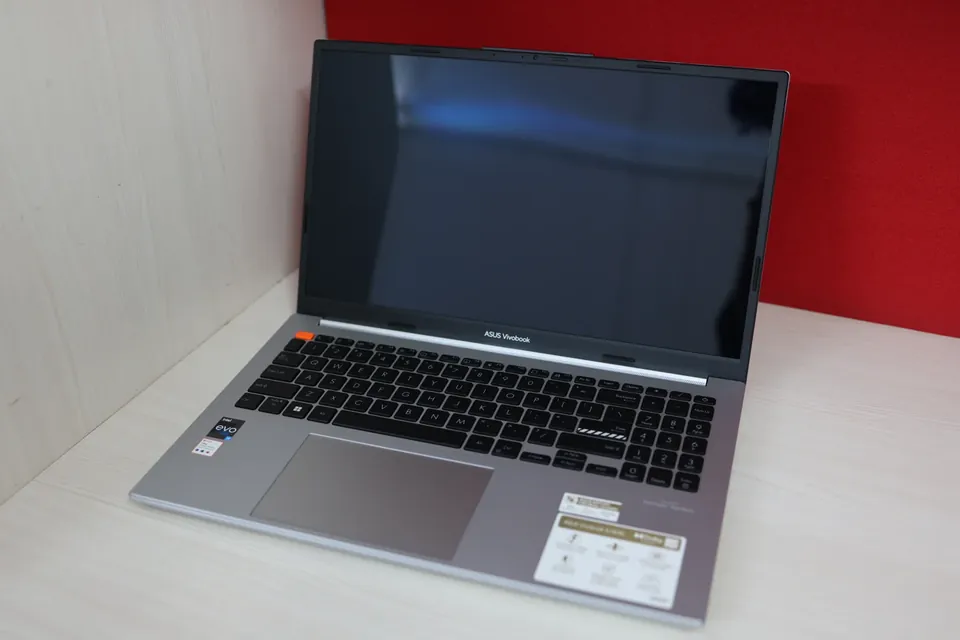
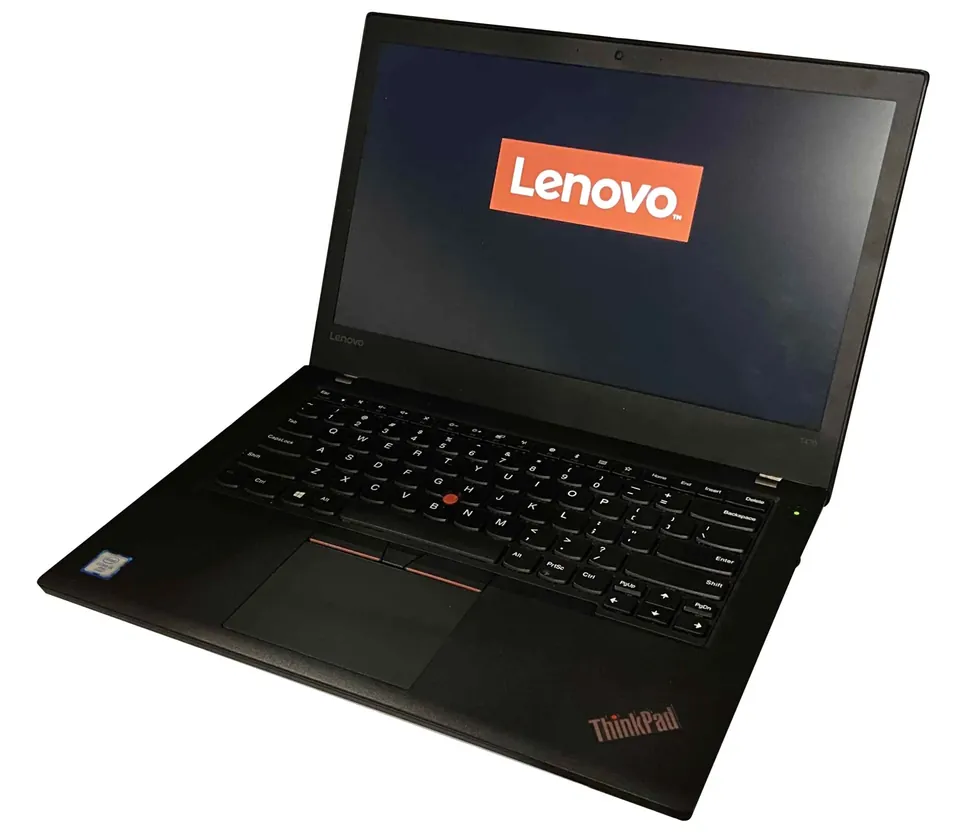
This is researched buying advice, not a cooling-pad review or a laboratory comparison. We have not measured these laptops or tested a cooler. The photographs illustrate laptop hardware, not benchmark results.
Write down the problem before shopping: distracting noise, poor comfort, or performance that falls during a long game. Those are different outcomes. A lower temperature reading is not automatically a noticeable improvement in the work or game you care about.
Intel explains that processor temperature rises with workload and that thermal protection can reduce performance when a processor gets too hot. It directs laptop owners to the system manufacturer for normal operating ranges. There is no single temperature in this guide that declares every laptop healthy or faulty.
Sources: Intel: laptop warmth, thermal protection and normal operating ranges
Try the no-purchase checks first
Dell recommends a hard, flat surface, clear vents and a well-ventilated workspace. Beds, cushions and blankets can obstruct ventilation. Shut down before inspecting or cleaning; follow your model’s cleaning instructions rather than improvising an internal repair.
Review the manufacturer’s supported thermal and power profiles and unnecessary background activity. Dell’s first-line process also includes model-appropriate updates and fan diagnostics. Follow its update precautions; do not install a BIOS intended for a different computer.
Our value rule is simple: if these steps solve the problem, stop shopping. If you already own a stable laptop stand that leaves vents clear, compare that setup before adding powered fans. A stand is not proof of a particular cooling benefit; it is an option you can assess without assuming a new purchase is necessary.
Sources: Dell: first-line overheating and ventilation guidance
Fit and vent placement matter more than a fan-count badge
HP’s accessory guidance highlights laptop dimensions, weight support, fan placement and the power source. Check where your exact laptop takes air in and exhausts it using its manual. Compare those locations with the pad’s supports and airflow layout, not just its advertised screen-size range.
Confirm that the laptop sits securely, cables remain usable and the selected height works at your desk. Some pads use a laptop USB port; others need an external power adapter. Include that cable and outlet arrangement in your plan.
Our preference is a clear compatibility explanation and a return policy you can use, rather than RGB lighting or a large fan count as a substitute for evidence. We are not recommending a particular pad or making a current price or stock claim.
Sources: HP: cooling-pad fit, airflow alignment and power arrangements
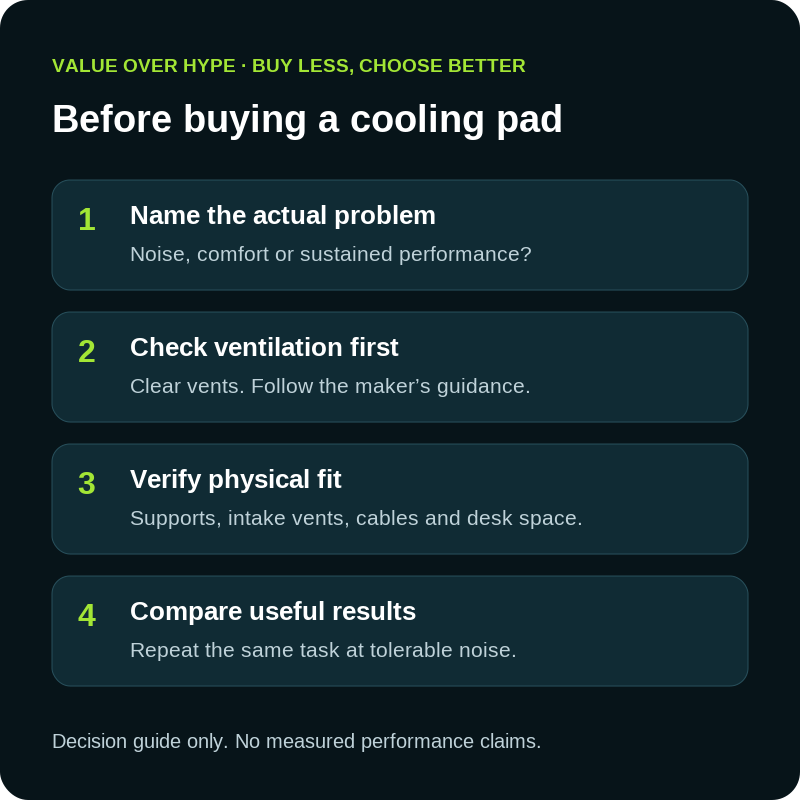
Use a repeatable comparison, not one impressive screenshot
If you try a pad, our suggested comparison is to change one thing at a time. Keep the same charger, supported performance profile, game settings and room conditions. Choose a repeatable game segment or task and let each setup reach a comparable warmed-up state. Do not deliberately push a malfunctioning laptop to shutdown.
Compare the normal desk setup with your existing stand, if suitable, and the pad at a fan speed you can tolerate. Repeat the comparison. Record whether your actual task improves, whether the whole setup sounds better or worse, and whether the keyboard position is comfortable. Temperature readings can add context, but they should not be the only reason to keep it.
This is a decision method, not results we have collected. Decide before the return deadline what would count as worthwhile for you. If you cannot reproduce a useful difference, our recommendation is to avoid keeping an accessory solely because its marketing says it should help.
Know when a pad is the wrong purchase
Dell distinguishes sustained-workload heat from persistent faults, including a failed fan or problems in the cooling hardware. Unexpected shutdowns deserve diagnosis; they are not proof that adding an external fan is the correct repair.
If the chassis is swollen or deformed, or you notice a burning smell, stop using the computer and seek the manufacturer’s service guidance. Do not continue a cooling-pad experiment. For recurring symptoms after the supported checks, get the underlying problem assessed before spending on accessories.
For a healthy laptop, the final choice is personal: is the observed improvement worth another object on the desk? A satisfactory machine needs no compulsory cooling-pad upgrade. A machine that needs repair needs more than a shopping workaround.
Sources: Dell: persistent thermal symptoms, hardware faults and safety conditions
Common buying questions
Will a cooling pad guarantee more FPS?
No. This guide provides no FPS promise. Judge a pad by repeatable results in your own workload, not a temperature claim alone.
Should I buy a pad with the most fans?
Not on that basis alone. Physical fit, vent alignment, acceptable noise and a useful result are better purchase criteria.
Have you tested the pictured laptops with a cooler?
No. They are credited illustrative photographs, not our test hardware or product recommendations.
Sources & how we reached our advice
Checked November 18, 2026. We used the primary documentation below for compatibility and specifications. Buying thresholds and decisions are our editorial judgment. This guide does not claim hands-on benchmarks, an exhaustive product ranking, or a test score.
- Dell: first-line overheating and ventilation guidance
- Intel: laptop warmth, thermal protection and normal operating ranges
- HP: cooling-pad fit, airflow alignment and power arrangements
- Dell: persistent thermal symptoms, hardware faults and safety conditions
No affiliate links. Editorial standards · Send a correction