
Laptop upgrades
Can you upgrade your laptop RAM? Check before buying
Before buying laptop RAM, check soldered memory, spare slots, DDR type, supported capacity and total cost. Three official examples show what to verify.
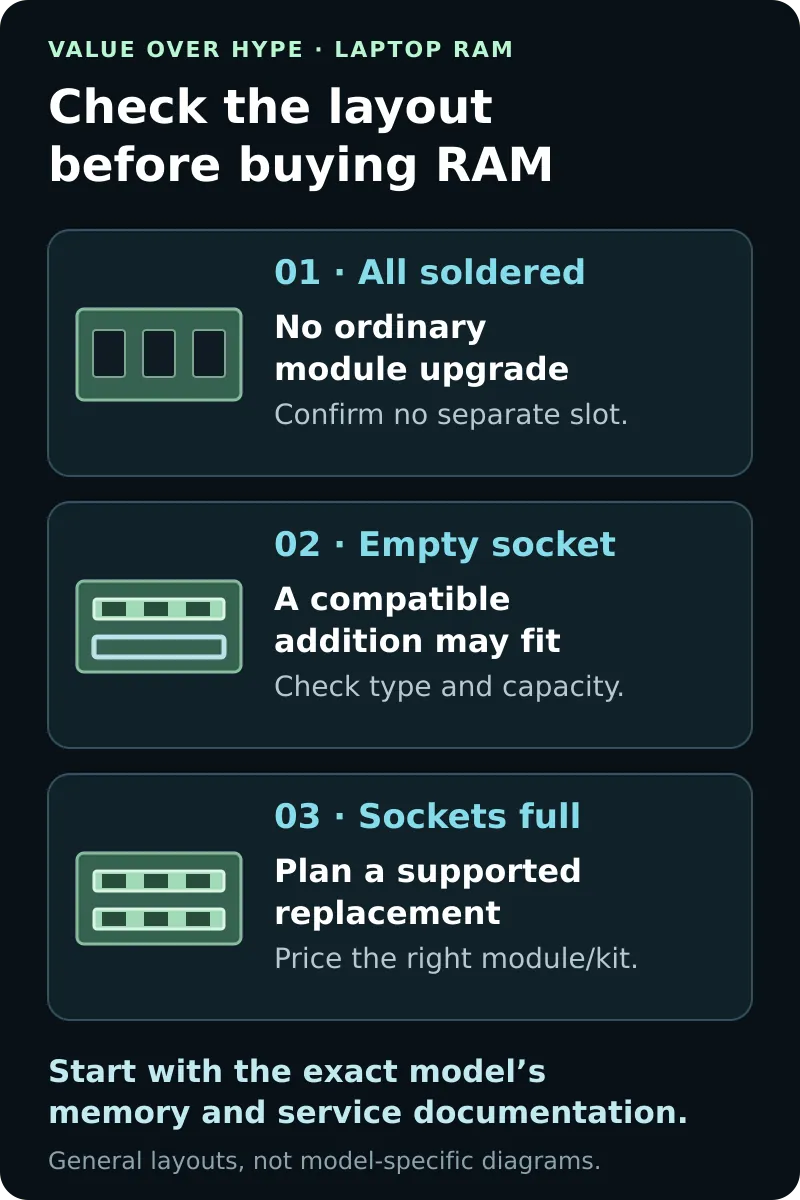
01
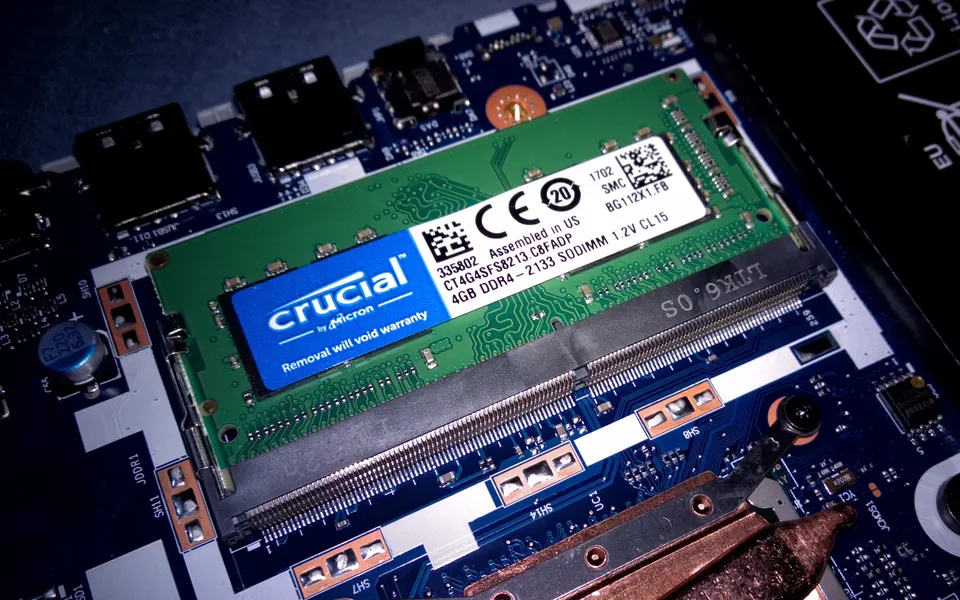
An empty, supported memory slot
A compatible additional module may be the simplest route. Confirm the installed memory and the supported combination first.
02
Replaceable memory, all slots used
Price the replacement module or kit you actually need, not just the extra capacity you hope to add.
03
Soldered memory, no upgrade slot
Do not order a SO-DIMM. Keep the laptop if it still does the job, or compare replacement options if memory is a proven limit.
First, check whether more RAM solves the problem
Run the applications that make the laptop feel slow, not just an empty desktop. In Windows, Ctrl + Shift + Esc opens Task Manager; review memory, CPU and disk activity while the slowdown happens. Microsoft recommends this kind of resource check because several different problems can make a PC feel sluggish.
Then save your work, close unnecessary applications and repeat the same task. If switching between your usual apps becomes noticeably easier, memory deserves a closer look. That is a buying clue, not a controlled diagnosis or a promise that more RAM will fix every delay.
Do not buy RAM to solve a full SSD, a weak internet connection or a failing battery. If the laptop already runs your workload comfortably, an upgradeable design is an option you can keep for later, not a reason to spend now.
Find the exact model and two pieces of documentation
Record the full model identifier and configuration from the manufacturer support page, system information or the laptop label. A family name such as Inspiron or IdeaPad Slim 3 is not enough. Similar-looking machines can use entirely different memory layouts.
Read both the memory specifications and the service or owner’s manual. The specification should tell you the memory type, supported capacities and slot arrangement. The service instructions should show whether the module is replaceable and what must happen before opening the computer.
Write down the installed capacity and how it is divided: for example, one 16GB module, two 8GB modules, or 8GB soldered plus a removable module. A total of 16GB alone does not tell you which upgrade to buy. If the configuration cannot be established without opening the laptop, have a qualified repairer or the manufacturer confirm it before ordering.
Three official examples, three different shopping decisions
Dell Inspiron 16 5640: Dell documents two DDR5 SO-DIMM slots, 5200 MT/s memory and supported configurations up to 32GB. Its listed 16GB configuration uses two 8GB modules, while 32GB uses two 16GB modules. For that 16GB layout, buying one extra module is not the same job as upgrading to 32GB: both sockets are already occupied.
Lenovo IdeaPad Slim 3 15IRH8: Lenovo lists 8GB or 16GB of soldered LPDDR5-4800 memory, no memory slots and no memory upgrade. An ordinary SO-DIMM purchase does not provide an upgrade path for this model.
Lenovo IdeaPad Slim 3 14IRH10R: despite the similar family name, this model has 8GB soldered memory plus one DDR5 SO-DIMM slot. Lenovo lists an offering up to 24GB, made from 8GB soldered plus a 16GB module. You must establish what is already in the removable slot before deciding whether to add or replace it.
These are documentation-based examples checked October 20, 2026, not hands-on tests or current retail recommendations. Lenovo qualifies the 14IRH10R maximum as based on its tested memory offerings. We have not verified larger configurations, and these specifications should not be transferred to another model or generation.
Sources: Dell Inspiron 16 5640: supported memory configurations · Lenovo IdeaPad Slim 3 15IRH8: soldered memory specification · Lenovo IdeaPad Slim 3 14IRH10R: soldered-plus-SODIMM layout and speed
Match the module, not just the capacity
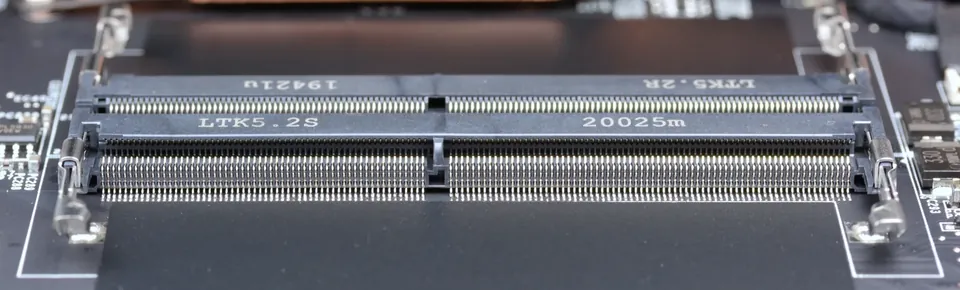
SO-DIMM describes a compact module format; DDR4 and DDR5 describe different memory generations. DDR5 is not a drop-in upgrade for a DDR4 socket. The electrical requirements and keying differ, so never force a module because its capacity looks right.
Match the exact form factor and generation in the manual, then check supported capacity per module, total capacity and any configuration restrictions. Do not substitute a full-size desktop DIMM or assume every laptop accepts a standard SO-DIMM.
Avoid the shortcut that “LPDDR always means soldered.” For example, Lenovo documents a replaceable LPCAMM2 connector using LPDDR5X memory in the ThinkPad P1 Gen 7. That is a different design and module type, not permission to install a SO-DIMM. The service documentation, not a broad memory acronym, settles the question.
Sources: Kingston: DDR5 generation and module formats · Lenovo ThinkPad P1 Gen 7: replaceable LPCAMM2 example
Do not pay for a speed the laptop cannot use
A module’s advertised data rate is not a promise that the laptop will run it at that rate. Kingston says most systems can run industry-standard memory of the same type at a lower supported speed. Platform rules and the installed combination still matter, so a faster label is not a substitute for a compatible part number.
The IdeaPad Slim 3 14IRH10R is a concrete example: Lenovo says its installed DDR5-5600 memory runs at DDR5-4800 because of the platform limit. Paying more solely for the 5600 label would not change that documented operating rate.
Do not treat “same brand” as a compatibility check. If keeping an existing module, confirm the supported combination with the system or memory supplier. If replacing two removable modules, a compatible matched kit simplifies the purchase. A mixed-capacity arrangement is not automatically wrong: Dell explicitly lists an 8GB-plus-16GB configuration for the Inspiron 16 5640. Follow the exact machine’s rules rather than a blanket rule about mixing.
Sources: Dell Inspiron 16 5640: supported memory configurations · Lenovo IdeaPad Slim 3 14IRH10R: soldered-plus-SODIMM layout and speed · Kingston: memory speed, kits and DDR5 training FAQ
Price the complete upgrade before comparing it with a new laptop
Our value test is simple: will this specific upgrade keep an otherwise suitable laptop useful for your actual work? Compare the complete job with the cost of a replacement that solves the same problem. Include installation labor if needed, and check whether battery, keyboard or other repair needs make the upgrade less attractive.
Ask for the full module or kit part number, not just “16GB laptop RAM.” Check the seller, current price, stock and return terms once compatibility is confirmed. Keep the original modules until the new configuration is recognized and stable; do not count an uncertain resale value as money already saved.
We are not naming a universal best RAM kit or a live deal because the right purchase depends on the laptop. A low-priced incompatible module is still wasted money. For a new laptop with non-upgradeable memory, compare the factory configuration you actually need rather than assuming a cheap upgrade will be possible later.
- Laptop: full model and configuration, plus the matching memory specification and service manual.
- Layout: soldered capacity, number of replaceable sockets and what is currently installed in each.
- Part: exact module type, DDR generation, supported capacity and operating speed.
- Quote: the complete compatible module or kit, tax, shipping and any installation cost.
- Fallback: seller return conditions and a plan to retain the original working modules.
Ask support: “For [exact laptop model/configuration], is [full memory part number] supported with the memory already installed? Which module would it replace, what total capacity would result, and what speed should it run at?”
Use the model’s installation procedure, not a universal recipe
Back up important files before opening the computer. Follow its own instructions for shutdown, external power, battery isolation or service mode, and electrostatic-discharge protection. Dell’s Inspiron 16 5640 procedure, for example, uses Service Mode and gives specific handling instructions. Those steps are not a universal recipe for other laptops.
If BitLocker or device encryption is enabled, verify that you can retrieve the recovery key securely before making hardware changes. Microsoft says a hardware change can trigger a recovery-key request. Keep the key private and accessible separately from the laptop; do not post it in a support screenshot.
For a work- or school-managed machine, go through IT. If the manual is unclear or the physical work is unfamiliar, include professional installation rather than turning a modest upgrade into a damaged computer. This article is a purchasing guide, not a replacement for the service manual.
Sources: Dell: Inspiron 16 5640 memory replacement precautions · Microsoft: back up your BitLocker recovery key
Check the result while you can still return the memory
After installation, confirm that the system recognizes the expected total capacity. Follow the manufacturer’s diagnostic instructions, then retry the applications that prompted the purchase. Dell, for example, provides memory checks through its preboot diagnostics and SupportAssist. A recognized capacity is a starting point, not proof that every workload is stable.
A first boot after changing DDR5 memory can include memory training. Kingston warns that this can take longer than a normal startup, so follow the machine’s instructions rather than assuming every initial blank screen means the upgrade failed. If there is an error code or the documented process does not finish, stop and use the manufacturer’s troubleshooting path.
The outcome to look for is a reliable laptop that handles your real work better, not just a larger number in Settings. We did not perform these installation or performance checks on the example machines; they are the acceptance checks we recommend for your own upgrade.
Sources: Kingston: memory speed, kits and DDR5 training FAQ · Dell: memory diagnostic options
Common buying questions
Can every 8GB laptop be upgraded to 16GB?
No. Some have soldered memory with no upgrade slot. Others let you add or replace a module. Check the exact model and installed layout before choosing a part.
Can I replace DDR4 laptop memory with DDR5?
Not in a DDR4 socket. DDR4 and DDR5 are different generations with incompatible electrical requirements and keying. Buy the generation and module format documented for your laptop.
Does soldered RAM mean there is no upgrade at all?
Not always. Some laptops combine soldered memory with a slot for a removable module. Others are entirely soldered. Confirm both the onboard capacity and the slot arrangement.
Do I need to replace both memory modules?
Only if the supported target configuration requires it. Two occupied sockets may mean replacing both for a larger matched kit; a spare supported socket may allow an addition. Soldered-plus-slot designs follow their own limits.
Will more RAM guarantee higher game frame rates?
No. More capacity is useful when memory is a real constraint, but the CPU, GPU and the rest of the system still matter. Choose the upgrade for a demonstrated need, not a promised universal speed boost.
Sources & how we reached our advice
Checked October 20, 2026. We used the primary documentation below for compatibility and specifications. Buying thresholds and decisions are our editorial judgment. This guide does not claim hands-on benchmarks, an exhaustive product ranking, or a test score.
- Microsoft: monitor resource use before upgrading
- Dell Inspiron 16 5640: supported memory configurations
- Lenovo IdeaPad Slim 3 15IRH8: soldered memory specification
- Lenovo IdeaPad Slim 3 14IRH10R: soldered-plus-SODIMM layout and speed
- Kingston: DDR5 generation and module formats
- Lenovo ThinkPad P1 Gen 7: replaceable LPCAMM2 example
- Kingston: memory speed, kits and DDR5 training FAQ
- Dell: Inspiron 16 5640 memory replacement precautions
- Microsoft: back up your BitLocker recovery key
- Dell: memory diagnostic options
No affiliate links. Editorial standards · Send a correction