
PC memory upgrades
Can you mix RAM sticks, or should you replace the kit?
Decide whether to add a RAM module or replace the kit. Check exact parts, supported slot layouts, standard versus overclocked speeds and the complete upgrade cost.
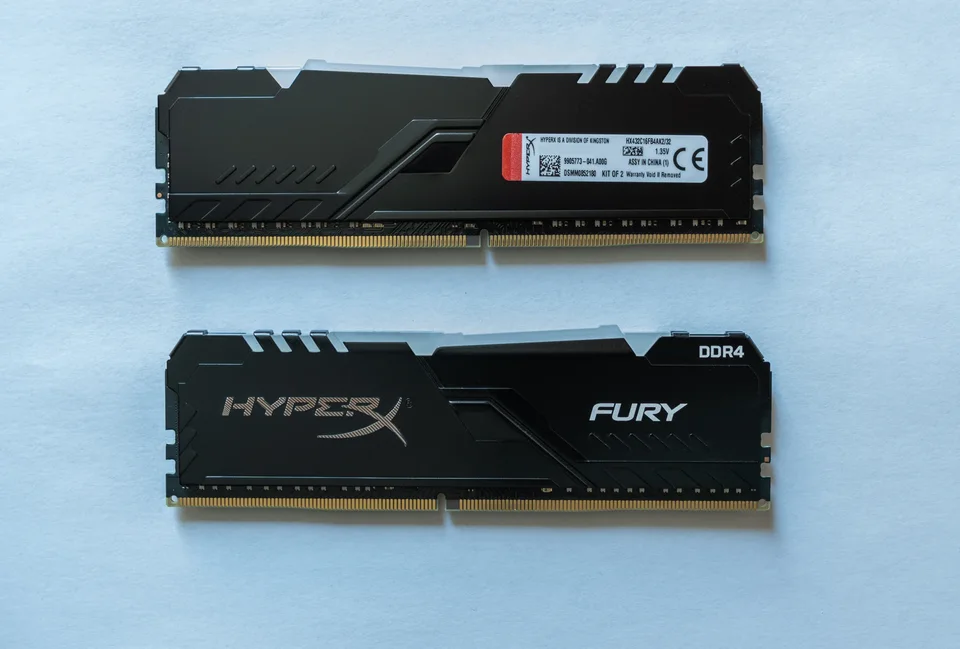
01
One module and a free slot
Check the exact supported addition before ordering. A free slot alone is not a compatibility guarantee.
02
Already using a two-module gaming kit
Compare replacing it with one larger compatible kit against adding another separately sold kit.
03
The PC already handles your workload
Keep the working memory. Empty sockets are not a problem to solve.
The useful question is add versus replace
This is a researched buying guide for owners who need more desktop memory, not a benchmark or a claim that every mixed setup fails. Choose the capacity your actual work needs first. Then decide how to reach it without spending twice on an incompatible upgrade.
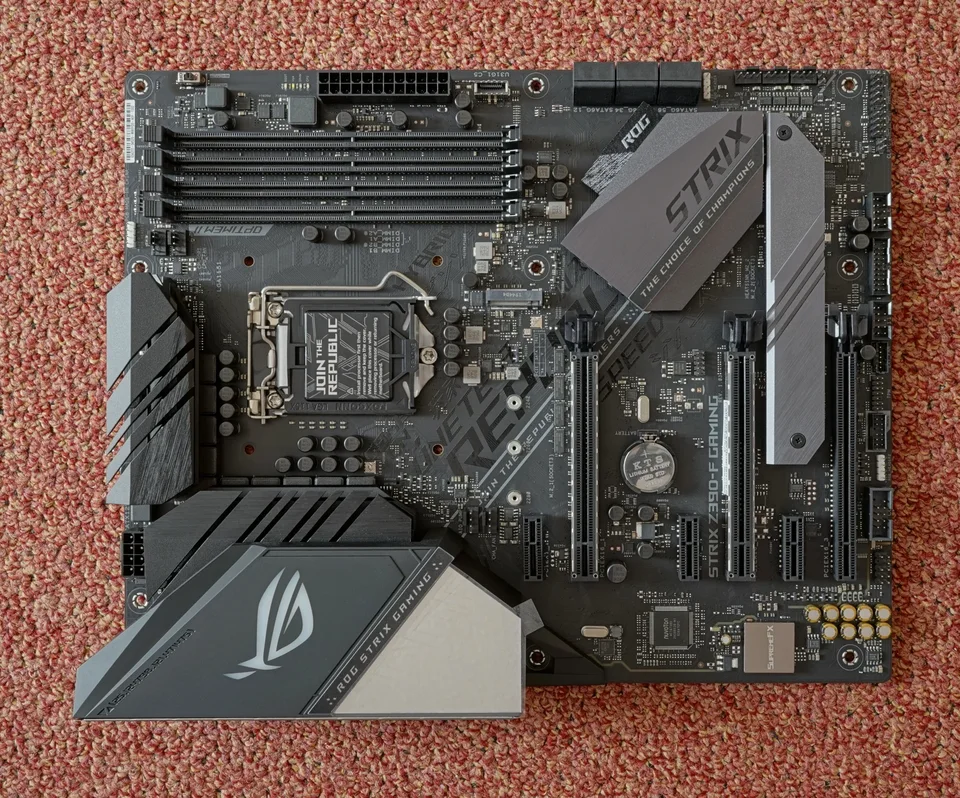
Write down the installed layout: for example, one 16GB module or two 8GB modules. Both total 16GB, but they present different upgrade choices. If the machine has only two sockets and both are occupied, adding another module is not an option. If it has four sockets, the remaining space still needs a supported configuration.
The same label does not make two purchases one kit
Corsair warns that combining its separately sold kits can cause instability, prevent XMP or EXPO from working, or stop a machine from booting. Its performance validation applies to the modules supplied together. Matching the advertised data rate is therefore not a substitute for a validated configuration.
Our buying preference is one compatible kit at the final capacity you need when replacing performance memory. This reduces uncertainty; it does not guarantee that every kit works with every board and processor. If a supplier recommends an addition, ask it to confirm the existing module part numbers, proposed part and full installed arrangement.
Make a compatibility record before comparing prices
Find the exact PC model or motherboard model and revision, the processor, BIOS version, and every installed module part number. Use the system or motherboard maker’s memory support page and manual. A qualified vendor list (QVL) records tested configurations; read the capacity, part number and supported socket population, not merely the brand.
Match the DDR generation, module format and supported capacities. A DDR5 label is not an upgrade path for a DDR4 board. Desktop DIMMs and laptop SO-DIMMs are different formats. For a prebuilt, follow the PC maker’s guidance rather than assuming the retail motherboard manual applies.
ASUS directs owners to its QVL and the slot arrangement in the exact board manual. Do not copy a slot order from a photo or a different PC. If your combination is absent or unclear, ask the system or memory supplier before checkout rather than assuming it is either certified or impossible.
Sources: ASUS: memory installation and slot instructions · ASUS: checking CPU and memory QVLs
More sticks can change the supported speed
Kingston distinguishes industry-standard memory from overclockable kits. It says standard modules of the same type can commonly run at a lower shared supported speed, while platform population rules can also reduce speed when more sockets are filled. It warns against mixing overclockable modules or kits with different specifications or DRAM densities.
Do not reduce this to “everything always runs at the slowest stick.” That assumes the combination can initialize and is supported in the first place. Compare the supported speed for the complete arrangement, not the number on the newest box.
Intel XMP and AMD EXPO are memory-overclocking profiles, not universal compatibility fixes. Running outside published specifications carries stability and warranty considerations. This guide does not recommend changing voltage or forcing a profile to make a questionable purchase work.
Sources: Kingston: desktop and notebook memory support · Intel: XMP memory overclocking · AMD: EXPO technology and overclocking cautions
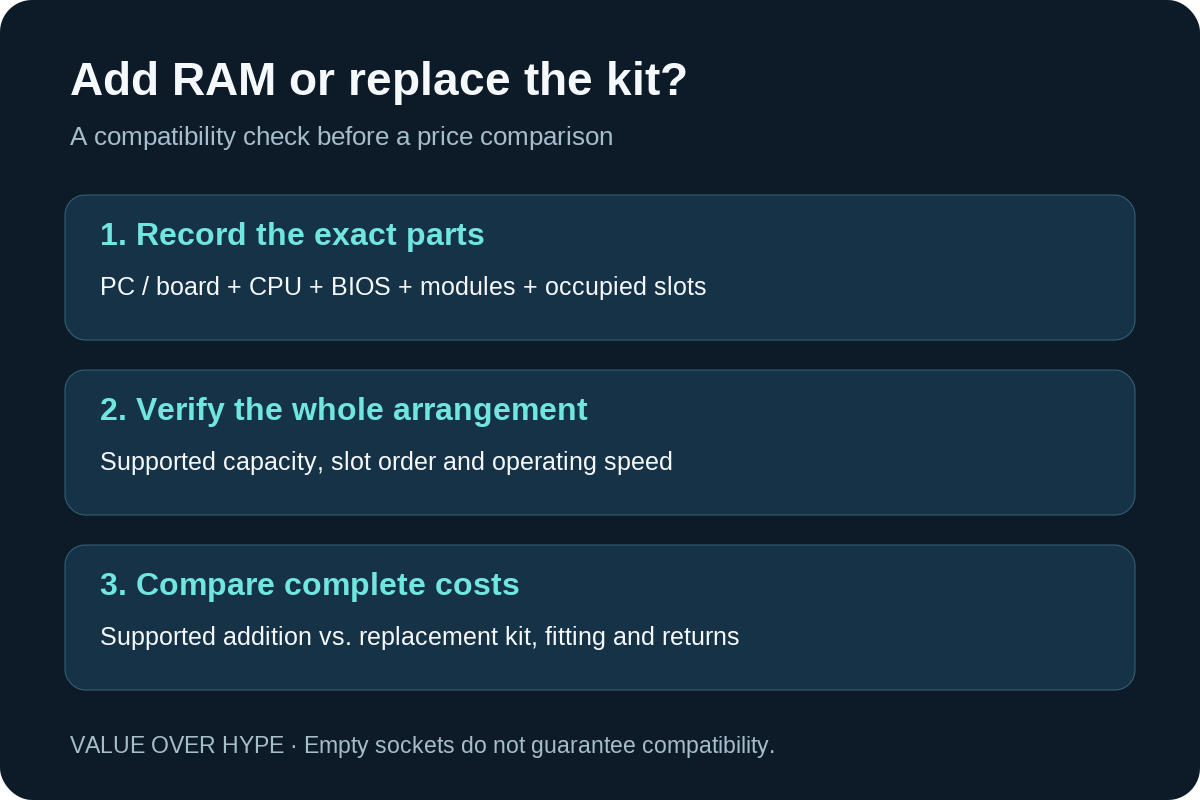
Three common layouts, three different shopping baskets
One 16GB module, one usable spare socket: price a supplier-confirmed compatible addition, and separately price a supported replacement kit. Do not buy a second 16GB module solely because the capacity and brand match.
Two 8GB modules, two sockets: reaching 32GB typically means replacing them with a supported 32GB arrangement. The cost is the full replacement purchase, not the difference between a 16GB and 32GB listing. Keep the old working modules until the upgrade is verified.
Two 16GB modules, four sockets: adding another 2 × 16GB kit reaches 64GB arithmetically, but does not establish supported operation. Compare that proposal with one supported 2 × 32GB kit or another explicitly validated layout. Check the processor and board’s capacity and population limits.
These examples explain purchase decisions, not prescriptions for your computer. Some OEM systems support unequal capacities, so a blanket “all mixed sizes are wrong” rule is also misleading. The exact supported arrangement is the deciding evidence.
Compare the complete cost and the fallback
Request a quote with the exact part numbers, tax, delivery and any fitting charge. Check stock and return conditions with the named seller before ordering. A lower sticker price is not good value if you cannot return an unsupported combination. We do not quote a universal best kit or live price because the correct part depends on the machine.
Use this question with support: “With [PC or board, processor and BIOS], I currently have [module part numbers and occupied slots]. Is [proposed part] supported alongside them, at what total capacity and speed, and in which slots?” Save the response with the listing.
Include your own time in the choice. If you need the PC for work tomorrow, spending an evening diagnosing an uncertain mix may erase a small saving. Do not count possible resale income from the old modules as money already available.
- Add route: exact extra part, confirmed combined layout, supported operating speed and return terms.
- Replace route: complete compatible kit, removal or fitting cost, and storage for the original modules.
- Wait route: no purchase if memory capacity is not the actual limit.
Verify the upgrade before relying on it
Back up important files and follow the computer’s own shutdown, power-isolation and electrostatic-discharge precautions. Work on an appropriate surface, never force a module, and use the specified slots. For managed work or school equipment, use IT support.
After installation, confirm that the firmware and operating system recognize the expected capacity. Follow the manufacturer’s diagnostic procedure and run your normal demanding workload. A successful boot alone is not proof of stable memory. Keep the receipt and original modules while checking the result.
If the new arrangement causes errors or fails to start, stop experimenting with unsupported settings. Follow the maker’s recovery instructions or seek support; restore the known-working configuration only using its safe installation procedure. A compatible replacement or return can be better value than forcing a mixed kit to behave.
Sources: ASUS: memory installation and slot instructions · Kingston: desktop and notebook memory support
Common buying questions
Can I mix different RAM brands?
Brand alone does not decide compatibility. Check the module specifications and the exact system’s supported combination. For performance-memory upgrades, one compatible kit at the required total capacity is generally the simpler buying choice.
Can I add an identical second kit?
Do not assume that makes a validated larger kit. Corsair warns that separately sold kits can have compatibility problems even at the same advertised speed. Check supplier support for the full installed configuration.
Will faster RAM simply slow down to match?
Supported industry-standard memory often does, but this is not a promise that arbitrary modules will work together. Processor, board and populated-slot rules also matter; overclocked profile speeds are a separate question.
Should I replace a mixed setup that already works?
Not solely because the modules differ. Check whether your system supports the arrangement and whether it is stable in actual use. Buy only to solve a real capacity or reliability problem.
Sources & how we reached our advice
Checked November 7, 2026. We used the primary documentation below for compatibility and specifications. Buying thresholds and decisions are our editorial judgment. This guide does not claim hands-on benchmarks, an exhaustive product ranking, or a test score.
- Corsair: combining separate memory kits
- ASUS: memory installation and slot instructions
- ASUS: checking CPU and memory QVLs
- Kingston: desktop and notebook memory support
- Intel: XMP memory overclocking
- AMD: EXPO technology and overclocking cautions
No affiliate links. Editorial standards · Send a correction