
Laptop desk setup
USB-C hub vs. docking station: buy the connections you need
Choose a portable hub, a desk dock or no new accessory. Compare your actual ports, laptop compatibility, charging and complete setup cost before buying.
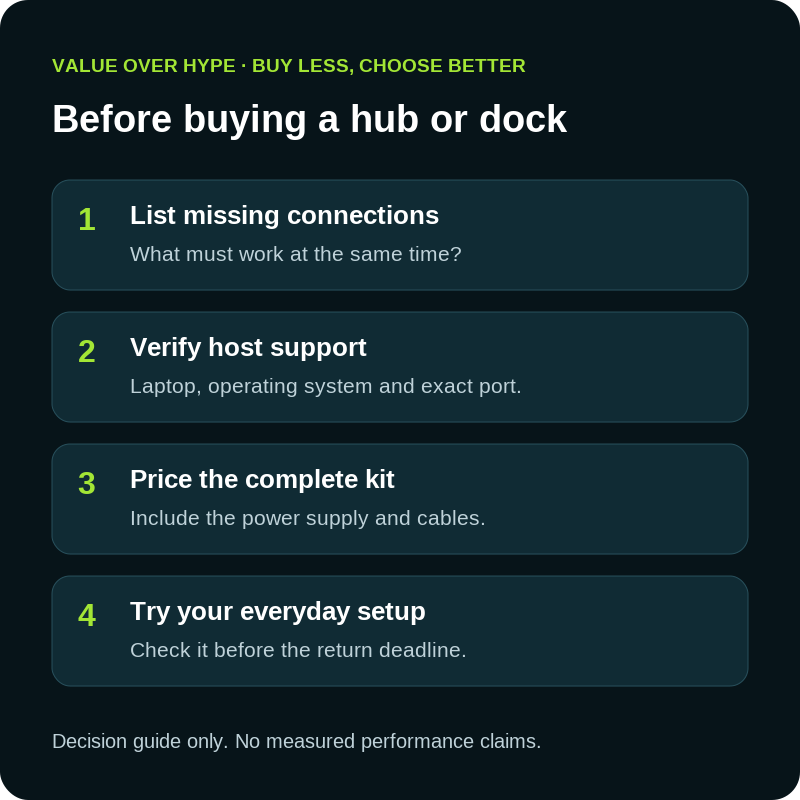
01
A few missing ports
Start with a hub that supplies those exact connections. Do not pay for a desk setup you will not use.
02
A permanent workstation
Compare a compatible dock with the cost and inconvenience of your existing separate connections.
03
Everything already works
Keep your setup. Fewer cable changes can be convenient, but convenience needs to earn its price.
Buy a solution to your desk problem, not a bigger port count
This is researched buying advice, not a comparative test of hubs or docks. We have not benchmarked the pictured hardware. Our question is which kind of accessory belongs in your setup, not which specific model wins a laboratory comparison.
Write down everything you connect during a normal day. Separate things you use together from things you only connect occasionally. Include the laptop charger, display, keyboard, mouse, storage, network cable and any card reader. Cross out connections already handled comfortably by the laptop or monitor.
Anker describes compact hubs as convenient to carry and larger docks as better suited to a fixed desk. Treat that as a useful shopping starting point, not a universal rule. Our preference is the smallest complete solution that meets your actual routine. A long list of sockets is not a benefit if most stay empty.
Sources: Anker support: hub portability and pass-through charging
The laptop decides what the accessory can do
Dell distinguishes native USB-C video docking, Thunderbolt docking and DisplayLink-based universal docks. Not every USB-C laptop port carries video. Dell directs buyers to the exact laptop manual and dock compatibility information; DisplayLink displays also require software.
Before ordering, record your laptop model and operating system, the connection technology of its intended port, and the accessory’s stated host requirements. A matching connector shape is not enough. For a work laptop, check with your IT team before choosing equipment that needs software you cannot install.
Our rule: if the seller cannot show your required feature working with your host configuration, do not treat it as included. That matters more than the word “dock,” the number of sockets or a large bandwidth headline.
Sources: Dell: docking connection types and model-specific compatibility
Price the charger and cables, not just the box
Anker notes that some hubs do not charge the host at all. Pass-through models accept a separate USB-C power supply, and the hub uses part of that power. Docks commonly include a power adapter, but read the actual package contents rather than assuming one is supplied.
A concrete example of why the label is not enough: CalDigit describes its SOHO Dock as usable on the road with bus power, and lists up to 100W power input but up to 90W laptop charging. These are manufacturer specifications for that model, not our measurements or a recommendation to buy it. Check its full conditions rather than applying those figures to another accessory.
Compare the documented power delivered to the laptop with the laptop maker’s requirements for your workload. Do not confuse a power-input rating with power available to the computer. Our cost comparison includes any required charger, suitable host cable, display cables and adapters missing from the package.
Keeping a separate laptop charger can be a perfectly reasonable outcome. Decide whether eliminating that one connection is genuinely worth the extra purchase. For a high-power machine, confirm the manufacturer’s supported charging arrangement instead of assuming any USB-C dock replaces the original supply.
Sources: Anker support: hub portability and pass-through charging · CalDigit SOHO Dock: a portable dock and its stated power limits
Check simultaneous use, not isolated headline numbers
Anker explains that devices on a USB hub share its upstream data connection and that bus-powered and self-powered hubs have different power arrangements. Our takeaway: count what must work at the same time, not merely what can be plugged in.
For monitors, ask for the supported combination of screen count, independent versus mirrored desktops, resolution and refresh rate on your exact host and operating system. Dell recommends the specific dock’s guide for display and power details. Do not turn a single-screen maximum into a promise for every attached display.
For storage, a useful buying question is whether your normal simultaneous tasks work satisfactorily: for example, a file copy while your keyboard, network and display are in use. This is a proposed acceptance check, not a benchmark result. We make no throughput or gaming-performance promise for either category.
Sources: Dell: docking connection types and model-specific compatibility · Anker: hub power types and shared upstream bandwidth
Make the return window your acceptance deadline
Dell’s setup guidance covers connecting the dock’s power supply, using the correct host connection and following the model’s driver and firmware instructions. Follow the vendor’s supported process, especially on a managed work computer.
Our suggested check is your real working day: connect the devices you need, verify the intended monitor modes, confirm the expected charging behavior and try your normal sleep-and-reconnect routine. If anything fails, investigate compatibility and supported setup steps before buying more adapters to rescue the purchase.
Keep the packaging until you know the setup works, and read the seller’s actual return terms before paying. A compact hub earns its place by being useful and portable. A desk dock earns its place by making your desk meaningfully easier to use. Neither earns its place just by having the longest specification list.
Sources: Dell: setting up a docking station
Common buying questions
Does a docking station always beat a USB-C hub?
No. Our recommendation is to compare the complete working setup, not the category name. Unused features are not value.
Do I need to replace a hub that already works?
Not without a specific unmet need. Keep a satisfactory setup rather than upgrading solely for a larger port count.
Are the photographs evidence of a tested pairing?
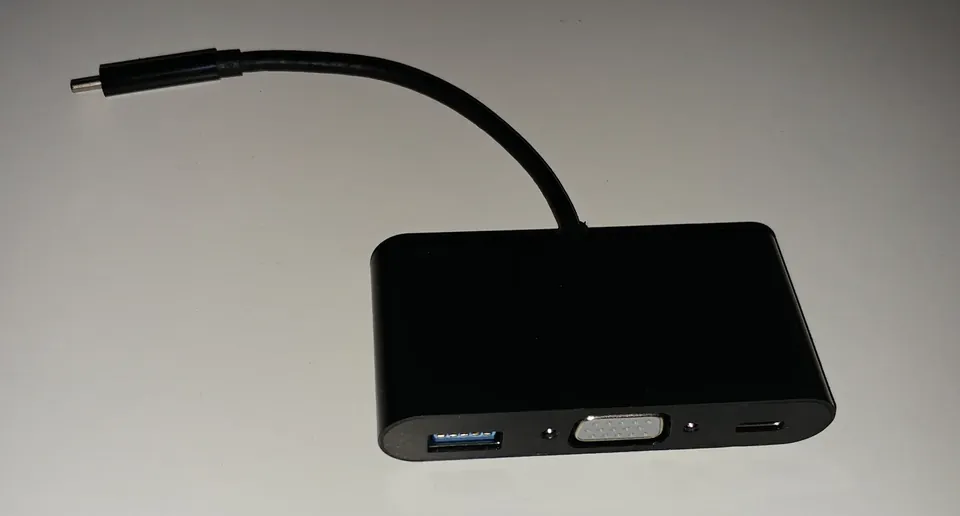
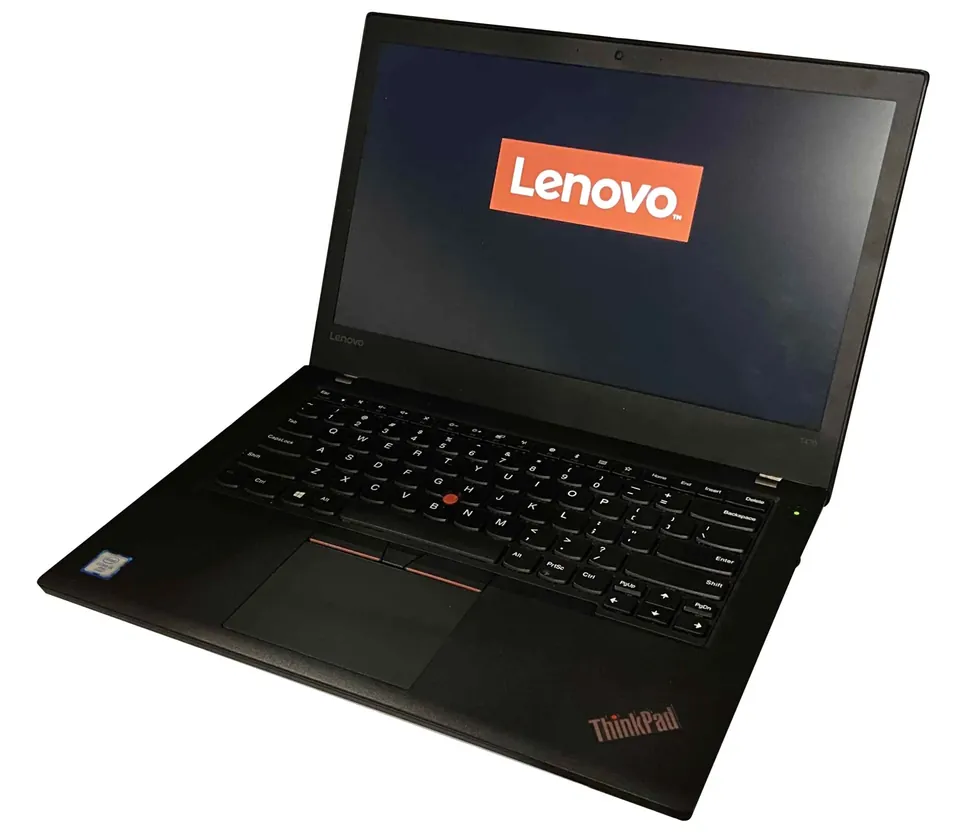
No. They are credited illustrative hardware photographs, not our test equipment or a compatibility claim.
Sources & how we reached our advice
Checked November 19, 2026. We used the primary documentation below for compatibility and specifications. Buying thresholds and decisions are our editorial judgment. This guide does not claim hands-on benchmarks, an exhaustive product ranking, or a test score.
- Anker support: hub portability and pass-through charging
- Dell: docking connection types and model-specific compatibility
- Anker: hub power types and shared upstream bandwidth
- Dell: setting up a docking station
- CalDigit SOHO Dock: a portable dock and its stated power limits
No affiliate links. Editorial standards · Send a correction