
Home networking
Wi-Fi 6 vs. Wi-Fi 7: when is a new router worth it?
Dead zones, slow internet, and an old router are different problems. Check your devices, placement, and wired connection before paying for Wi-Fi 7.

Internet & wired links
Your service plan, modem, cables, and port speeds set limits.
Router & placement
Bands, coverage, backhaul, and walls shape the wireless connection.
Phone or computer
The client needs compatible hardware and software to use new features.
Illustration: Value Over Hype. Check each part before replacing a router. A faster wireless standard cannot fix every slow connection.
01
Slow in only one room
Check router placement and coverage before changing Wi-Fi generations.
02
Slow even over Ethernet
Investigate the internet service, modem, cables, and router ports before blaming the wireless standard.
03
Fast local transfers matter
Compare compatible clients, wired ports, and storage performance as a complete system.
What Wi-Fi 7 changes—and what it cannot
Wi-Fi 7 can add features such as Multi-Link Operation and wider channels on supported hardware. These capabilities depend on both the router and the connecting device. A new router does not turn an older phone into a Wi-Fi 7 device.
Wi-Fi 6 normally uses 2.4GHz and 5GHz, while Wi-Fi 6E extends into 6GHz. Check the bands on a Wi-Fi 7 router rather than assuming all models include 6GHz; dual-band models exist. Availability and permitted channels also depend on the region.
The important question is whether a feature helps the work you do. Web browsing on a reliable connection is different from transferring large files across your home network. Neither an impressive wireless speed claim nor a premium router changes the internet plan you pay for.
Sources: ASUS: Wi-Fi 7 features explained · ASUS: Wi-Fi 6 versus Wi-Fi 6E · ASUS: Wi-Fi 7 compatibility and bands
Run three checks before shopping
First, use the same device to compare your normal work near the router and in the room where you have trouble. Repeat at similar times. A strong result nearby and a weak one across the house points you toward coverage, placement, or interference rather than simply buying a higher model number.
Second, where practical, compare an Ethernet connection through the router. If wired performance is also poor, wireless replacement may miss the issue. Check the internet service, cable condition, and port speeds. Record what you see before contacting the provider.
Third, identify the symptom. Is it one game’s lag, a video call freezing, or every device disconnecting? A single distant laptop and a whole-home outage call for different investigations. Speed-test numbers are one clue; reliable completion of your actual task is the goal.
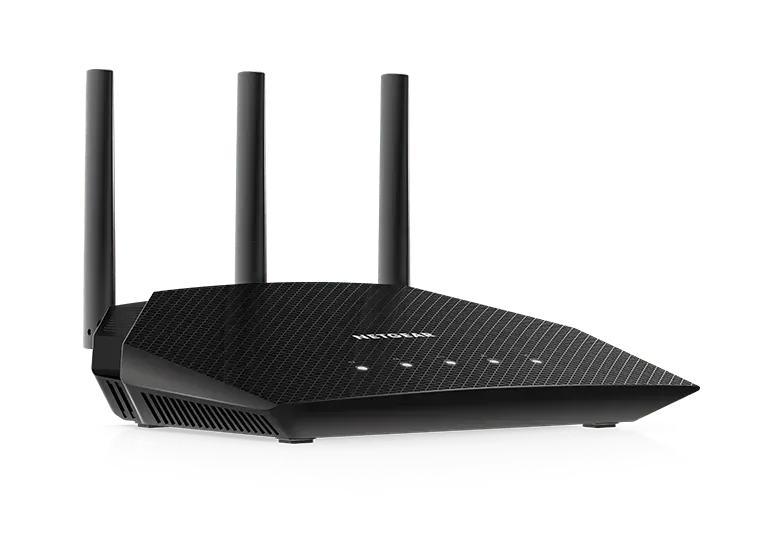
A better location can be the free upgrade
Google’s placement guidance recommends an open, elevated position and sensible spacing between mesh points. Putting network equipment inside a cabinet or at the far end of the home can make an otherwise capable system disappointing.
Try a more central location within the limits of your cabling. For mesh, a point needs a useful connection back to the network; placing it at the very edge of an existing dead zone can leave it with little to work with. Use the manufacturer’s placement and mesh-test tools.
Do not buy the largest mesh pack just because more units sound better. Start with the home’s layout, wall materials, and where people actually use devices. If cabling is available, compare a wired connection or wired backhaul with another wireless hop.
Sources: Google: where to place Wi-Fi devices
When paying for Wi-Fi 7 makes sense
If you need a new router anyway, compare Wi-Fi 7 with a good supported Wi-Fi 6 or 6E option at the actual checkout price. A modest premium may make sense for compatible devices you already own. A large premium is harder to justify for equipment that mostly streams music or controls lamps.
For fast local transfers, examine the entire route: client adapter, router bands, Ethernet ports, switch, and storage. One slow link can limit the task. Paying for a multi-gigabit internet plan or router port is not useful if the rest of your setup cannot use it.
Read the support policy and the cost of optional security or parental-control subscriptions. A cheaper supported router can be better value than an impressive model whose useful features require recurring payments. We have not benchmarked these routers and are not awarding a speed or coverage score.
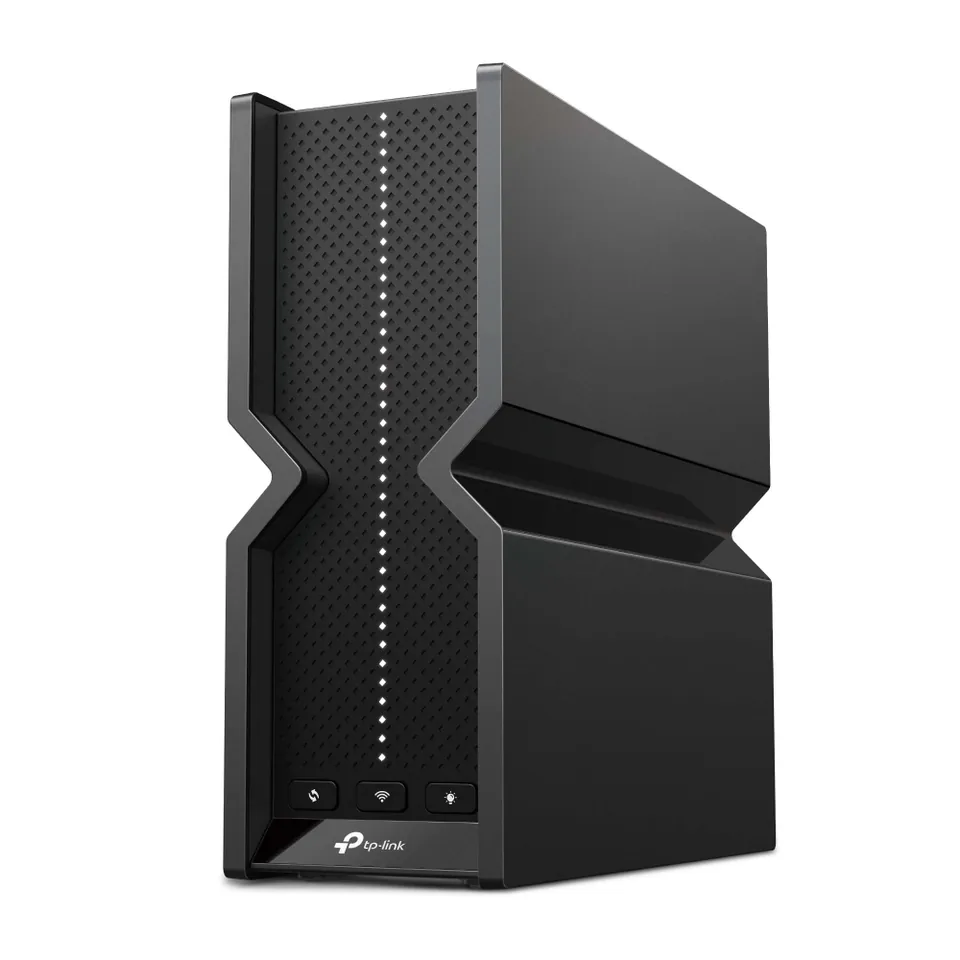
Our buying rule: solve the bottleneck you can identify
Keep a reliable, supported setup. Improve placement when coverage is the problem. Investigate the wired connection when all devices are slow. Buy new hardware when you can explain how its specific features address the limitation.
Before the return period ends, repeat the same checks with the same devices and room locations. Save your old configuration until the new setup works. If the real-world improvement is negligible, a more expensive box has not earned its place.
Common buying questions
Will Wi-Fi 7 make my internet plan faster?
It cannot increase the speed supplied by your provider. It may remove a wireless bottleneck, but only if your existing Wi-Fi is the limiting part of the connection.
Can older devices use a Wi-Fi 7 router?
Wi-Fi 7 routers generally support older Wi-Fi clients, but those clients do not gain Wi-Fi 7 features. Check the router’s supported security and compatibility settings for your devices.
Does every Wi-Fi 7 router have 6GHz?
No. Check the specification; some are dual-band. Router and client support, plus regional rules, determine which bands and features you can use.
Sources & how we reached our advice
Checked October 9, 2026. We used the primary documentation below for compatibility and specifications. Buying thresholds and decisions are our editorial judgment. This guide does not claim hands-on benchmarks, an exhaustive product ranking, or a test score.
- ASUS: Wi-Fi 7 features explained
- ASUS: Wi-Fi 6 versus Wi-Fi 6E
- ASUS: Wi-Fi 7 compatibility and bands
- Google: where to place Wi-Fi devices
No affiliate links. Editorial standards · Send a correction