
Gaming PC networking
Ethernet or Wi-Fi for a budget gaming PC? Test before buying
Decide whether a cable or USB Ethernet adapter would help your gaming PC. Compare the same game, check latency and packet loss, and avoid paying for the wrong upgrade.
01
Ethernet port already available
Try a direct connection to the router before buying an adapter.
02
Wi-Fi works reliably
Keep it. A cable or faster adapter needs a problem to solve.
03
Both connections struggle
Investigate the game/server, competing traffic and internet service first.
Separate slow downloads from lag during play
This is research-based buying advice, not a network benchmark. We have not tested the pictured cable or adapter, and we do not promise a particular ping reduction. The aim is to identify whether your PC’s local connection is the problem before spending money.
Bandwidth describes how much data a connection can carry. Latency is delay; jitter is variation in that delay; packet loss means some data does not arrive. A fast game download does not establish that the connection will stay consistent throughout a match. Conversely, a slow download alone does not prove that online play needs a new adapter.
Use the game’s network display when available, and keep frame rate separate from network latency. Cloud gaming also streams video, so its service-specific bandwidth and latency requirements differ from a game running locally. Check those requirements rather than applying one universal Mbps target.
Sources: HP: gaming networking glossary, latency, jitter and packet loss · Intel: gaming network speed, stability and latency
If your game plays smoothly but viewers see stutter, check the broadcasting app separately. Game-server latency and OBS upload drops are different measurements. If OBS reports rendering or encoding lag rather than network drops, changing your Wi-Fi adapter will not fix that bottleneck.
Make one useful wired-versus-wireless comparison
Start with the PC in its normal position. Pick the same game and, where possible, the same server region. Record the connection type, time, reported latency, packet-loss indicator and the symptom that bothers you. Pause your own large downloads for the initial comparison; do not change graphics settings between runs.
If your PC and router have available Ethernet ports, connect them with a suitable known-working cable and make sure the PC is actually using the wired connection. Do not run a temporary cable where people can trip over it or where a door can crush it. You do not need a USB adapter when the PC’s built-in Ethernet already works.
Repeat the comparison rather than judging one lucky match. Then see whether the result holds during your normal household usage. This is a practical diagnostic check, not a controlled laboratory test: server load and internet conditions can change between runs.
Nexon also recommends comparing ping to the router/default gateway on Wi-Fi and Ethernet. That local check can help separate the PC-to-router connection from the wider internet, but it is not a complete test of a game server. Follow your operating system’s instructions; no firewall disabling or router security changes are needed for this buying decision.
Sources: Nexon: compare wired and wireless connections · Intel: gaming network speed, stability and latency
Let the result decide what, if anything, to buy
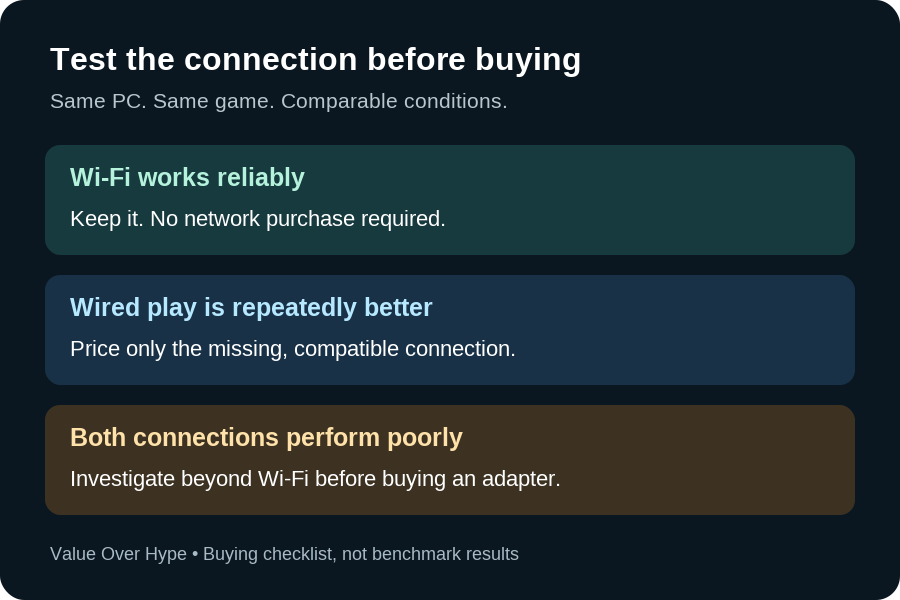
Wi-Fi is stable and the game feels fine: keep your current setup. A wired connection can be useful without being a necessary purchase for every player.
Wired play is repeatedly better, while Wi-Fi shows spikes or loss: focus on the local wireless connection. Check the PC’s antennas and the manufacturer’s placement guidance before replacing the router. If a permanent cable route is practical, compare its complete cost with changing wireless hardware.
Both connections behave badly: do not assume a new Wi-Fi adapter will fix it. Check the game’s service status, chosen server region, competing household transfers and the internet connection. A faulty cable or port can also spoil the wired comparison.
A cable into a nearby mesh node does not necessarily make the whole path wired. If that node talks to the main router wirelessly, a wireless hop remains. Record that topology instead of treating it as the same test as a cable to the main router.
Sources: HP: gaming networking glossary, latency, jitter and packet loss · Intel: gaming network speed, stability and latency · Nexon: compare wired and wireless connections · TP-Link: wired and wireless Deco backhaul
No Ethernet port? Check the adapter, not just its speed badge
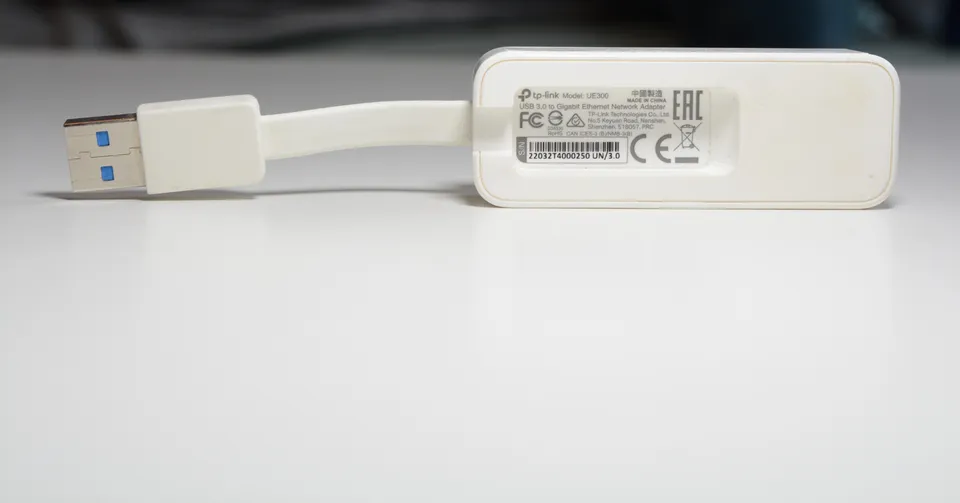
For a USB Ethernet adapter, record the exact model and hardware revision, its USB connector, the USB data capability it requires, supported operating system and driver, and the Ethernet port speed. A connector that fits does not establish the throughput of the USB port or a shared hub.
TP-Link’s UE300 is a specification example: the official page lists USB 3.0 and one 10/100/1000Mbps RJ45 port, with backwards compatibility for older USB connections. That is not a promise of gigabit file transfers on every port, or a claim that the adapter reduces game latency. We have not tested or selected it as a current best buy.
Check the current support/download page for the exact hardware revision and OS version. TP-Link’s overview and specification table describe support differently, so do not rely on a broad “plug and play” phrase for your particular system. Prefer official drivers and instructions.
If you are considering an internal PCIe network card instead, verify an accessible compatible slot, bracket size and driver support. Do not buy an internal card simply because it sounds more serious than USB; choose the supported route that solves your actual problem.
Sources: TP-Link: UE300 specifications and support · Intel: gaming network speed, stability and latency
A multi-gigabit label is not a lower-ping guarantee
The PC controller, USB connection where applicable, cable path, router or switch ports, internet service and remote server all matter. A faster adapter cannot make a slower router port run faster, and a higher internet-plan speed is not a promise of a shorter route to your game server.
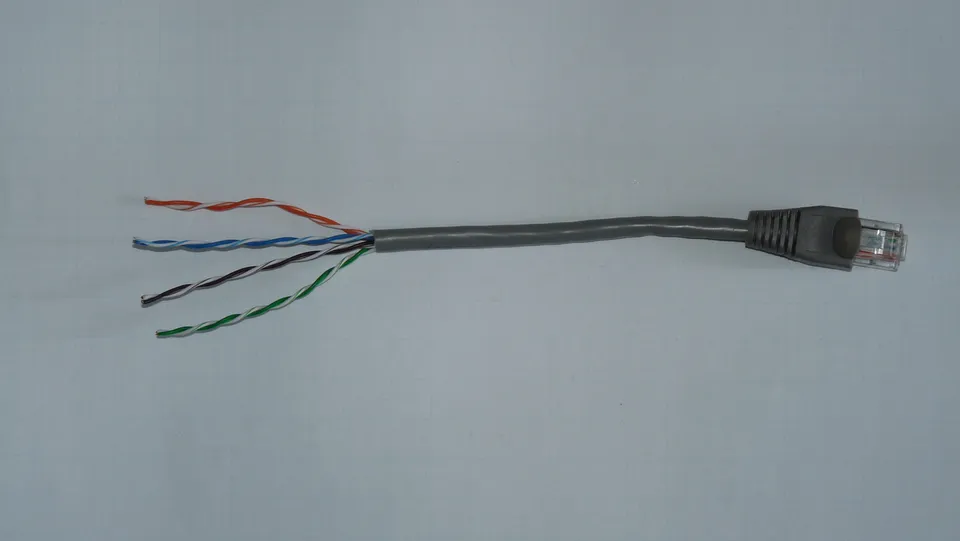
Check existing cable condition and the requirements of the exact equipment before replacing it. Intel’s cabling guidance also notes that intervening wall plates and other cabling hardware must meet the required category. Do not infer category or performance from a cable’s color or from our illustrative photograph.
Price the complete route: adapter only if needed, appropriate cable length, any genuinely required equipment, and safe installation. Avoid premium “gaming” cabling on the assumption that branding guarantees a latency improvement. Keep the old working setup until the replacement has passed the same checks.
Sources: Intel: gaming network speed, stability and latency · TP-Link: UE300 specifications and support · Intel: Ethernet cabling specifications
Write a short buying record before checkout
Record the exact problem, the comparison result, the missing part and its compatibility requirements. For a purchase, then check the exact SKU, seller, current stock, delivered price and return terms. Include adapters or a switch only if your planned connection actually requires them.
This article does not advertise a current price or in-stock deal. The photographed UE300 is identified for accuracy, not recommended because it appears in the picture. The value decision is whether the complete purchase improves your connection enough to justify its cost.
During the return period, repeat the same game and network checks. If the practical result is unchanged, investigate the cause rather than continuing to buy increasingly expensive network equipment.
Common buying questions
Will Ethernet increase my game’s frame rate?
Do not treat it as a graphics upgrade. This comparison concerns network delay and reliability; rendering performance is a separate issue.
Do I need a USB Ethernet adapter if my motherboard has Ethernet?
Not if the built-in connection works and supports your setup. Try that port first instead of paying for a duplicate connection.
Is a 2.5Gbps adapter automatically better for game latency than gigabit?
No. Link speed is not a latency guarantee. Identify the bottleneck and check the complete connection before paying more.
Sources & how we reached our advice
Checked November 26, 2026. We used the primary documentation below for compatibility and specifications. Buying thresholds and decisions are our editorial judgment. This guide does not claim hands-on benchmarks, an exhaustive product ranking, or a test score.
- HP: gaming networking glossary, latency, jitter and packet loss
- Intel: gaming network speed, stability and latency
- Nexon: compare wired and wireless connections
- TP-Link: UE300 specifications and support
- Intel: Ethernet cabling specifications
- TP-Link: wired and wireless Deco backhaul
No affiliate links. Editorial standards · Send a correction