
Gaming PC troubleshooting
OBS dropping frames? Check these three counters before upgrading your gaming PC
Use OBS Stats to tell GPU rendering lag, encoder overload and upload drops apart. Run the same game scene twice before buying a GPU, CPU or router.
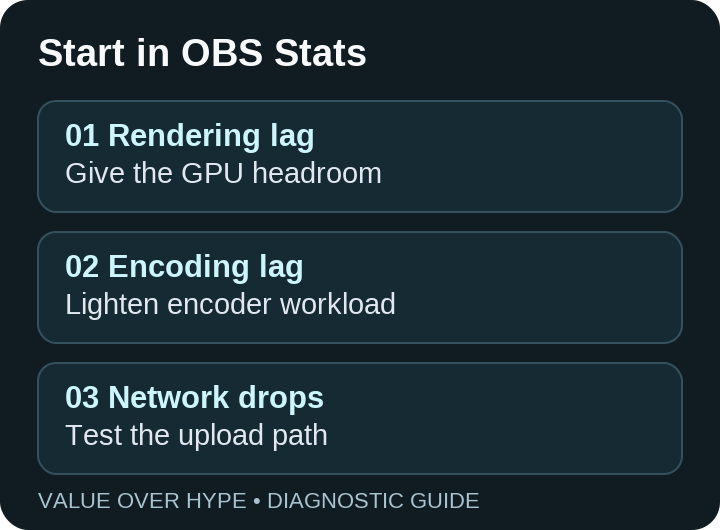
01
Rendering lag
OBS cannot consistently compose the scene in time. Cap the game’s FPS or simplify the OBS scene and repeat the same run.
02
Encoding lag
The encoder is not keeping up. Test a supported hardware encoder or a lighter encoding setting, one change at a time.
03
Dropped frames (network)
OBS cannot sustain the send rate to the stream server. Try a wired connection or a lower supported bitrate before buying equipment.
Find the counter that rises when the picture breaks up
OBS Stats reports separate problems. Rendering is drawing and combining the game capture, webcam and overlays. Encoding compresses those frames. A stream then has to send the encoded data to the platform’s server. A problem at one stage can look a lot like a problem at the next. More than one counter can rise on the same run.
Write down the values at the beginning and end of each run. Look for a counter climbing during the stutter, not a lifetime percentage or a few frames missed when you switched scenes. If all three stay flat, these counters have not identified the cause. Check whether the game itself, OBS preview, local recording or only the viewer’s playback stutters.
Sources: OBS Project: encoding performance troubleshooting · OBS Project: status indicators and what they mean · OBS Project: stream connection troubleshooting
Make the problem repeat without changing three settings at once
Pick a built-in benchmark, replay or repeatable route in the game. Start with the game alone and note what its frame rate and motion look like. Then run the same scene with OBS, the usual overlays and background apps, and an active output. Keep game resolution, quality, FPS cap and test length the same. Write down game FPS or frame pacing separately from the OBS counters.
A local recording lets you check rendering and encoding under the recording settings without broadcasting. It does not test upload. A clean recording also does not rule out encoding problems during streaming if your recording uses a different encoder, resolution, frame rate or preset. To check network drops, use an actual streaming output, preferably a platform test or nonpublic mode if supported. Do not start a public test if you did not intend to broadcast.
Rendering lag: give OBS some GPU headroom
A smooth game can be taking nearly all of the GPU time. As a first test, lower the game’s frame-rate limit by one useful step and repeat the run. If you want to preserve game frame rate, try one lower graphics setting instead. If the misses persist, repeat with a simple scene: game capture only, then restore browser overlays and other sources individually.
Hardware encoding does not eliminate the need to draw the OBS scene. If a good-looking cap or a simpler scene stops the misses, keep your current GPU. Consider a GPU upgrade only after you reproduce rendering lag at the game quality you actually want and identify the game’s graphics workload as the limiting factor.
Sources: OBS Project: encoding performance troubleshooting · OBS Project: hardware encoding
Encoding lag: check the encoder you are actually using
Check the encoder for the affected output in Settings → Output, since recording and streaming can differ. If you use the x264 CPU encoder, test a supported hardware encoder on your existing system and repeat the same run. If you already use hardware encoding, try a faster preset or lower output frame rate or resolution, changing only one variable per test. Check that the codec and output settings are accepted by your stream service.
If both rendering and encoding counters rise, fix the obvious rendering load first, then retest the encoder. An upgrade makes more sense once you can point to a reproducible limit at your target settings. A CPU purchase is not the default answer to the encoder warning.
Sources: OBS Project: encoding performance troubleshooting · OBS Project: hardware encoding
Network drops: test the path to the stream server
If only the network counter rises, start with a wired connection to the router if practical, pause competing uploads you control and retest. If the connection still cannot hold the configured bitrate, try a lower bitrate the platform supports. Test a different ingest server if your service allows you to select one.
A fast speed test to a nearby server does not prove you have a stable route to the streaming server. If both wired and wireless tests keep dropping frames, do not order a faster GPU or assume you need a new router. Record the times, bitrate, endpoint and whether one server does better; those details are more useful when checking with your provider.
Sources: OBS Project: stream connection troubleshooting
What, if anything, should you buy?
Keep what you have if a cap, a simpler scene, a lighter encoder setting or a stable connection produces acceptable quality. Spend only when you can name the remaining limit, show it recurs in the same test and explain how the exact part would remove it. If only the stream’s upload path fails, a faster gaming PC will not fix it.
Common buying questions
Why does my game look smooth while the stream stutters?
The game’s frame rate and the stream’s output are separate. The game can look smooth on your screen while OBS misses, skips or drops frames later in the process. Check the counters during the problem.
Can a local recording test my upload?
No. It can test the rendering and encoding work involved in that recording, but it does not send the video to a stream server.
Will a capture card fix this on a one-PC setup?
Not by default. A capture card brings in an external video signal; it does not remove the need for OBS to render, encode and upload your stream. Diagnose the rising counter first.
Sources & how we reached our advice
Checked November 26, 2026. We used the primary documentation below for compatibility and specifications. Buying thresholds and decisions are our editorial judgment. This guide does not claim hands-on benchmarks, an exhaustive product ranking, or a test score.
- OBS Project: encoding performance troubleshooting
- OBS Project: status indicators and what they mean
- OBS Project: stream connection troubleshooting
- OBS Project: hardware encoding
No affiliate links. Editorial standards · Send a correction