
SSD upgrades & setup
Clone or clean install Windows when replacing an SSD?
Choose the right migration route before replacing your Windows SSD. Compare app setup, backups, recovery keys and the real cost of starting over.
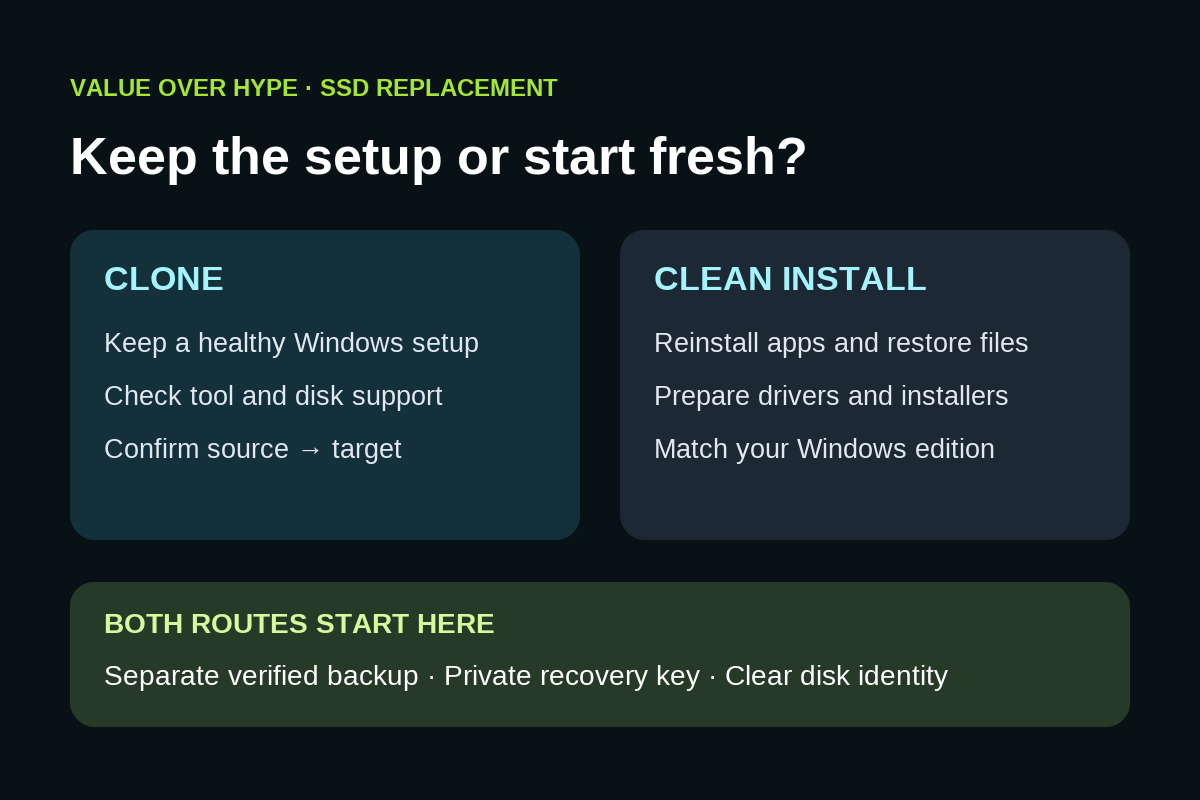
01
Healthy system, many configured apps
Check a supported cloning tool and its disk-layout requirements before buying an adapter or software.
02
Fresh start, manageable setup work
Prepare Windows installation media, the correct edition, drivers, app installers and a tested file backup.
03
Only adding a second data drive
You may not need to migrate Windows at all. Keep the boot drive and add supported storage separately.
First check whether Windows actually needs to move
A second supported data SSD can provide space for files or game libraries while the original drive continues to run Windows. Replacing the only boot SSD is a different job: the new drive needs a bootable operating system, not merely a copy of your Documents folder.
This guide is for planning a Windows SSD replacement on the same PC. It is not a universal disassembly, partition-deletion or data-recovery procedure. Check the exact computer’s service manual and the drive interface, dimensions and mounting parts first. Work- or school-managed devices belong with their IT team.
Cloning suits a working setup you want to keep
A disk-cloning tool can transfer the operating system and its supporting partitions, applications and data to a replacement disk. Copying visible files in File Explorer is not the same operation. Our reason to consider cloning is continuity: fewer apps to reinstall and fewer preferences to rebuild.
Check the actual tool’s supported disks, operating systems, encryption rules and connection order. Acronis recommends placing the new target drive in its intended internal location for a system-disk migration; other manufacturer workflows can differ. Do not assume a Windows clone will boot normally while left on a USB drive.
Included software is not universally free for every drive. Kingston’s Acronis edition has qualifying-hardware requirements. Check eligibility and features before counting software as a zero-cost part of the job. A clone can carry existing software problems with it; it is not a guaranteed cure for crashes or malware.
Sources: Acronis: disk-cloning precautions and installation order · Kingston: Acronis download and qualifying hardware · Acronis: transferring Windows, applications and data
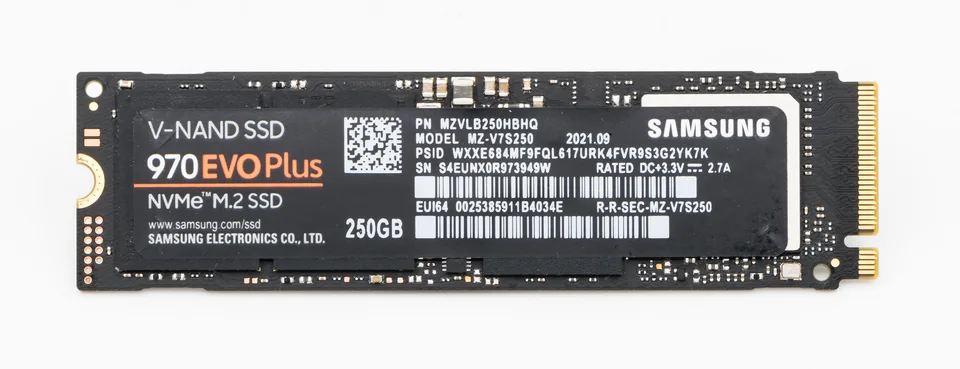
A clean install trades continuity for a fresh start
A clean installation removes the existing files, applications and settings on the selected installation target. Plan to reinstall your programs and restore your own files afterward. It is different from an in-place Windows reinstall that preserves selected content on an already running system.
Our practical preparation list is the software you actually use: installers from official sources, account access, any needed license information, game saves, browser data and project folders. Do not assume cloud sign-in brings back every application or every local file. Open a few important backup files before relying on them.
Prepare the computer manufacturer’s network and storage drivers and its recovery instructions before removing the old SSD. ASUS, for example, documents that some installation environments need an Intel Rapid Storage Technology driver to see the drive. An installer that cannot see an SSD is not a reason to delete other disks or change storage-controller settings blindly.
Sources: Microsoft: reinstall Windows using installation media · ASUS: missing installation drives and Intel RST drivers
The backup and recovery checks come first
Keep a separate verified backup outside both the source drive and the replacement target. Acronis recommends backing up and validating the original disk before cloning. Our additional acceptance check is simple: can you locate and open the files you cannot afford to lose? A migration copy is not protection from choosing the wrong destination.
If BitLocker or device encryption is enabled, confirm you can privately retrieve the recovery key before hardware work. Hardware changes can trigger recovery. Keep the key out of screenshots, shared documents and support messages. Follow the exact migration tool’s encryption requirements; do not disable encryption as a blanket SSD-upgrade step.
Check Windows activation and the installed edition before starting. Match Home with Home or Pro with Pro when reinstalling. A digital license can allow reinstalling the same edition on the same device without entering a product key, but replacing a drive does not grant a different edition or unrestricted transfer rights.
Sources: Acronis: disk-cloning precautions and installation order · Microsoft: reinstall Windows using installation media · Microsoft: back up your BitLocker recovery key · Microsoft: Windows activation
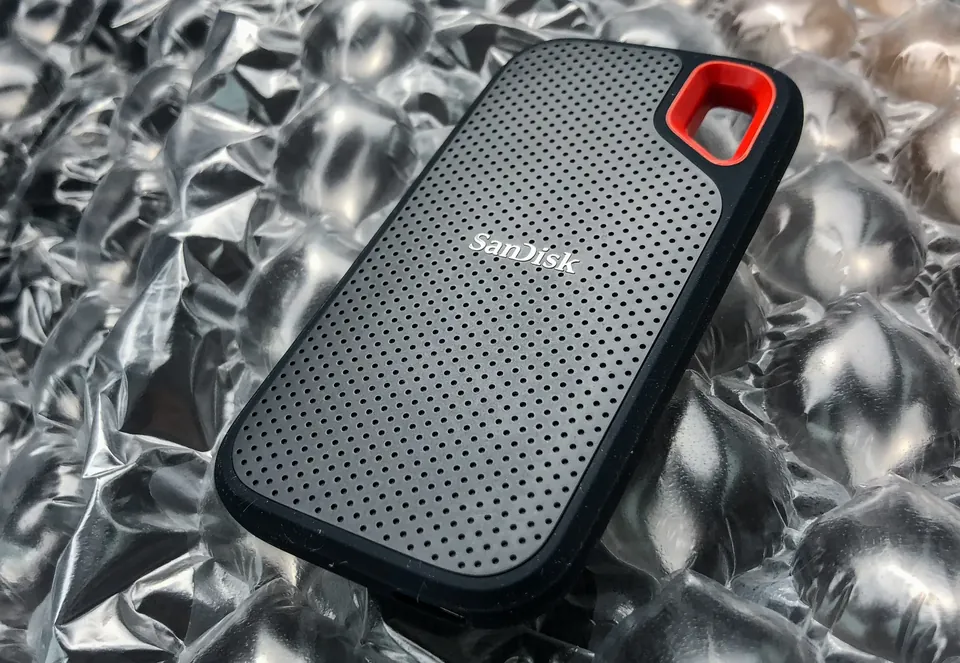
Check the destination before committing
Write down each drive’s model, capacity and role: old source, new target or separate backup. Cloning can overwrite the target. So can installation and formatting. If the software’s disk list does not make those roles unambiguous, stop rather than guessing from “Disk 0” or a drive letter.
A smaller target is not automatically safe because File Explorer shows less used space than its capacity. Partition layout and what the tool can resize matter too. Confirm the specific migration tool supports the source-to-target arrangement and inspect its proposed result before committing. Leave working space for future updates and files.
For a one-slot laptop, include the appropriate connection hardware or a supported backup-and-restore route in the plan. An enclosure must match SATA versus NVMe and physical size; the shape of a USB connector does not answer that. Avoid buying an adapter until the chosen procedure tells you what it needs.
Sources: Acronis: disk-cloning precautions and installation order · Acronis: destination deletion and partition sizing
Compare the whole job, including your time
For cloning, list the compatible replacement SSD, required adapter or enclosure, separate backup storage, any actual software charge and installation help. For a clean install, list the same hardware and backup needs plus time to reinstall apps, restore files and resolve drivers. Use current quotes for exact parts; these are cost categories, not verified retail offers.
Neither route wins on a universal time estimate. A small, simple setup may be straightforward to rebuild; a machine with many configured work tools may benefit more from preserving its environment. Conversely, preserving a poorly understood problem can cost more time than setting up a healthy installation.
If the drive disconnects, reports read errors or holds your only copy of irreplaceable files, pause. Repeated attempts and destructive fixes are not a substitute for a recovery plan. A professional assessment can be the better value before an upgrade turns into permanent data loss.
Keep the old drive until the replacement is proven
Before erasing or repurposing the old SSD, confirm the computer boots from the replacement using the manufacturer’s supported procedure. Check the expected capacity, activation, network connection, important applications and representative files. If encrypted, verify protection and recovery arrangements again. Keep your separate backup afterward.
Try the real task that prompted the upgrade, such as installing a game or opening a project. More free space is useful, but neither cloning nor reinstalling guarantees higher frame rates. These are checks we recommend, not migrations or benchmarks we performed.
Our value verdict: preserve a healthy setup when the migration is supported and saves meaningful work. Start fresh when the setup effort is manageable and that is the outcome you actually want. Delay either route if the backup, recovery key or target drive remains uncertain.
Common buying questions
Can I just copy the Windows folder to the new SSD?
No. A bootable installation needs more than visible Windows files. Use a supported disk-migration process or official installation media.
Do I need to buy Windows again after replacing the SSD?
Not automatically. Check the existing activation and license, and reinstall the same edition on the same device when applicable. Do not assume an SSD change grants a new edition.
Should I erase the old SSD immediately after cloning?
No. First verify the replacement boots and your applications and important files work. Retain a separate backup before any later erasure.
Will a clean install fix a failing SSD?
It cannot repair failing storage hardware. Protect recoverable data and diagnose the hardware rather than repeatedly reinstalling onto an unreliable drive.
Sources & how we reached our advice
Checked November 5, 2026. We used the primary documentation below for compatibility and specifications. Buying thresholds and decisions are our editorial judgment. This guide does not claim hands-on benchmarks, an exhaustive product ranking, or a test score.
- Acronis: disk-cloning precautions and installation order
- Kingston: Acronis download and qualifying hardware
- Microsoft: reinstall Windows using installation media
- ASUS: missing installation drives and Intel RST drivers
- Microsoft: back up your BitLocker recovery key
- Microsoft: Windows activation
- Acronis: transferring Windows, applications and data
- Acronis: destination deletion and partition sizing
No affiliate links. Editorial standards · Send a correction