
Laptop buying decisions
512GB vs. 1TB SSD: how much laptop storage do you need?
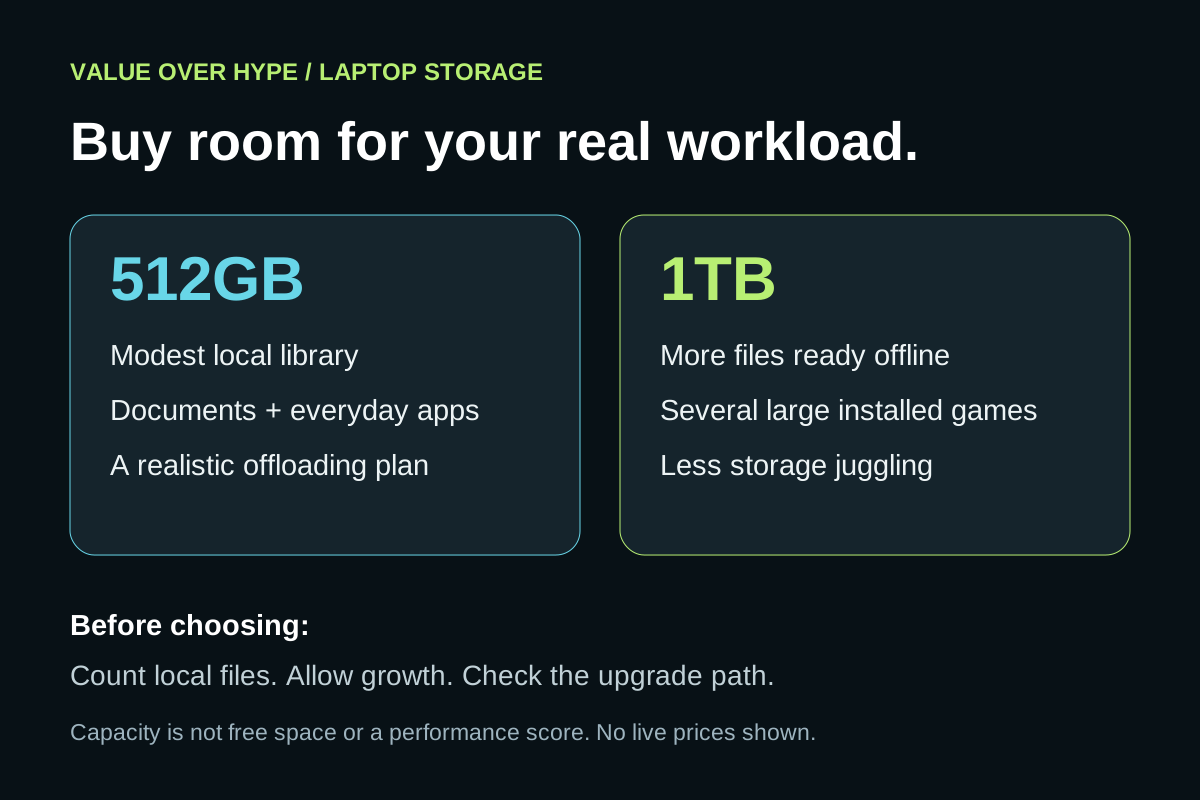
Choose laptop storage around the files and games you keep locally, the factory upgrade price and whether a later upgrade is practical.
01
Mostly documents and online services
Start by checking your current used storage. Do not pay for 1TB solely because it sounds more future-proof.
02
Several large games or offline projects
Price 1TB alongside 512GB. Less deleting and redownloading can be worth a reasonable premium.
03
Thinking of upgrading later
Verify the exact laptop’s supported drive and slot layout first. Replaceable does not mean a spare slot.
Start with what must stay on the laptop
Before comparing models, look at the computer you already use. In Windows, Settings → System → Storage breaks down what is using space; File Explorer → This PC shows available space. Record your apps, personal files and installed games, then decide which of those need to move to the new laptop.
Separate files you need offline from archives you rarely open. Cloud storage can reduce the local copy you keep, but an online-only file is not a reliable plan when you have no connection. Files you choose to keep available offline still need local space. Include school, work or travel requirements in that decision.
Our buying worksheet is simple: current useful local data + new apps and games you plan to install together + expected file growth + working room for updates and projects. Do not add every game you own if you only keep two installed. Equally, do not assume you will happily uninstall something every week if that already frustrates you.
Sources: Microsoft: inspect and free up Windows storage · Microsoft: OneDrive Files On-Demand and offline files
- Write down current used storage, then identify files you genuinely no longer need. Do not delete the only copy to make a purchase fit.
- List the programs, games and offline media you want available at the same time.
- Leave room for your next project and system updates instead of buying to the exact total.
512GB on the box is not 512GB of free space
Drive makers normally express capacity in decimal bytes. Binary units describe the same bytes with a different number: 512 billion bytes is about 476.84GiB, while one trillion bytes is about 931.32GiB. Windows commonly labels binary capacity values as GB. This unit conversion is not storage disappearing and is not a prediction of free space.
Formatting, the operating system, installed applications and recovery or system partitions also use capacity. The amount depends on the actual machine and setup. Avoid advice that subtracts one fixed Windows size from every laptop and declares the remainder available for games.
A 1TB drive offers nearly twice the nominal capacity of 512GB, not exactly twice: 1TB is 1,000GB in decimal labeling. More capacity gives you more room; it does not by itself establish faster game performance, better reliability or a better SSD controller. Compare exact drive and laptop specifications separately.
Sources: Seagate: decimal and binary storage capacity · Apple: how storage capacity is measured · Microsoft: Windows system and recovery partitions
For games, count the ones you want installed together
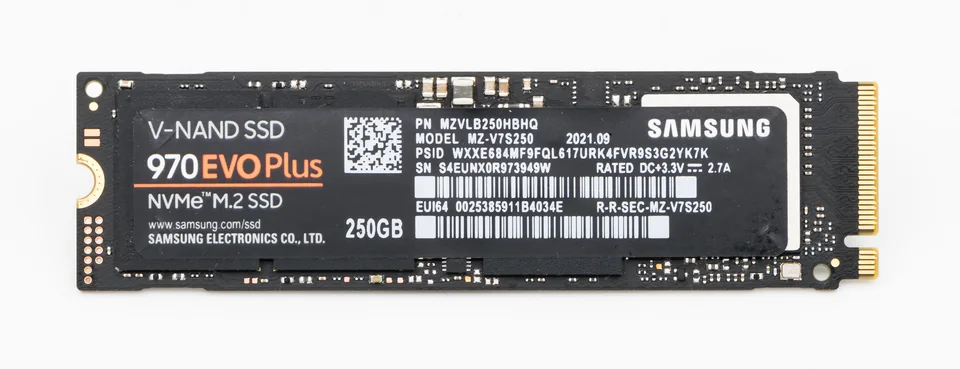
Large games can quickly change the calculation. The publisher’s Steam listing for Baldur’s Gate 3 specifies 150GB of available storage and an SSD. CD Projekt’s published Cyberpunk 2077 PC requirements specify a 70GB SSD requirement. These are dated requirement examples checked October 31, 2026, not our measurements of download size or current installed footprints.
Do not turn those numbers into a guaranteed games-per-drive count. Versions, optional content and update work can change the space you need. Check the current launcher and publisher information for the games you actually play, including any content you intend to install.
Our judgment: a 512GB laptop is more workable for someone who rotates a small selection than for someone keeping several large games ready at all times. A 1TB configuration can reduce storage juggling, but it is not permission to sacrifice the graphics performance or memory your games require just to get a bigger drive.
Sources: Larian Studios: Baldur’s Gate 3 publisher listing on Steam · CD Projekt: Cyberpunk 2077 PC system requirements
Keep working room, not a magic percentage
Microsoft says Windows updates require free space and that the amount varies. Its examples include 6–11GB or more for feature updates and 2–3GB or more for quality updates. Those are update examples, not a sufficient permanent reserve for every computer.
Your workload may need additional room for downloads, temporary files, editing projects or game updates. We do not recommend one universal “keep 10% free” rule as a capacity guarantee. If your planned workload already fills the drive, step up in capacity or make a realistic offloading plan before buying.
When the old computer is nearly full, check what uses the space rather than assuming all of it is essential. Review cleanup suggestions carefully and protect important files. A larger drive is convenient, but it is not a substitute for knowing where your data lives.
Sources: Microsoft: inspect and free up Windows storage · Microsoft: free space required for Windows updates
Compare the factory premium with the complete later-upgrade cost
Compare two otherwise equivalent laptop offers: same processor, graphics, RAM, display, condition, seller and warranty. The price gap is not a storage-upgrade premium if the more expensive configuration changes other important parts too. No current laptop price is being quoted in the example below.
Illustrative arithmetic only: suppose a 512GB laptop costs $750 and the otherwise identical 1TB version costs $830. The factory premium is $80. If a later supported 1TB replacement hypothetically costs $70, a necessary migration adapter $20 and quoted labor $60, that route adds $150, bringing the 512GB purchase plus upgrade to $900. The factory option is $70 less in this invented scenario.
These inputs are not current offers, a compatible parts list or a savings promise. Tax, delivery, backup equipment and mounting parts are excluded; include them if they differ in your actual quotes. DIY labor, equipment already owned and an empty second slot can change the result. Do not assume a resale credit for the removed SSD.
Read the exact model’s service documentation before treating “upgrade later” as a plan. Dell’s Inspiron 16 5630 documentation, for example, lists one M.2 2230/2280 SSD slot. A replaceable drive can require replacing the existing one rather than adding another. Other models differ. For a laptop with no supported user storage upgrade, buying sufficient capacity upfront matters more.
External storage helps, but it changes how you use the laptop
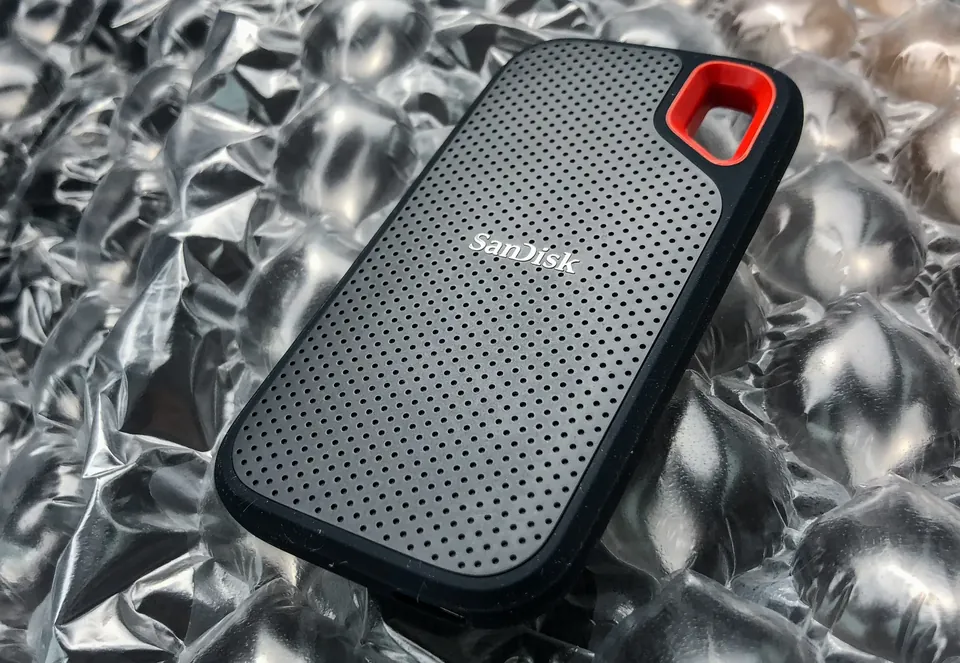
An external drive can be a sensible home for archives or additional usable copies of files. It also means carrying and connecting another device. Count it in your total budget if the smaller internal drive only works with that purchase.
For games, check the launcher, connection and individual game requirements before assuming external storage replaces internal capacity without tradeoffs. For travel, think about whether the cable and drive will actually be with you when you need the files.
A file moved onto an external drive is still only one copy. Maintain a separate usable backup of important data; buying either 512GB or 1TB does not solve that responsibility.
Our value rule: pay for useful room, not unused capacity
Choose 512GB when your real local workload fits comfortably, the saving is meaningful and your future storage plan is practical. Choose 1TB when it solves a clear problem: several large installed games, substantial offline files, growing projects or an awkward upgrade path.
If neither option comfortably fits the workload, compare larger configurations or a deliberate storage workflow rather than forcing a 1TB answer. If 512GB already meets your needs, keep the saving for something you will notice, such as the right display or enough system RAM. Storage capacity and memory are different decisions.
Common buying questions
Is 512GB enough for a student laptop?
It can be for documents, ordinary apps and a modest offline library. Large course datasets, video projects, virtual machines or installed games can change that. Check your actual software and course needs rather than treating “student” as one workload.
Is 1TB automatically faster than 512GB?
No performance conclusion follows from capacity alone. Compare the exact SSD and laptop configuration. This guide makes no benchmark claim for either capacity.
Can cloud storage replace a larger internal SSD?
It can reduce the files stored locally if your workflow permits online-only access. Files needed offline still occupy space, and cloud subscriptions or external drives belong in the complete cost comparison.
Sources & how we reached our advice
Checked October 31, 2026. We used the primary documentation below for compatibility and specifications. Buying thresholds and decisions are our editorial judgment. This guide does not claim hands-on benchmarks, an exhaustive product ranking, or a test score.
- Microsoft: inspect and free up Windows storage
- Microsoft: OneDrive Files On-Demand and offline files
- Seagate: decimal and binary storage capacity
- Apple: how storage capacity is measured
- Microsoft: Windows system and recovery partitions
- Larian Studios: Baldur’s Gate 3 publisher listing on Steam
- CD Projekt: Cyberpunk 2077 PC system requirements
- Microsoft: free space required for Windows updates
- Dell: Inspiron 16 5630 internal slots
No affiliate links. Editorial standards · Send a correction