
Desktop storage decisions
SATA SSD or NVMe for an older desktop?
Choose a compatible SSD for an older desktop: check SATA and M.2 support, NVMe boot limits, shared ports and the full cost before buying an adapter.
01
Working SATA connections
Check the bay, data cable and correct power connection; price a complete installation.
02
Native M.2 slot
Confirm its protocol, supported length, boot support and shared-port restrictions.
03
Adapter required
Verify the whole motherboard–adapter–SSD combination before paying.
Decide what the new drive must do
This is researched purchase advice, not a speed test. We have not benchmarked the pictured SSD or motherboard. Our aim is to help you avoid buying a drive that fits badly, cannot start your operating system or needs more parts than expected.
Write down whether you are replacing the startup drive, adding room for games or moving large working files. Those are different jobs. A drive used only for extra storage does not have the same boot requirement as the drive that starts Windows.
If your existing SSD has enough space and works normally, do not replace it just because an NVMe listing advertises a bigger transfer-rate number. A specification is not a measurement of the improvement in your own applications. For a slow or unstable PC, establish the cause before spending.
M.2 is a shape, not a compatibility guarantee
Keep three questions separate: physical fit, electrical interface and boot support. M.2 describes a family of small cards and connectors; an M.2 SSD may use SATA or PCIe/NVMe. A slot accepting the card physically does not establish that it speaks the same protocol.
Length matters too. For example, 2280 describes a 22 mm wide, 80 mm long M.2 card. Check the supported length and mounting point in the exact system manual. Do not buy from the notch pattern or a photograph alone. M.2 and mSATA are not interchangeable.
For a conventional desktop bay upgrade, specify a 2.5-inch SATA SSD explicitly. Neither the words “SSD” nor a case dimension alone identify the interface. Record the complete PC model or motherboard model and revision before looking for compatible parts.
Sources: Kingston: SSD compatibility FAQ · Kingston: SSD form factors
Read the storage table, including its footnotes
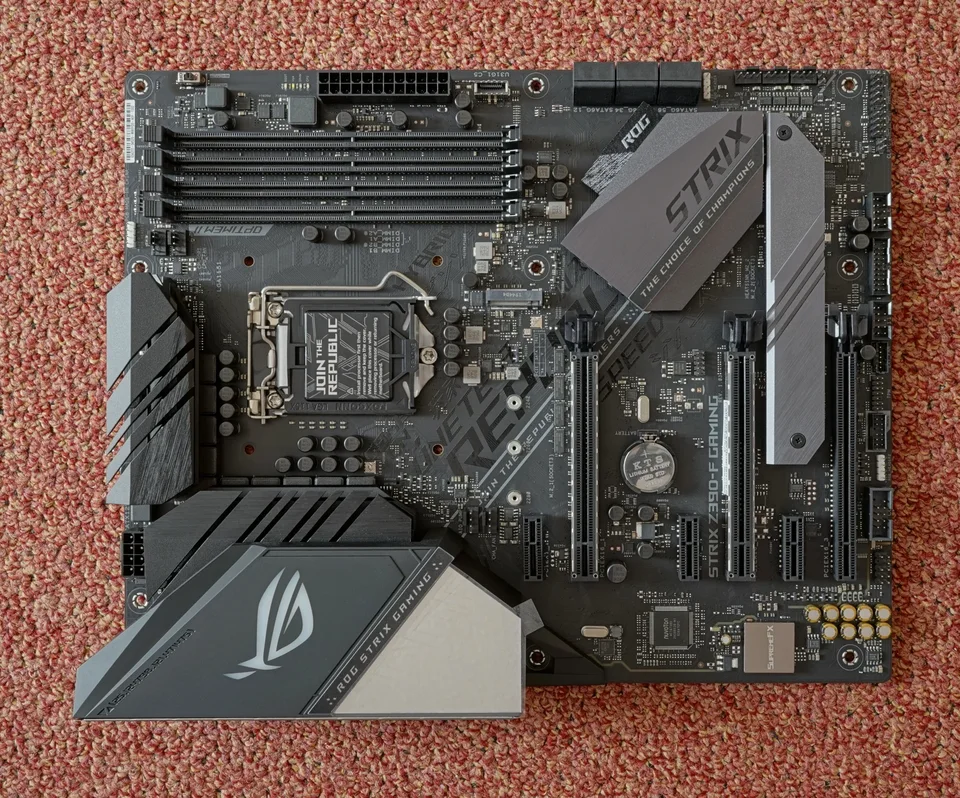
The motherboard manual should say which protocols each M.2 socket supports and which SATA connectors remain usable. ASUS documents examples where one socket accepts SATA and PCIe while another accepts PCIe only. It also shows configurations where using an M.2 socket disables a particular SATA connector. Those are model-specific examples, not rules for every board.
Check the actual sockets and occupied connections in your PC against its manual. A slot hidden under another component is not necessarily accessible without extra work. Include the correct screw, standoff and any required manufacturer-specified thermal hardware in your plan.
If a suitable native NVMe slot and boot support are confirmed, compare compatible drives at the capacity you need. Do not assume SATA always costs less, or that the newest PCIe generation will deliver its advertised peak speed in an older slot.
Sources: ASUS: checking storage support and shared ports
A SATA upgrade still needs the right parts
A 2.5-inch SATA SSD in a desktop normally needs a SATA data connection to the motherboard and a suitable SATA power connection from the power supply. It also needs secure mounting: a case with only a larger drive bay may require a bracket or a system-specific caddy.
Price what is missing rather than assuming the bare drive box includes it. Check the prebuilt service manual if its mounting or power arrangement is proprietary. Do not improvise power wiring or assume a loose modular PSU cable belongs to your power supply.
Before opening the PC, back up important files and follow the system maker’s power-disconnection and anti-static instructions. This article is a buying checklist, not a substitute for the model-specific service procedure.
An NVMe adapter does not add boot support by itself
An adapter can provide a physical connection, but the motherboard, adapter and SSD still need to work together. StarTech says booting through an adapter depends on the BIOS/UEFI detecting the SSD and supporting that boot path. Solidigm likewise separates hardware, firmware, operating-system and driver support.
For an older desktop, verify the exact supported combination before treating an adapter as a startup-drive solution. A drive appearing as extra storage is not enough evidence that the PC can boot from it. Also check the usable expansion slot, physical clearance and the adapter’s supported drive interface.
If that evidence is missing, keep the adapter out of your purchase plan. A supported SATA replacement may be the more practical choice. Do not rely on unofficial firmware modifications or disable security features just to make an inexpensive storage upgrade work.
Sources: StarTech: booting through a storage adapter · Solidigm: NVMe system requirements
Compare complete quotes, not drive-only prices
Use the same required capacity when comparing routes. For each candidate, record its exact part number, interface, physical dimensions, warranty terms, seller, current stock and delivered total. If a shop uses one listing for several capacities, verify the selected configuration before checkout.
Add mounting parts, cables or an adapter only when required, plus any paid installation or migration. Then ask what the extra spending buys in your actual workload. This is an editorial value judgment, not a claim that either interface wins every price comparison.
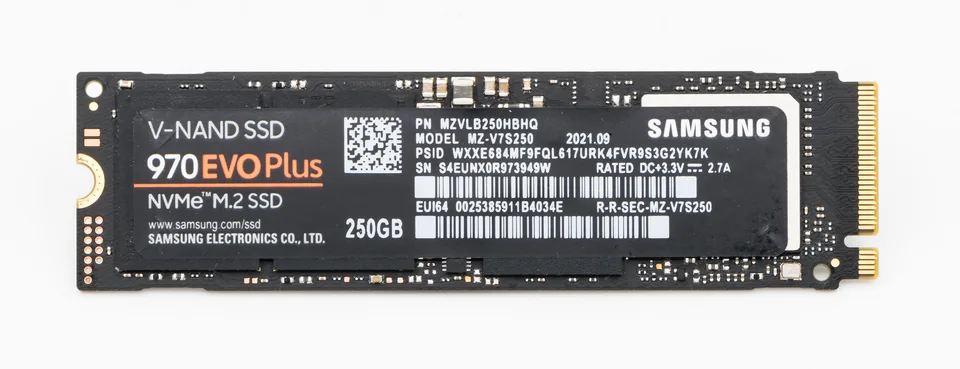
We are not publishing a live deal or an in-stock SKU recommendation here. The photographed 250GB drive identifies the hardware in the image; it is not an offer. Check price and stock for the exact compatible product when you are ready to buy.
Plan the move separately from the purchase
Choose the hardware first, then decide how to transfer your system or files. Keep a verified backup separate from the drive being replaced. Do not initialize, format or erase a populated disk merely because a generic setup guide says to prepare a new drive.
If the new SSD will start the PC, use our cloning-versus-clean-install guide to plan that work. If you only need more game storage, check the game and launcher requirements before moving libraries. Keep the existing drive intact until the replacement and your backup have been checked.
Common buying questions
Can I put an NVMe SSD in any M.2 slot?
No. Check the slot’s supported interface and card length in the exact system manual. Physical fit alone does not prove NVMe support.
Will a PCIe adapter let an old PC boot from NVMe?
Not automatically. The motherboard firmware must support booting through that adapter with the SSD. Verify the combination rather than assuming an available PCIe slot is enough.
Is SATA always the cheaper upgrade?
No. Compare compatible drives of the same capacity and include required cables, mounts, adapters and installation. The simplest supported route can be better value even when the bare drive costs more.
Sources & how we reached our advice
Checked November 9, 2026. We used the primary documentation below for compatibility and specifications. Buying thresholds and decisions are our editorial judgment. This guide does not claim hands-on benchmarks, an exhaustive product ranking, or a test score.
- Kingston: SSD compatibility FAQ
- Kingston: SSD form factors
- ASUS: checking storage support and shared ports
- Patriot: desktop SATA installation parts
- StarTech: booting through a storage adapter
- Solidigm: NVMe system requirements
No affiliate links. Editorial standards · Send a correction