
Desktop buying decisions
Mini PC vs. tower desktop: which is the better buy?
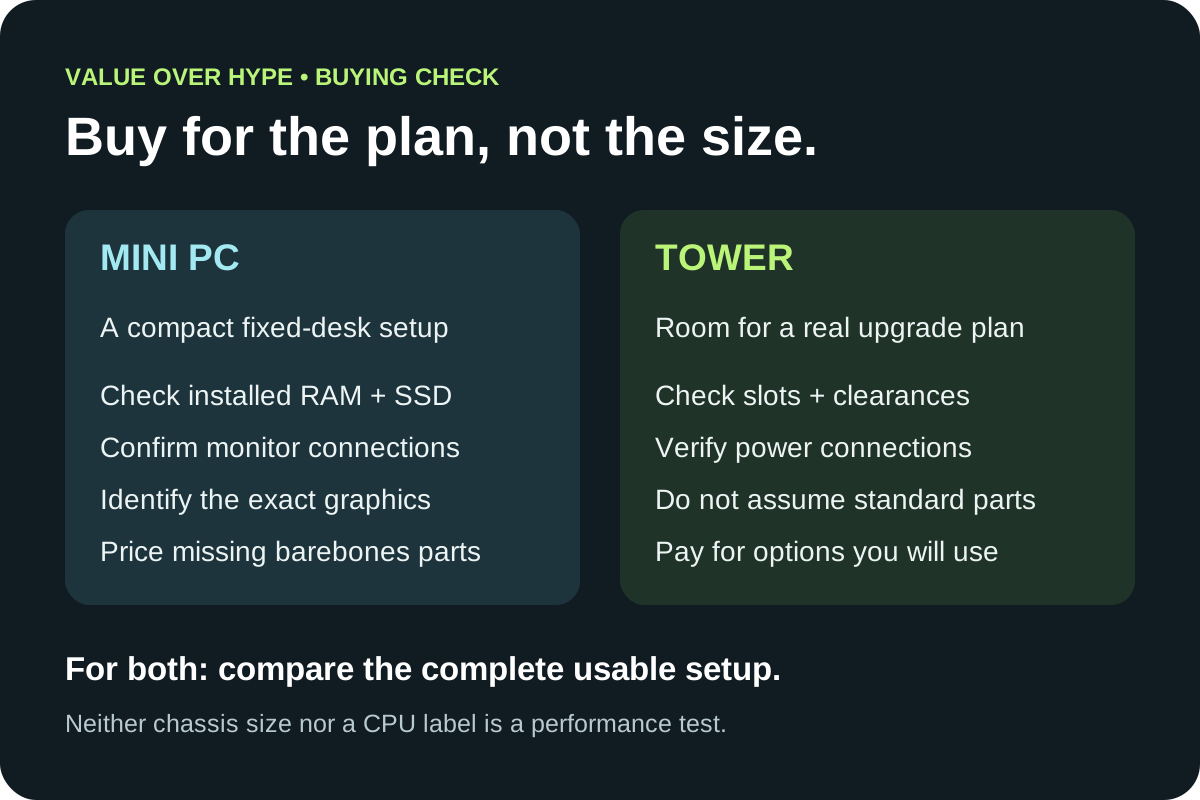
Compare the complete cost, memory and storage access, graphics needs and desk space before choosing a mini PC over a tower.
01
Small desk, ordinary apps
Compare a ready-to-use mini PC with enough memory, the right display outputs and a realistic support policy.
02
Gaming or a later graphics upgrade
Check the exact GPU now and the physical upgrade path later. A small box with a powerful CPU is not automatically a gaming-PC substitute.
03
The cheapest listing is barebones
Add missing memory, storage, software and assembly before comparing it with a complete tower.
Start with the desk and the work, not the size of the box
Write down your daily applications, the monitors you will connect and any work that needs a particular GPU or operating system. A browser-and-documents desk, a video-editing station and a gaming setup are different purchases even if the same compact computer appears in all three searches.
Then measure the usable space. Include the power supply, cable bends, access to front ports and the ventilation clearance required by the manufacturer. A box that fits behind a monitor is less convenient if you must move the screen every time you connect a drive. Check the mount and mounting hardware rather than assuming they are included.
Both a mini PC and a tower normally need a separate display and input devices. Being small enough to carry does not make a mini PC a laptop: decide whether every destination already has the screen, power and accessories you need.
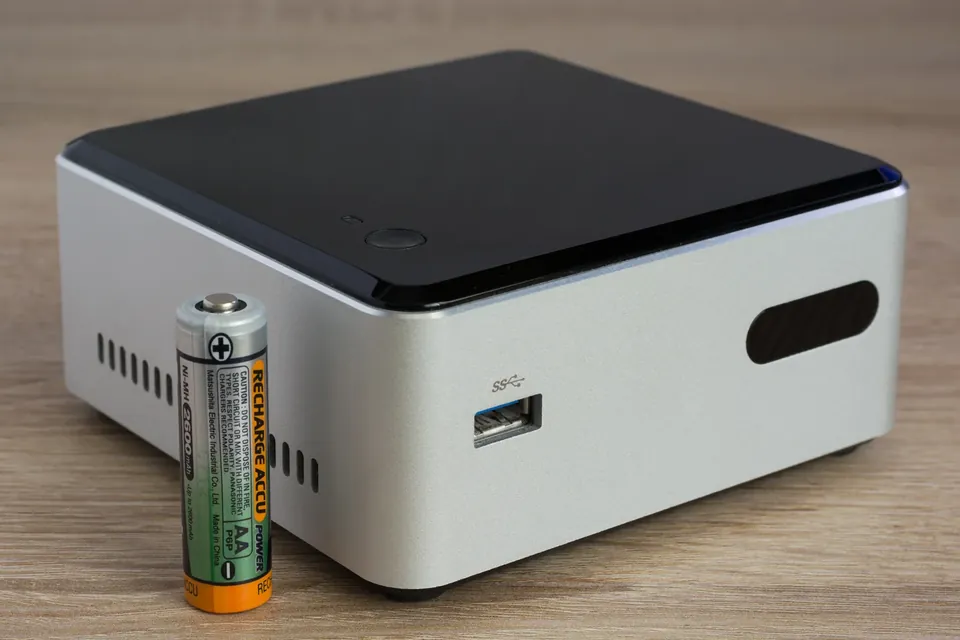
Similar model names can hide very different memory upgrades
ASUS’s NUC 14 Pro specification table lists two DDR5 SO-DIMM memory positions. The NUC 14 Pro AI announcement’s specification table instead lists embedded LPDDR5x memory on the chip, in 16GB or 32GB configurations. Do not carry the ordinary Pro’s removable-module upgrade plan over to the Pro AI just because the names are similar.
These are specification examples checked November 2, 2026, not a recommendation to buy either family. The ordinary Pro page combines multiple configurations; it does not establish what a particular seller’s box contains. Match the full model code, installed memory and supported service procedure before paying.
Our buying rule: when the memory is not a supported replaceable module, buy enough for your foreseeable workload at the outset. When it is replaceable, price a compatible upgrade and check how many positions are already occupied. Two positions does not necessarily mean one is empty.
Sources: ASUS NUC 14 Pro: configuration-specific specifications · ASUS NUC 14 Pro AI: official announcement and specifications
Check storage separately from memory
The NUC 14 Pro specification table lists M.2 2280 and M.2 2242 storage support, with additional 2.5-inch SATA support on tall configurations. The NUC 14 Pro AI announcement’s specification table lists one M.2 2280 SSD position. Those layouts are not interchangeable; choose the exact chassis and configuration before planning an extra drive.
An accessible SSD is useful, but replacing your existing drive is different from adding a second one. Ask which positions are populated, which drive sizes and interfaces are supported, and whether any cable, bracket or mounting screw is required. Include backup or migration work in a replacement plan.
If your answer is “I can always use an external drive,” include its price and another cable in the desk plan. An external archive can work well, but do not buy too little internal storage on the assumption that every app or game will behave the same from every external connection.
Sources: ASUS NUC 14 Pro: configuration-specific specifications · ASUS NUC 14 Pro AI: official announcement and specifications
For gaming, identify the GPU before comparing prices
Intel distinguishes integrated graphics, which shares system memory, from discrete graphics with dedicated memory. It also notes that small-form-factor computers can contain discrete GPUs. “Mini PC” therefore does not identify the graphics hardware, and a large RAM number is not the same thing as dedicated graphics memory.
Check the games and software you actually use. Look for evidence for the exact processor, GPU, memory configuration and power setup at your intended resolution and settings. This guide contains no frame-rate tests and makes no promise that one CPU name or chassis size meets a game’s requirements.
If your plan is to install a conventional desktop graphics card later, require a documented slot, enough physical space and a compatible power supply. Do not assume that USB-C, USB4 or Thunderbolt means any external GPU arrangement will work; compatibility and the complete enclosure cost need their own check. If the upgrade path is unclear, treat it as unavailable when deciding what to pay.
Sources: Intel: integrated and discrete graphics differences
A tower gives you options only if its parts support them
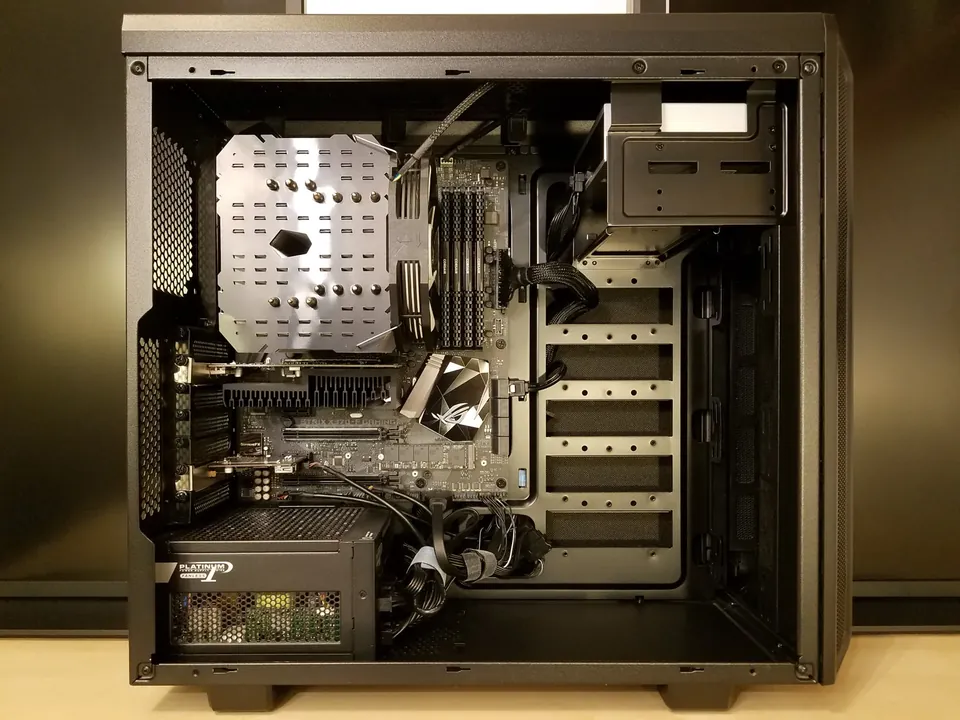
Dell’s XPS 8960 documentation lists a PCIe x16 slot, two PCIe x4 slots and two M.2 SSD slots. That is a concrete example of expansion information you can look for, not a promise that any card or drive will fit and not a current purchase recommendation.
Physical clearance, occupied slots, power connections, cooling and manufacturer support still matter. A tower can use proprietary parts, and an expansion slot may be blocked by another component. Read the exact system’s manual instead of assuming that all full-size PCs have the same upgrade freedom.
Pay for this flexibility when you have a plausible use for it: a later graphics change, additional internal storage or a required expansion card. If your needs are stable and the mini PC already meets them, unused tower space does not create value by itself.
Sources: Dell XPS 8960: internal slots and connectors
Compare complete setups, including what the listing leaves out
ASUS lists NUC 14 Pro configurations without installed memory or storage. A barebones price can therefore be a starting point rather than a working-computer price. Verify the operating system, required power adapter and other included parts in the exact offer too.
Illustrative arithmetic only: a hypothetical $350 barebones mini PC plus $50 of compatible RAM, a $70 SSD and $100 of legitimately licensed software totals $570 before tax, shipping and assembly. A hypothetical complete tower at $550 would then cost $20 less. These invented inputs are not offers, compatible part recommendations or a current software price.
Reuse changes the comparison only when you actually have compatible parts and a valid software license for that use. Count a needed display, keyboard, mouse, adapters, Wi-Fi hardware and setup labor consistently for both options. Do not count a monitor against the tower while quietly assuming the mini PC gets one free.
Sources: ASUS NUC 14 Pro: configuration-specific specifications
- Compare the same usable RAM and storage capacity, not a barebones headline against a complete PC.
- Record the seller, warranty, return terms and who handles support for parts you add yourself.
- For refurbished hardware, verify the exact configuration and software support rather than trusting a family-name photo.
Do not assume smaller means quieter or cheaper to run
Chassis dimensions alone do not measure noise, power use or sustained performance. Look for measurements of the exact configuration doing work similar to yours; we have not measured those properties for the systems discussed here. An advertised adapter wattage is not a measurement of everyday electricity consumption.
For a machine you plan to keep, check the seller’s support route, warranty coverage, replacement power-adapter availability and accessible service documentation. Consider whether you are comfortable diagnosing a self-assembled barebones setup or prefer one vendor responsible for a complete system. These practical differences can matter more than a small headline-price saving.
Our value rule: buy the smallest setup that meets the real plan
Choose the mini PC when it genuinely simplifies your desk and its complete configuration meets your present and foreseeable needs. Choose the tower when a verified expansion path or your required graphics hardware makes the extra space worthwhile.
Before ordering, write down five things: the exact model, installed memory, storage layout, graphics hardware and full ready-to-use cost. If a seller cannot resolve a detail your plan depends on, wait or choose an offer that does. A bargain that requires an unconfirmed upgrade is not a finished buying decision.
Common buying questions
Can a mini PC be used for gaming?
Some can, but the label alone tells you little. Match the exact graphics hardware and configuration to your games, settings and resolution. Do not assume a strong CPU or lots of system RAM replaces a suitable GPU.
Is mini-PC RAM always upgradeable?
No. The NUC 14 Pro and NUC 14 Pro AI examples show why exact-model documentation matters: SO-DIMM positions and embedded memory are different upgrade plans.
Is a mini PC always cheaper than a tower?
No. Compare a complete usable configuration, including any memory, SSD, software and peripherals missing from the listing. Space savings may still be worth paying for.
Sources & how we reached our advice
Checked November 2, 2026. We used the primary documentation below for compatibility and specifications. Buying thresholds and decisions are our editorial judgment. This guide does not claim hands-on benchmarks, an exhaustive product ranking, or a test score.
- ASUS NUC 14 Pro: configuration-specific specifications
- ASUS NUC 14 Pro AI: official announcement and specifications
- Intel: integrated and discrete graphics differences
- Dell XPS 8960: internal slots and connectors
No affiliate links. Editorial standards · Send a correction